Managing Payment Links
After creating a Payment Link, you can edit its details, share it through additional channels, and track its status through the payment lifecycle. This page covers the management workflows available in the Command Center and through the API.
Editing Payment Links
You can edit a Payment Link by opening it in the Command Center and clicking Edit. The edit form is similar to the creation form, but with important restrictions.
Status Requirement
Payment Links can only be edited when their status is created or scheduled. Once a link has been sent to the customer, opened, paid, or has reached any other status, it cannot be modified.
Fields That Cannot Be Changed
The following fields are permanently locked after creation and cannot be updated regardless of link status:
- Currency -- the payment currency is fixed after creation
- Merchant and submerchant -- the merchant and submerchant assignment is fixed
- Email -- the customer email address is fixed
- Mobile number -- the customer mobile number is fixed
- Country code -- the customer country code is fixed
- Callback URL -- the redirect URL is fixed after creation
Fields That Can Be Updated
When the link status is created, you can update:
- Invoice ID -- can be changed only while the link is in
createdstatus - Customer name -- first name and last name can be changed
- Total amount -- the payment amount can be modified (with restrictions for submerchants that require validated line items)
- Expiration date -- the expiry can be extended or shortened
- Order line items -- product items can be added, removed, or modified
- Bank account -- TPV bank details can be updated
- Custom attributes -- tags can be added, removed, or changed
- Description and Terms URL -- these can be updated at any time
Sharing Payment Links
You can share a Payment Link at any time after creation through multiple channels.
SMS -- send the link to the customer's mobile number via SMS.
Email -- send the link to the customer's email address.
WhatsApp -- send the link via WhatsApp (if enabled for your submerchant).
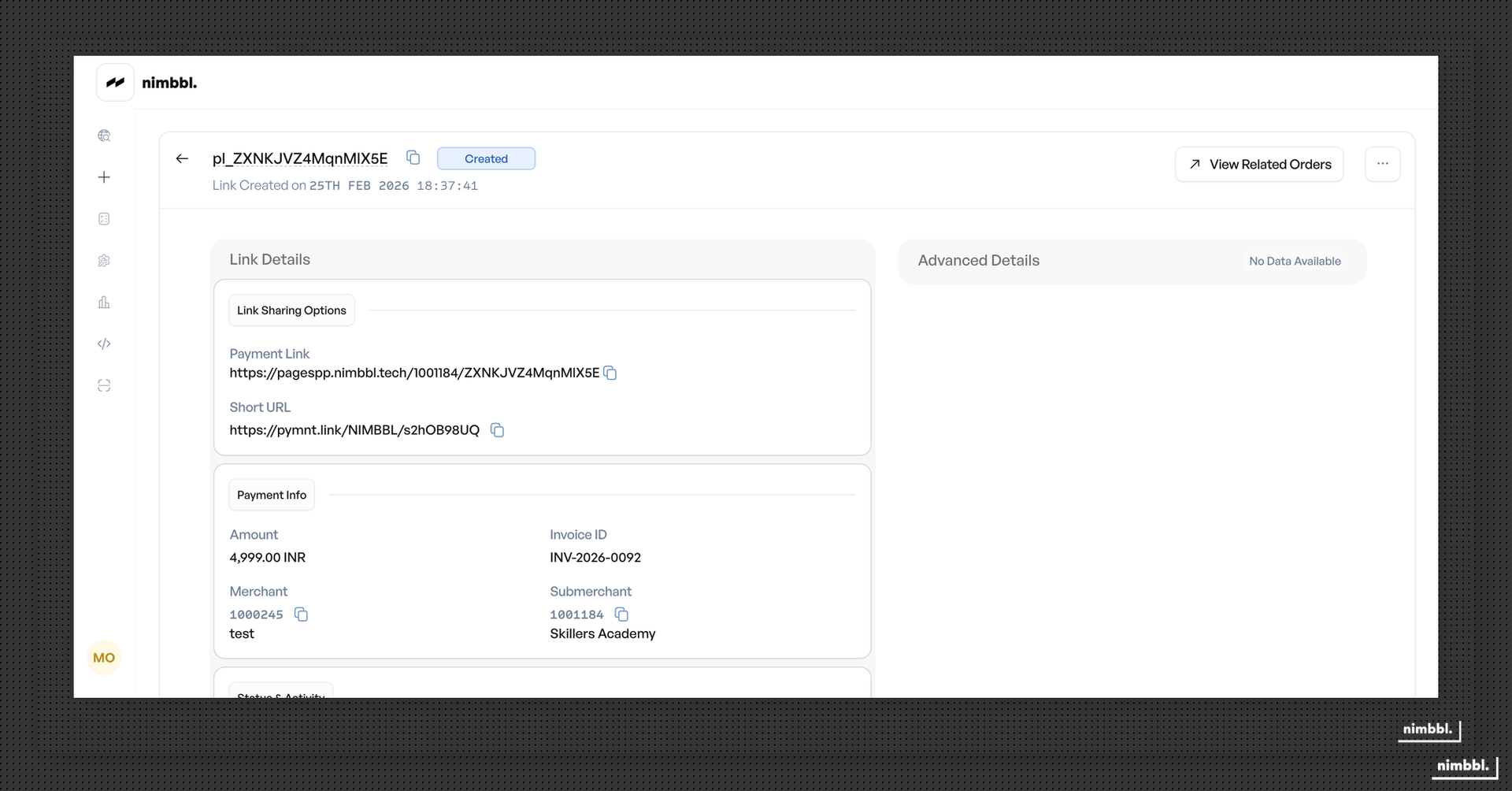
Copy link -- copy the Payment Link URL to share through social media or any other channel. Both the full URL and a shortened URL are available on the detail page. The shortened URL is more compact and suitable for SMS or messaging where character limits apply.
QR code -- download a QR code for the Payment Link as a PNG image. Customers can scan it to open the payment page directly.
If you need custom SMS or email templates, contact the Nimbbl support team at [email protected].
Notify Now
From the Payment Link detail page, use the Notify Now button to immediately resend notifications through all configured channels. This is useful when a customer has not yet opened the link and needs a reminder.
Notification limits apply:
- There is a 1-hour cooldown between Notify Now sends.
- A maximum of 3 notifications per channel per 24 hours can be sent. Once this limit is reached, Notify Now is disabled until the next day.
Cancel Notifications
If you no longer want to send scheduled notifications or reminders for a link, use the Cancel Notifications action from the detail page menu. This stops all future notifications while keeping the link itself active. Cancel Notifications is available for links in created, sent, or opened status.
View Related Orders
From a Payment Link detail page, click View Related Orders to navigate to the Orders search page pre-filtered by that link's ID. This shows all orders created from the payment link, making it easy to track payment activity.
Notification Tracking
The Payment Link detail page shows notification delivery status:
- Notifications Sent Today -- count of notifications dispatched in the current 24-hour period.
- Total Notifications Sent -- lifetime count of all notifications for this link.
- Last Sent Reminder -- timestamp of the most recent notification or reminder.
Click the notification count to open a detailed log showing each notification attempt with:
- Channel (SMS, Email, or WhatsApp)
- Date and time
- Status (Success or Failed)
- Failure reason (if applicable)
Payment Link Statuses
Every Payment Link moves through a lifecycle of statuses. Understanding these statuses helps you track payments and manage your links effectively.
| Status | Description | Can Transition To | Terminal? |
|---|---|---|---|
created | Link has been generated successfully | sent, opened, cancelled, expired | No |
scheduled | Notification is queued for future delivery | sent, cancelled, expired | No |
sent | Notification has been dispatched to the customer | opened, cancelled, expired, paid, partially-paid | No |
opened | Customer has accessed the link | paid, partially-paid, cancelled, expired | No |
paid | Full payment has been completed | -- | Yes |
partially-paid | Partial payment amount recorded | paid, cancelled, expired | No |
expired | Link has passed its expiration date | -- | Yes |
cancelled | Link has been explicitly cancelled | -- | Yes |
Terminal statuses (paid, expired, cancelled) represent the end of a link's lifecycle. No further transitions are possible from these states.
Expiration behavior -- when the expiration date and time passes, the link status automatically changes to expired. The customer sees an expiration message and cannot make payments. Expired links cannot be reactivated.
Cancellation -- you can cancel a link from the Payment Link detail page using the Cancel action button, or through the API using the Payment Link Actions endpoint with the cancel action. A link can be cancelled as long as it has not already been paid, expired, or cancelled.
If a payment made against a link is pre-authorized, the funds are held but not yet collected — the link is not marked paid until the payment is captured. You must capture (or void) the held payment to settle it. See Pre-authorization.
Tracking Payment Links
View and manage all your Payment Links in the Command Center Payment Links section. You can filter by status, search by Invoice ID, and view detailed information for each link including payment history, transaction details, and notification logs.