Payment Links
Payment links are shareable URLs that collect payment from customers. In Command Center, you create and manage them under Create --> Payment Links. For detailed concepts, creation workflows, field reference, and API integration, see the Payment Link guide in Plug and Play.
Accessing Payment Links
Go to Create --> Payment Links in the Command Center sidebar. From there you can:
- Open the list of existing payment links (default view).
- Start a new payment link using the creation form.
All detailed creation workflows, key concepts (amount vs product type, expiration, customer notification), and API details are documented in the Plug and Play Payment Link guide.
Viewing and Filtering Payment Links
The default view shows the list of all payment links. Use the filter panel to narrow results:
- Date range -- filter by start and end date.
- Status -- filter by one or more statuses.
- Amount -- filter by exact value, greater than, less than, or between.
- Currency -- filter by currency.
- Customer information -- filter by first name, last name, email, or mobile number.
- Invoice ID -- filter by invoice identifier.
- Payment Link ID -- filter by link identifier.
- Sub-merchant -- filter by sub-merchant.
- Environment -- filter by Test or Live.
Select filters and apply them to update the list. Clear filters to reset. Filter state persists in the URL so you can share filtered views with colleagues.
Payment Link Detail View
Click any Payment Link in the list to open its detail page, which shows full information and available actions.
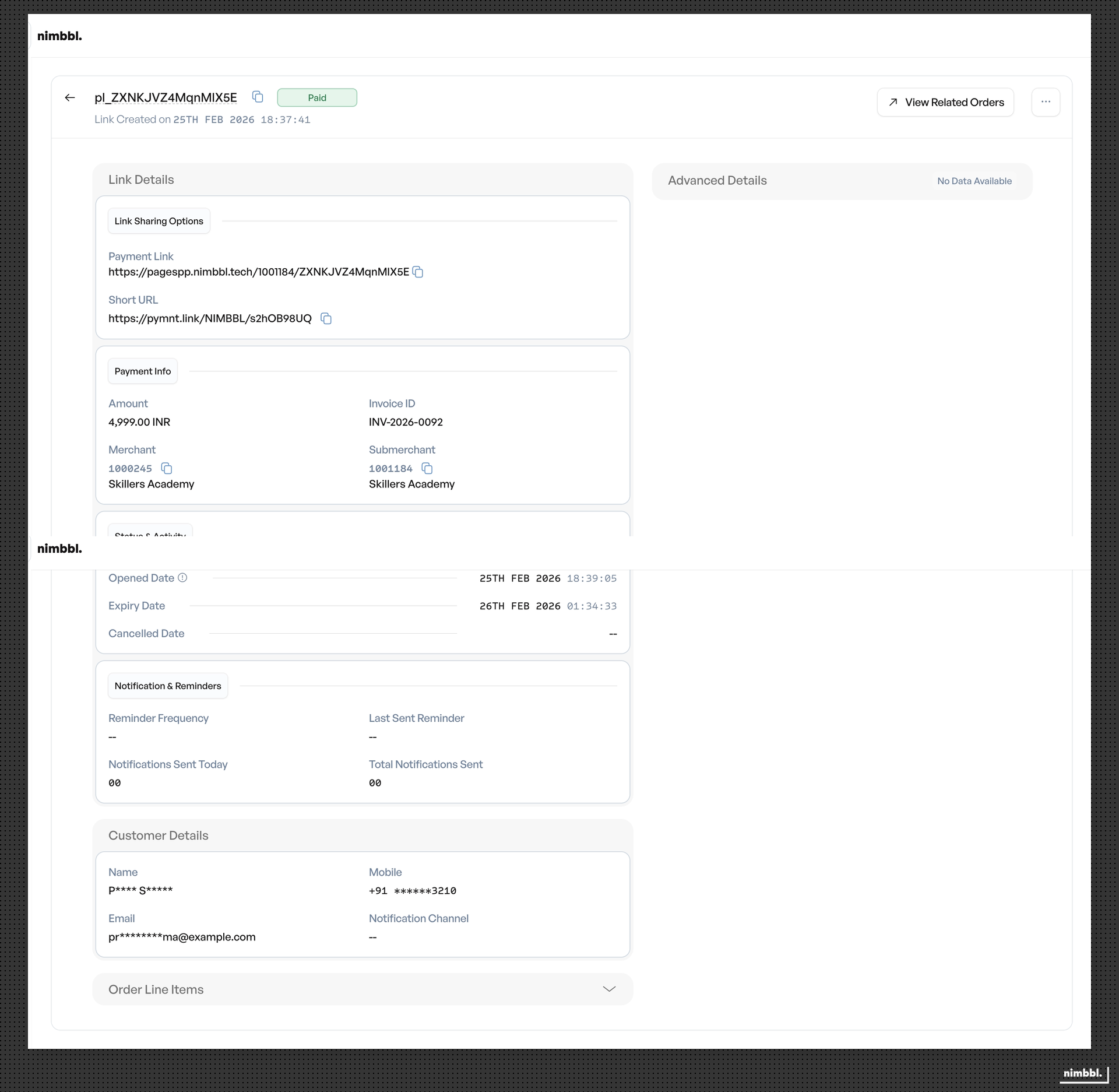
The detail page includes:
- Link summary -- Payment Link ID, Invoice ID, amount, currency, status, creation and expiration dates.
- Customer details -- name, email, mobile number.
- Link sharing options -- copy the link URL or short URL, download a QR code as PNG.
- Notification and reminders -- notification channels configured (SMS, Email, WhatsApp), reminder frequency, count of notifications sent today and all time, and the last reminder timestamp. Click the notification count to view a detailed log of every attempt with channel, timestamp, status, and failure reason.
- Related orders -- click View Related Orders to navigate to the Orders search page filtered by this link's ID.
Detail Page Actions
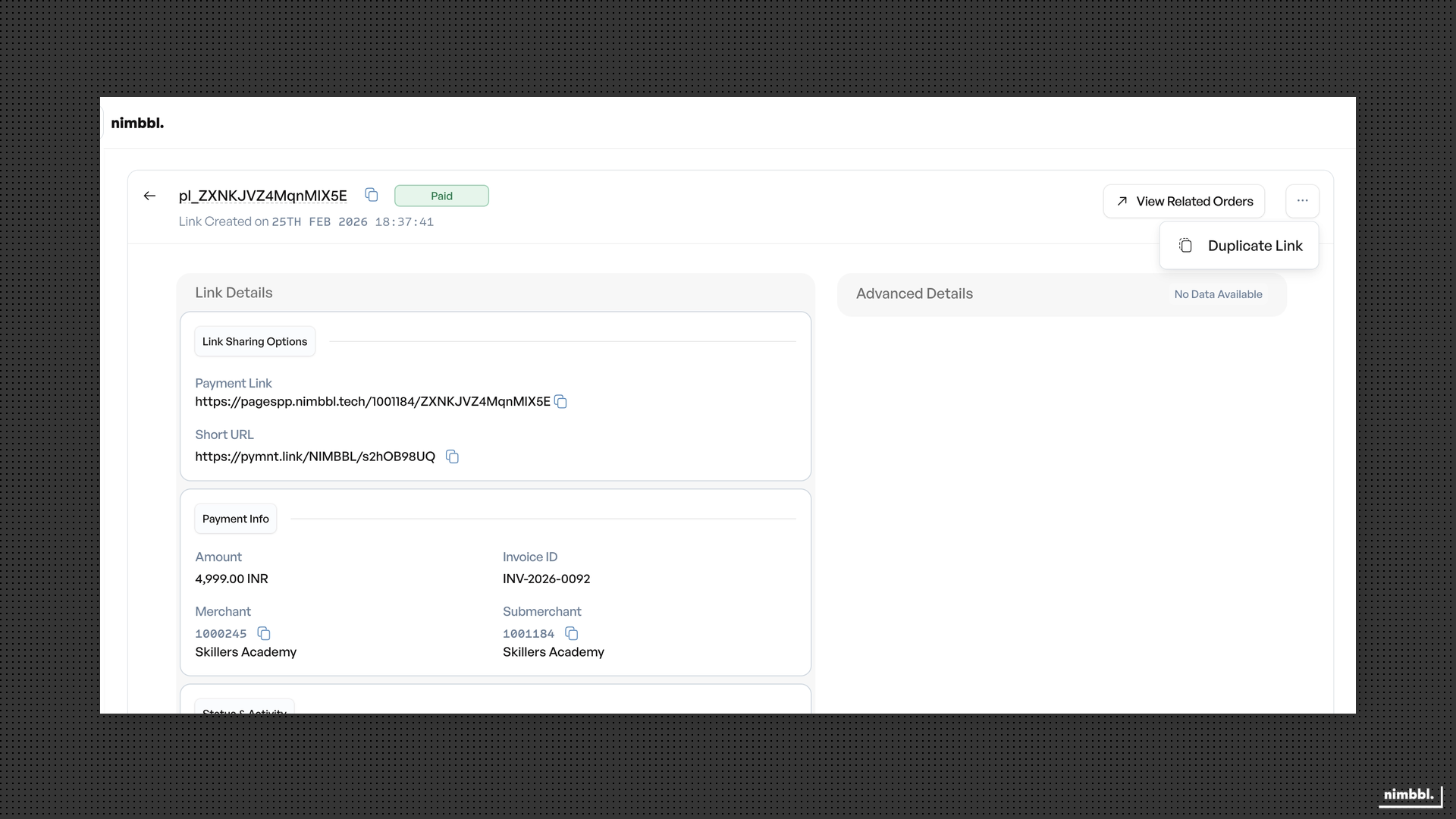
Available actions depend on the link's current status:
- Edit -- modify editable fields (available for links in
createdorscheduledstatus). See Editing Payment Links for field restrictions. - Notify Now -- immediately resend notifications through all configured channels. A 1-hour cooldown applies between sends, and a maximum of 3 notifications per channel per 24 hours.
- Cancel Notifications -- stop all future scheduled notifications and reminders for this link. The link itself remains active.
- Cancel Link -- cancel the Payment Link. Available for links that are not already paid, expired, or cancelled.
- Duplicate Link -- create a new link pre-filled with values from this link.
Bulk Payment Link Creation
You can create multiple payment links at once using file upload. The bulk creation workflow is available through Files --> Uploads in Command Center. For the upload workflow, file format requirements, and status tracking, see Files --> Uploads.