Managing Payment Pages
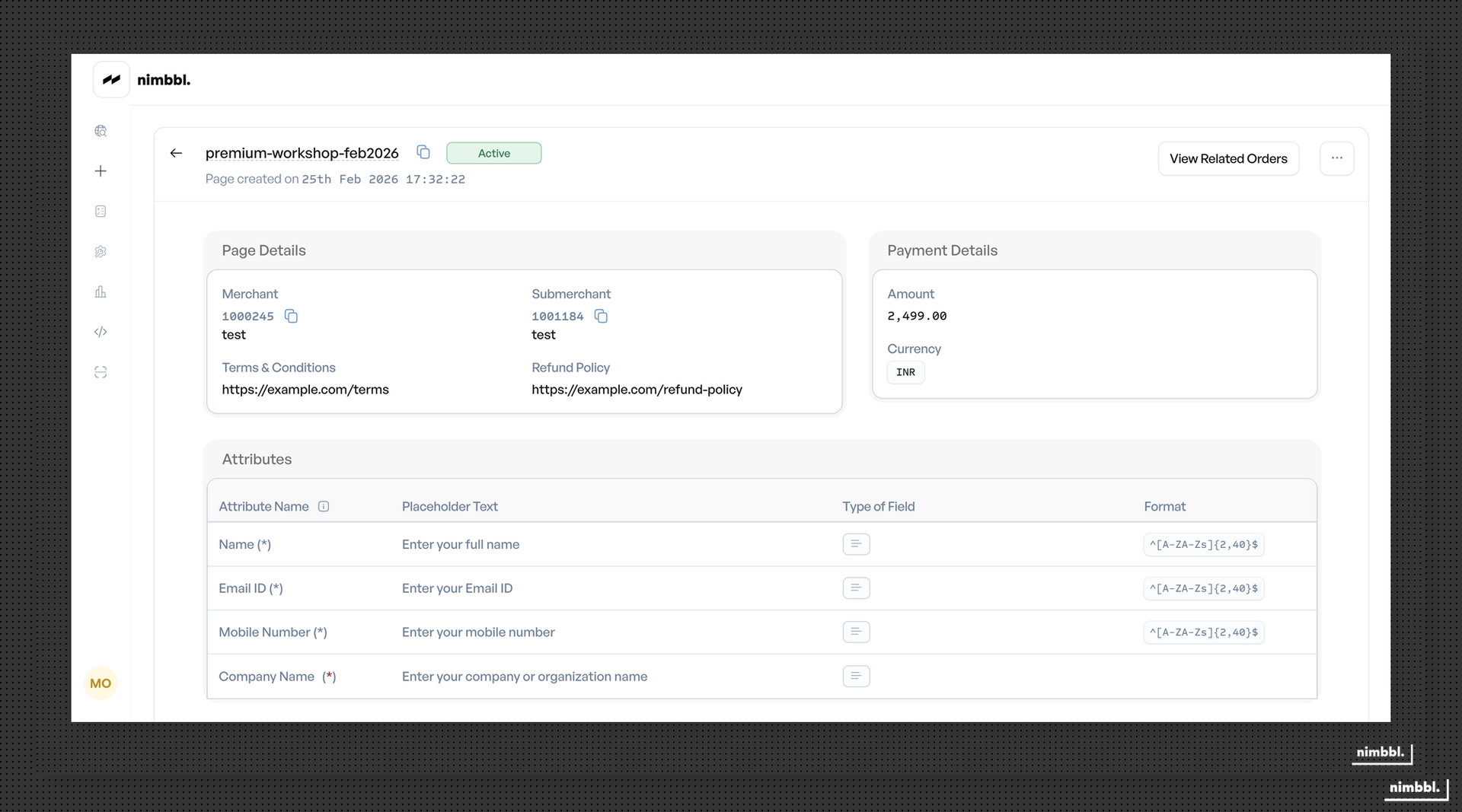
After creating a Payment Page, you can edit its details, share it through additional channels, and manage its active or inactive status. This page covers the management workflows available in the Command Center.
Editing Payment Pages
You can edit a Payment Page by opening it in the Command Center and clicking Edit. The edit form uses the same Description and Attributes tabs as the creation form.
Editing Details
On the Description tab, you can update:
- Page name -- change the display name
- Amount -- modify the fixed amount (for fixed amount pages)
- Branding -- update your logo, brand name, or color theme
- Terms and Conditions -- update or add the terms URL
- Refund Policy -- update or add the refund policy URL
Editing Custom Fields
On the Attributes tab, you can:
- Add new custom fields -- add additional fields up to the maximum of ten
- Modify existing fields -- change labels, help text, options, and mandatory settings
- Remove custom fields -- delete fields that are no longer needed
- Reorder fields -- adjust sequence numbers to change the display order
Editing Restrictions
Some fields may have restrictions on editing depending on your page configuration and whether payments have already been collected. Changes to the URL slug may affect existing shared links, so consider the impact before modifying.
Changing a Payment Page URL slug will break any previously shared links that use the old slug. Customers with the old URL will not be able to reach your payment page.
Sharing Payment Pages
Share your Payment Page through multiple channels to reach your customers.
SMS -- send the page URL to a customer's mobile number.
Email -- send the page URL to a customer's email address.
Copy link -- copy the page URL to share through WhatsApp, social media, your website, or any other channel.
The page URL follows the format pages.nimbbl.tech/{your-slug}. You can also convert this URL to a QR code for offline distribution or embed a Pay Now button on your website that links to the page.
Payment Statuses
Payment Pages have a simple two-state lifecycle:
| Status | Description | Can Accept Payments |
|---|---|---|
active | Page is live and accepting payments | Yes |
inactive | Page is deactivated and not accepting payments | No |
Activating and deactivating -- you can toggle a page between active and inactive status in the Command Center. When a page is inactive, customers who visit the URL cannot make payments. Reactivating the page makes it available for payments again.
Use the inactive status when you need to temporarily stop accepting payments through a page without deleting it -- for example, when an event is over, a promotion has ended, or you need to update the page configuration.
If a payment made through a page is pre-authorized, the funds are held but not yet collected. You must capture (or void) the held payment to settle it. See Pre-authorization.
Tracking Payments
View and manage your Payment Pages in the Command Center Payment Pages section. For each page, you can:
- View the current status (active or inactive)
- See the total payments collected
- Review individual transaction details
- Monitor page usage and customer activity