Payment Partners
Use Developer Settings --> Payment Partners in Command Center to connect and manage payment partner accounts. Payment partners are the providers that process your payments. Connecting a partner account here allows Nimbbl to process transactions on your behalf through that provider.
Currently, Razorpay is the supported payment partner. The connection is automated -- you authorize access through Razorpay directly, without entering API keys or secrets manually.
Prerequisites
Before you can connect a payment partner:
- Account manager setup -- you must speak to your account manager or email [email protected] to enable the payment partner connection for your account.
- Sub-merchant selection -- you must select a sub-merchant before you can view or connect payment partner credentials.
If you see a message asking you to speak to your account manager, the payment partner connection has not been enabled for your account yet. Contact your account manager or email [email protected].
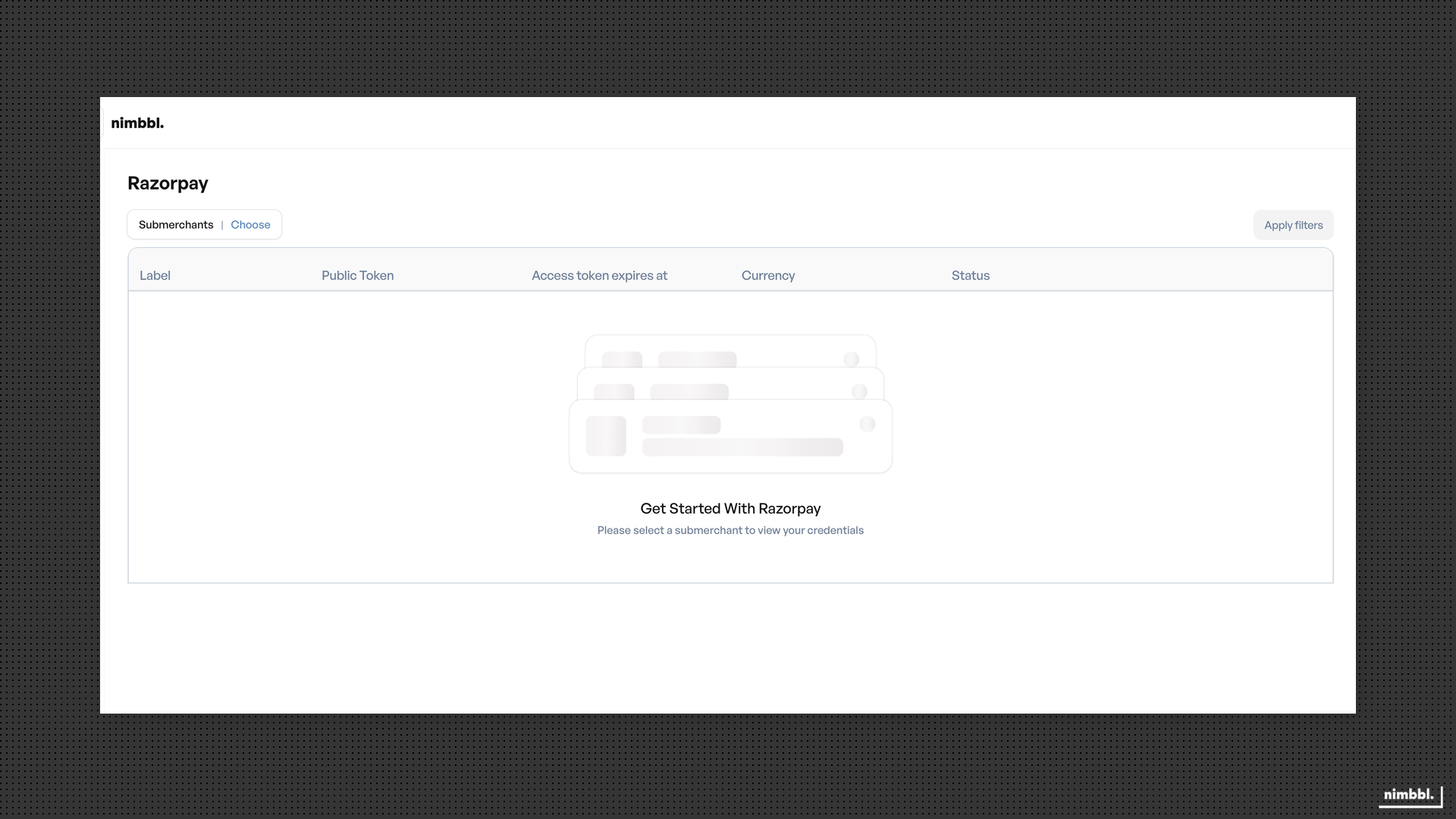
Connecting Your Razorpay Account
- Go to Developer Settings --> Payment Partners in the Command Center sidebar.
- Select a sub-merchant from the filter dropdown.
- Click Authorize.
The authorization prompt explains how the connection works:
- You are redirected to Razorpay to grant permission. You stay in full control of what is shared.
- Razorpay provides a secure code. Your Login credentials or API keys are never shared with Nimbbl.
- Nimbbl uses this code to access only the parts of your account you have allowed (such as payments, refunds, and disputes).
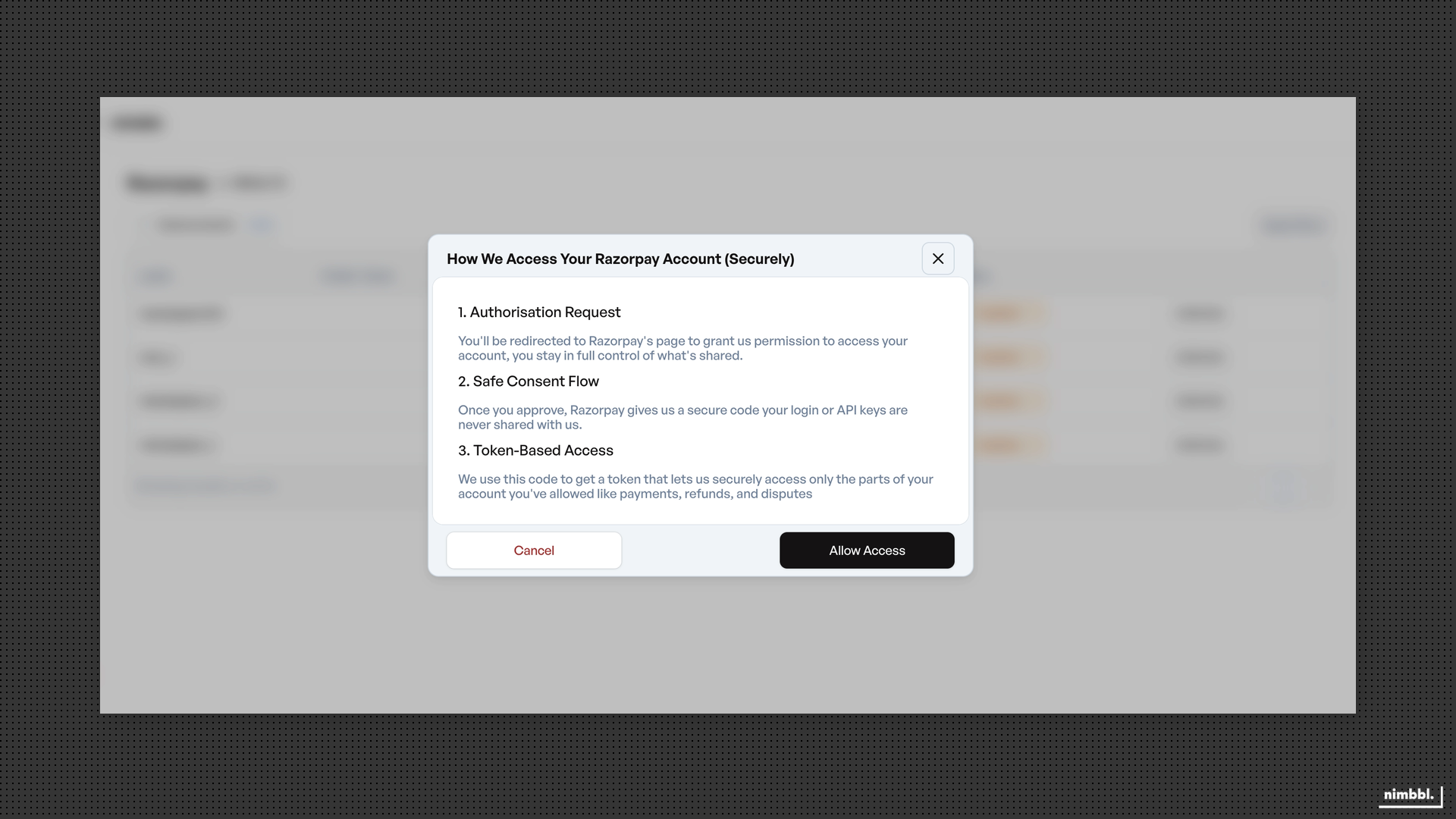
- Click Allow Access to proceed.
- You are redirected to Razorpay. Log in and approve the connection.
- Razorpay redirects you back to Command Center. The connection is established automatically.
Viewing Connected Credentials
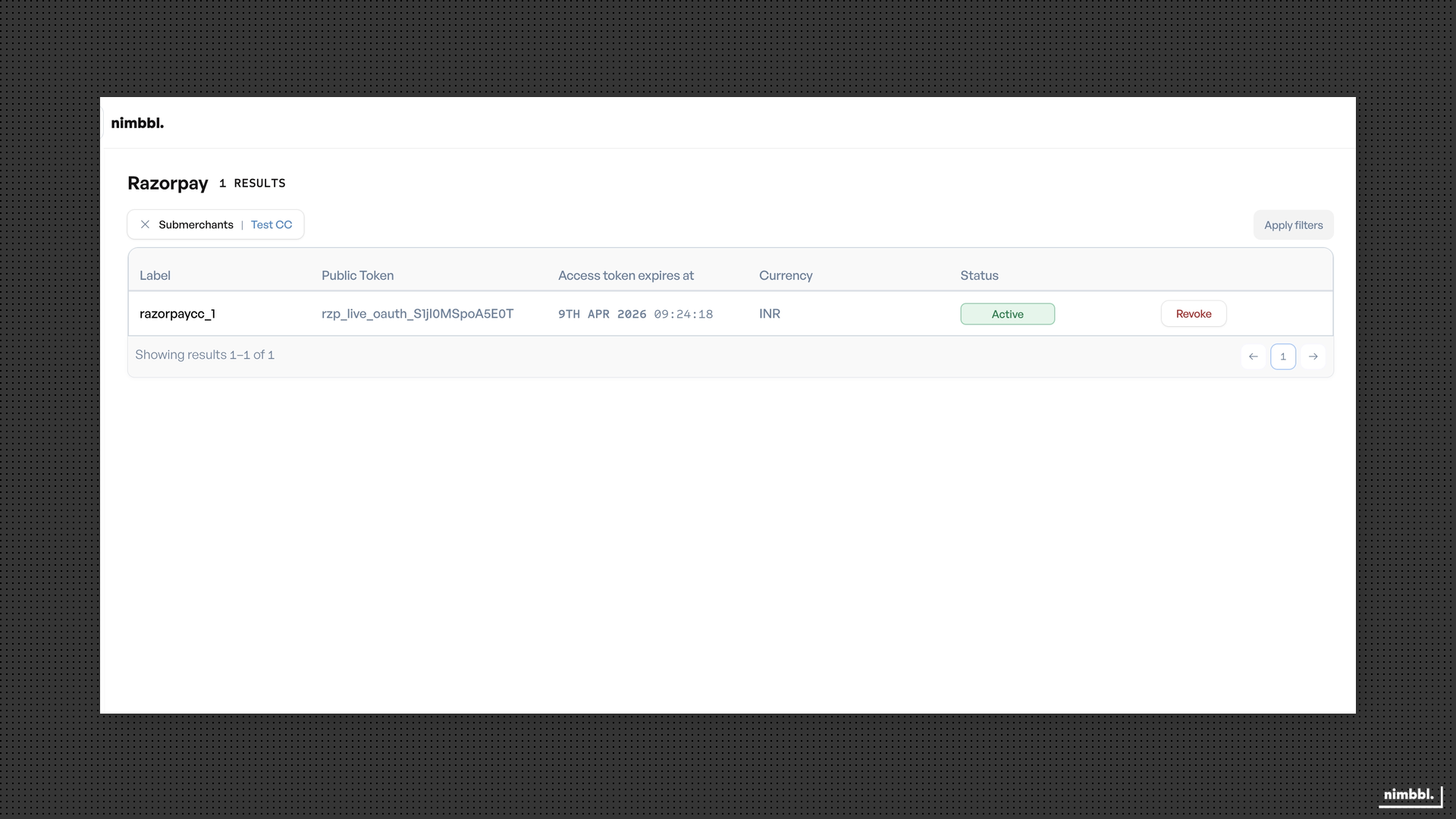
After authorization, the credentials list shows your Razorpay connection details:
- Label -- identifier for the connection.
- Public token -- the token associated with the connection.
- Access token expires at -- when the connection expires.
- Currency -- supported currencies.
- Status -- Active (connected) or Inactive.
Revoking Access
If you need to disconnect your Razorpay account from Nimbbl:
- Click Revoke next to the credential you want to disconnect.
- Confirm the revocation in the prompt.
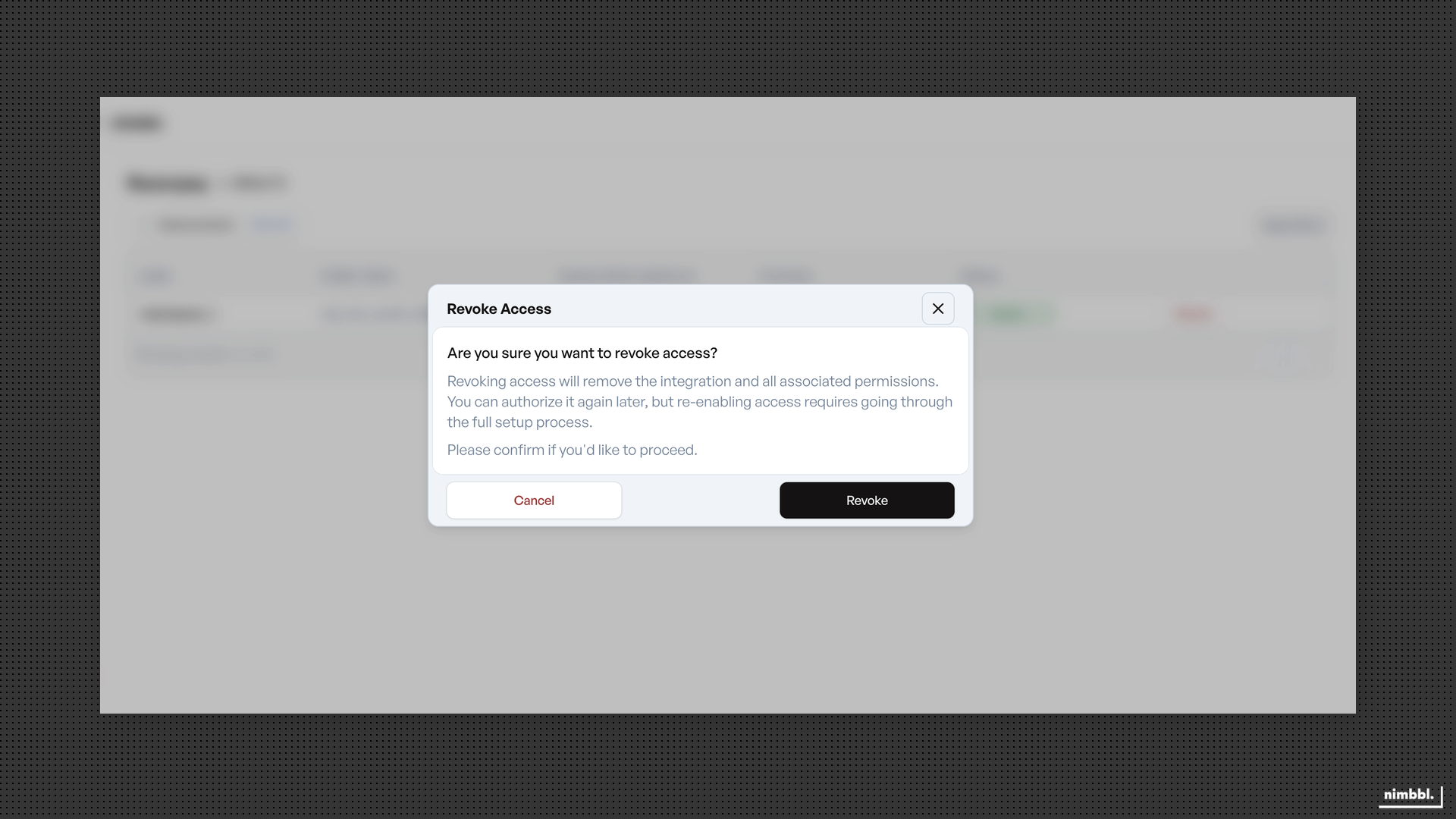
Revoking access removes the integration and all associated permissions. Payment processing through Razorpay will stop until you re-authorize. Re-authorization requires going through the full setup process again.
Re-Authorizing Access
If you previously revoked access and want to reconnect, follow the same authorization steps described above. Click Authorize, complete the Razorpay approval, and the connection is re-established.