Credentials
Use Developer Settings --> Credentials in Command Center to view and download your API credentials (access keys and secrets). These credentials authenticate API requests from your server or integration. Credentials are pre-created for your sub-merchants -- you view and download them here but do not generate new ones.
Viewing Credentials
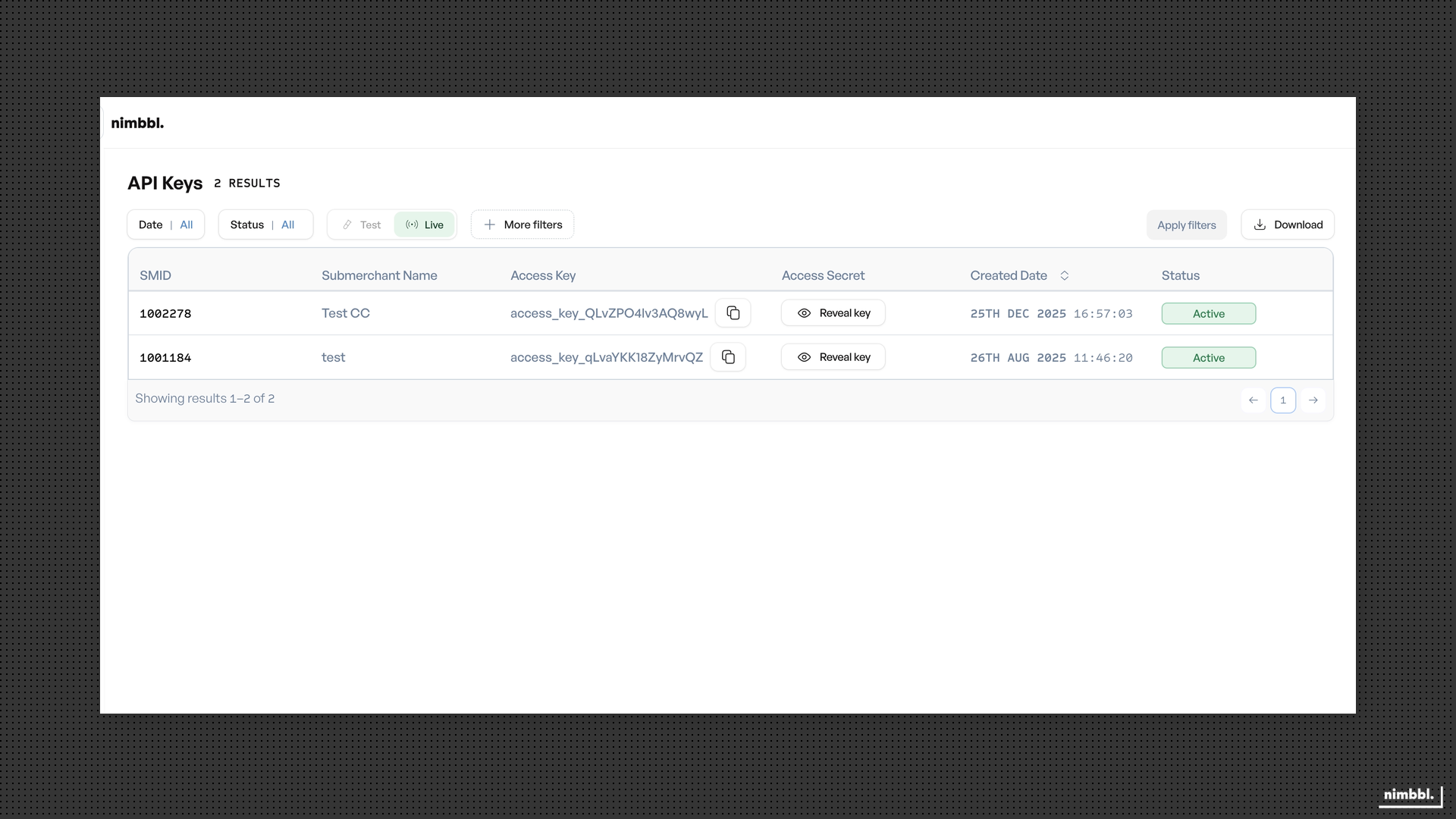
Go to Developer Settings --> Credentials in the Command Center sidebar. The credentials list shows all API credentials for your sub-merchants.
Filtering
Narrow the list using the available filters:
- Status -- Active or Inactive.
- Environment -- Live or Test.
- Sub-merchant -- filter by specific sub-merchant.
- API key -- search by access key.
Credentials List Columns
Each row in the list shows:
- SMID -- sub-merchant identifier.
- Sub-merchant name -- the sub-merchant this credential belongs to.
- Access key -- always visible; use the copy action to copy it.
- Access secret -- hidden by default; requires password verification to reveal.
- Created on -- when the credential was created.
- Status -- Active or Inactive (read-only).
Revealing Access Secrets
The access secret is hidden by default and requires verification to view.
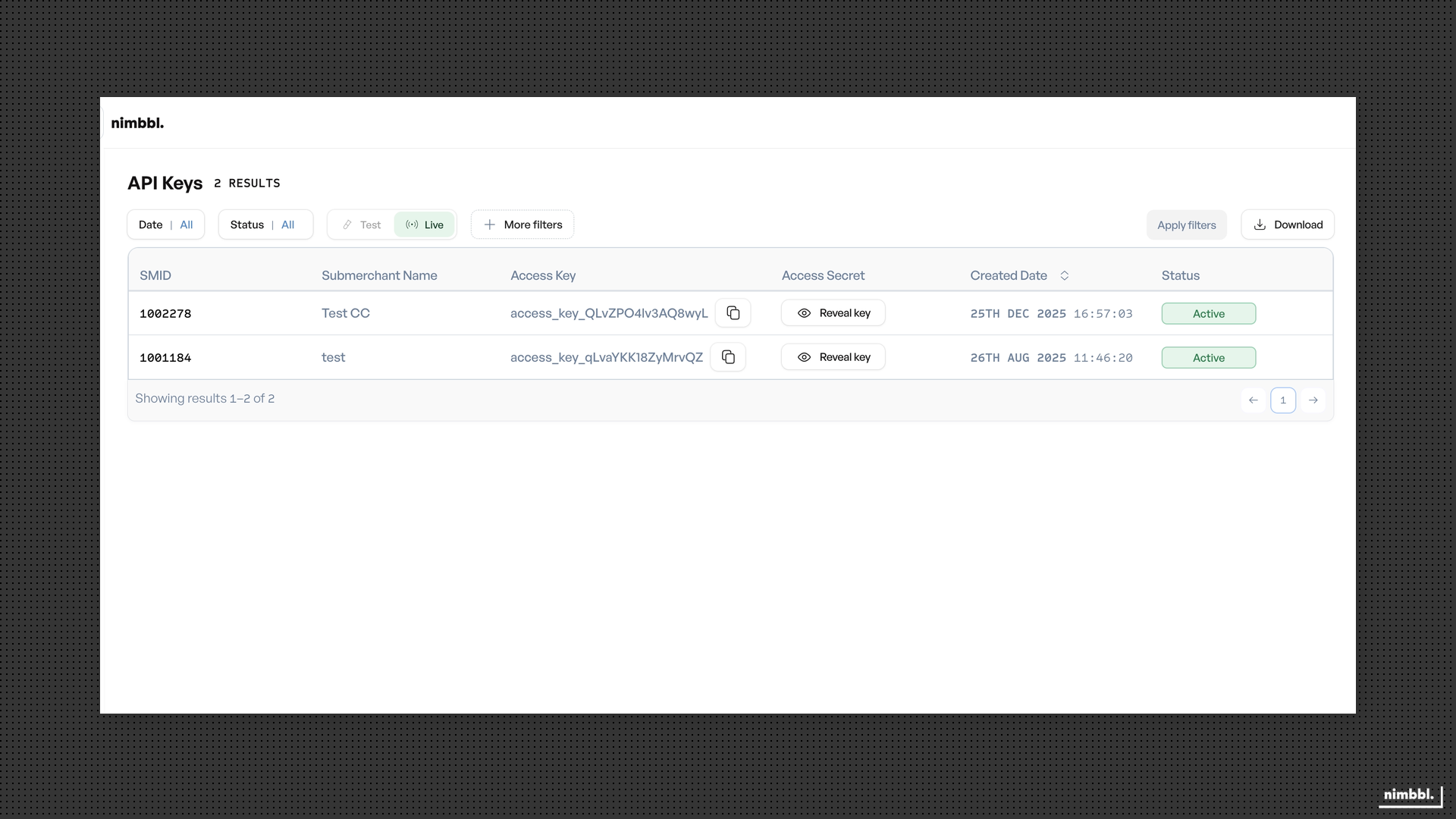
- Click Reveal key next to the credential you want to view.
- Enter your Command Center Login password in the prompt.
- The access secret is displayed for 30 seconds.
- Use the copy action to copy the secret while it is visible.
The access secret is visible for 30 seconds only. Copy it before the prompt closes. Never share credentials in client-side code, logs, or public repositories.
Only the Merchant Owner role can reveal access secrets. Other roles can view the credentials list but cannot reveal secrets.
Downloading Credentials
You can download all credentials that match your current filters as a password-protected Excel file.
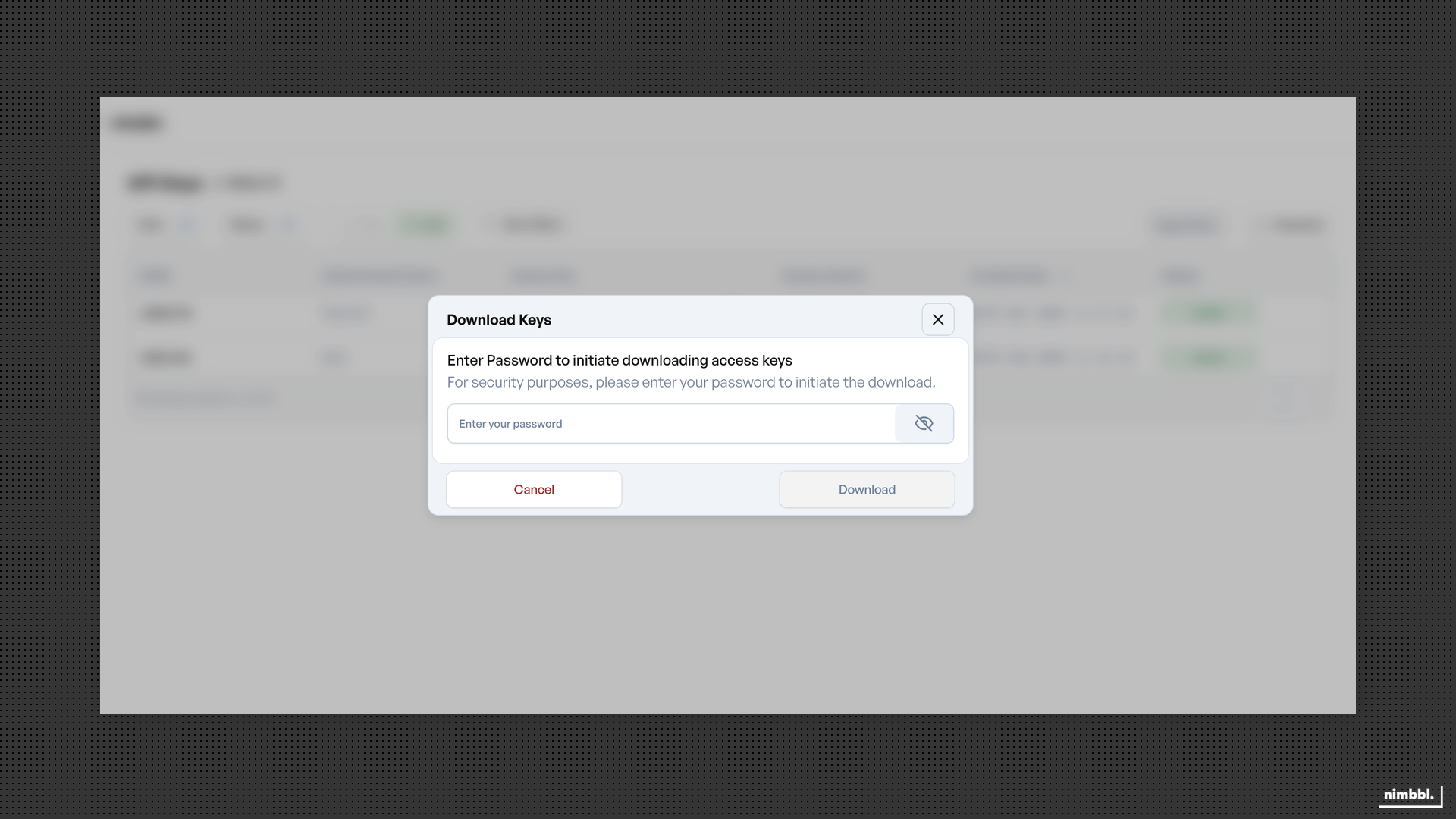
- Set your desired filters (status, environment, sub-merchant).
- Click Download in the filter section.
- Enter your Command Center Login password.
- The file downloads to your device.
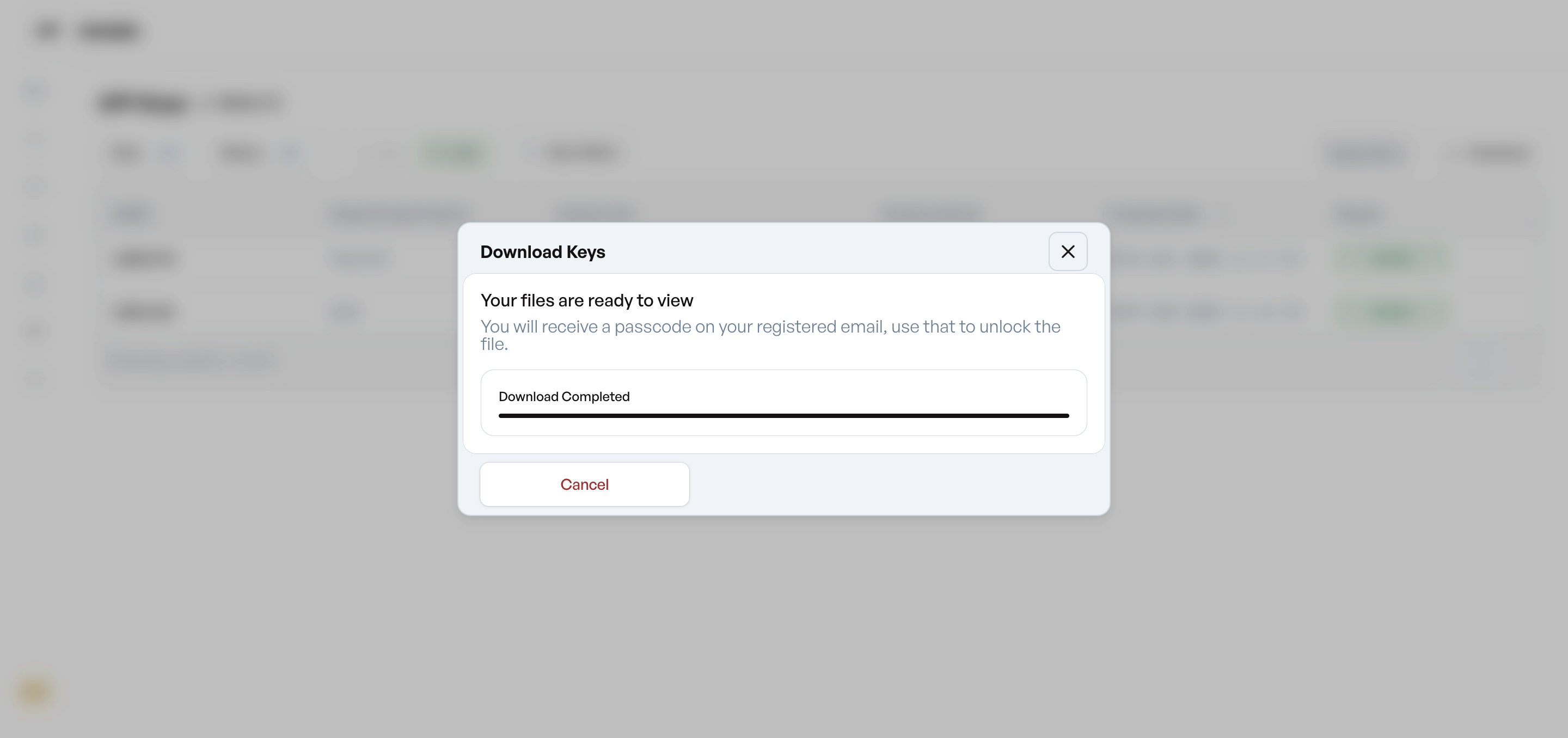
Email Passcode For File Decryption
After downloading, you receive an email with a one-time passcode to open the file.
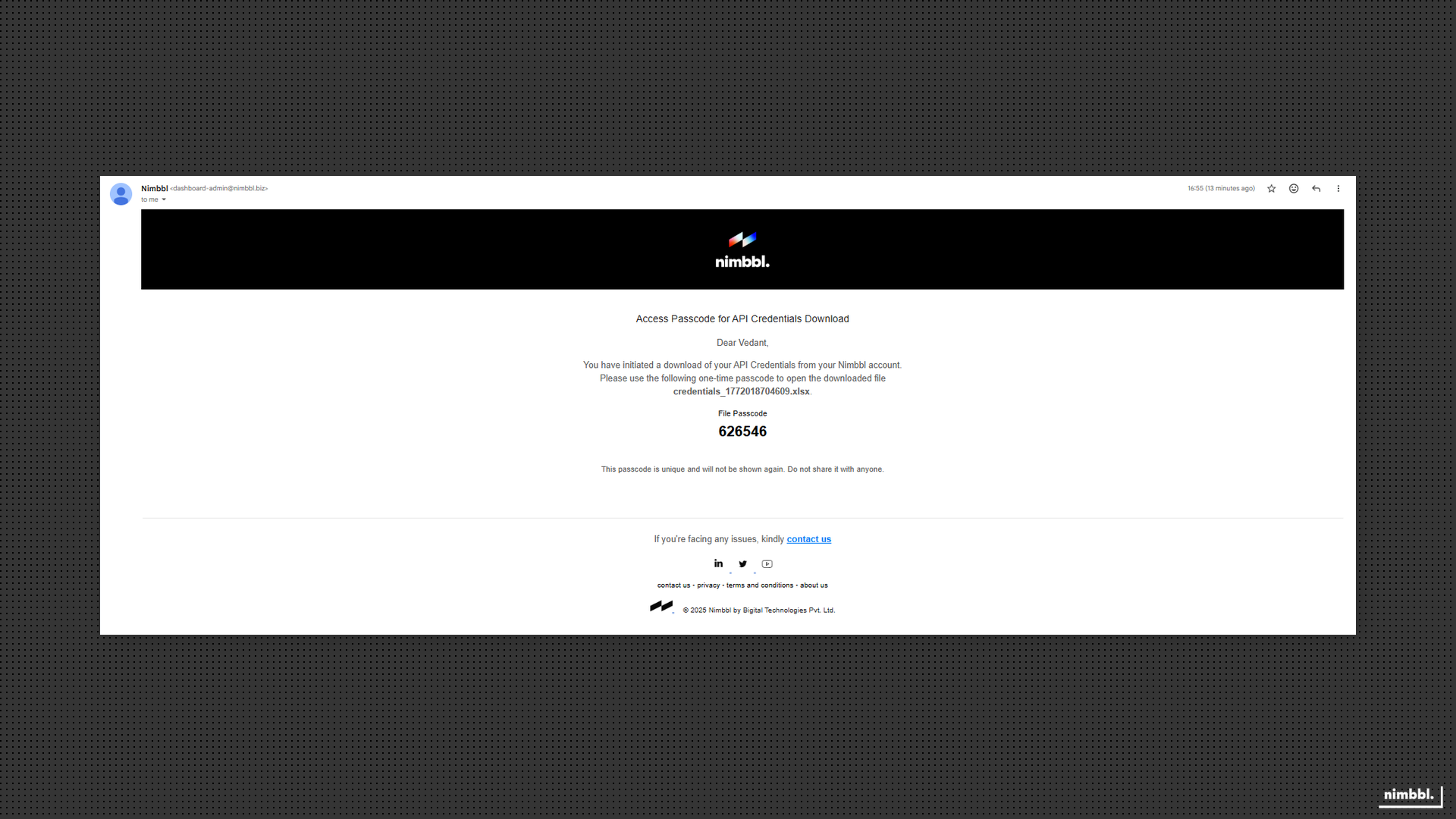
- The email is sent to your registered email address.
- It contains a 6-digit passcode and the file name.
- Open the downloaded Excel file and enter the passcode when prompted.
The passcode is one-time use only. Check your email immediately after downloading. Do not share the passcode. If you did not request the download, contact support immediately.
Credential Security Best Practices
- Store downloaded credential files securely and remove them from shared locations after use.
- Never expose access keys or secrets in client-side code, URLs, or logs.
- If you suspect credentials have been compromised, contact Nimbbl support to discuss rotation options.
- Only the Merchant Owner role can reveal secrets and download credentials. Contact your administrator if you need access.