Search

Search is where you browse and filter Orders, Payments, and Refunds in Command Center. Each entity type has its own list and detail views, with shared filtering, pagination, and download capabilities. Use Search to find specific transactions, inspect details, navigate between related entities, and export data.
From the Command Center sidebar, open Search and choose Orders, Payments, or Refunds. Each page shows a list of records with filters, pagination, and sorting. Click any row to open its detail view.
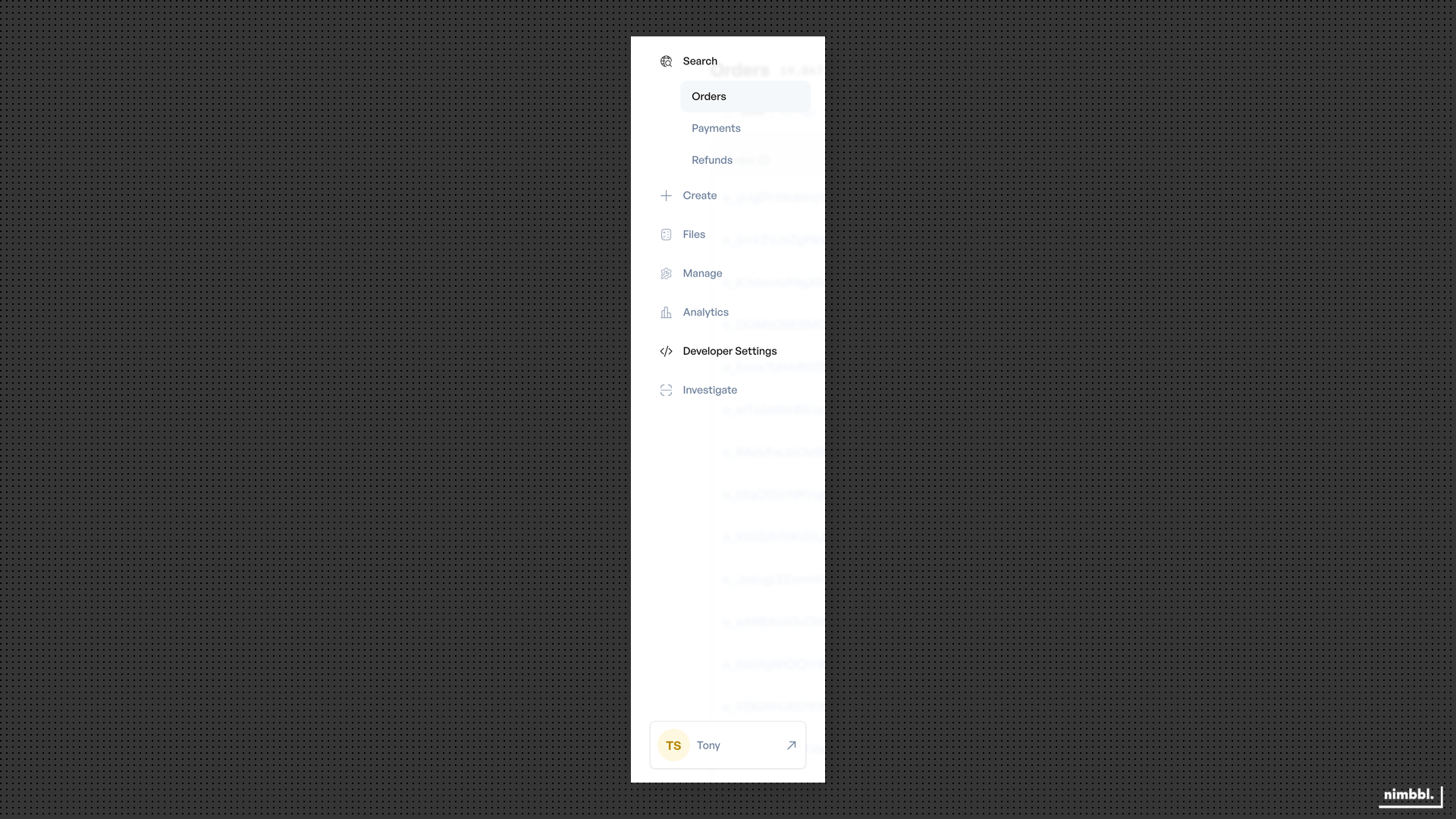 Search sidebar -- expand to access Orders, Payments, and Refunds
| Entity | Purpose | Documentation |
|---|---|---|
| Orders | Browse and filter orders, view order details and associated payments | Orders |
| Payments | Browse and filter payments, view payment details, issue refunds | Payments |
| Refunds | Browse and filter refunds, view refund details | Refunds |
For entity-specific filters (Order ID, Payment Mode, Refund ID, and others), see the individual entity pages linked above.
Common Filters Across All Entities
All Search pages share a set of basic and advanced filters. Basic filters are always visible at the top of the list. Advanced filters are available in a collapsible section.
Basic Filters
- Date range -- Today, Yesterday, Last 7 days, Last 30 days, or a custom range.
- Status -- Multi-select dropdown with entity-specific statuses (for example, Success, Failed, Pending).
- Environment -- Toggle between Sandbox and Live.
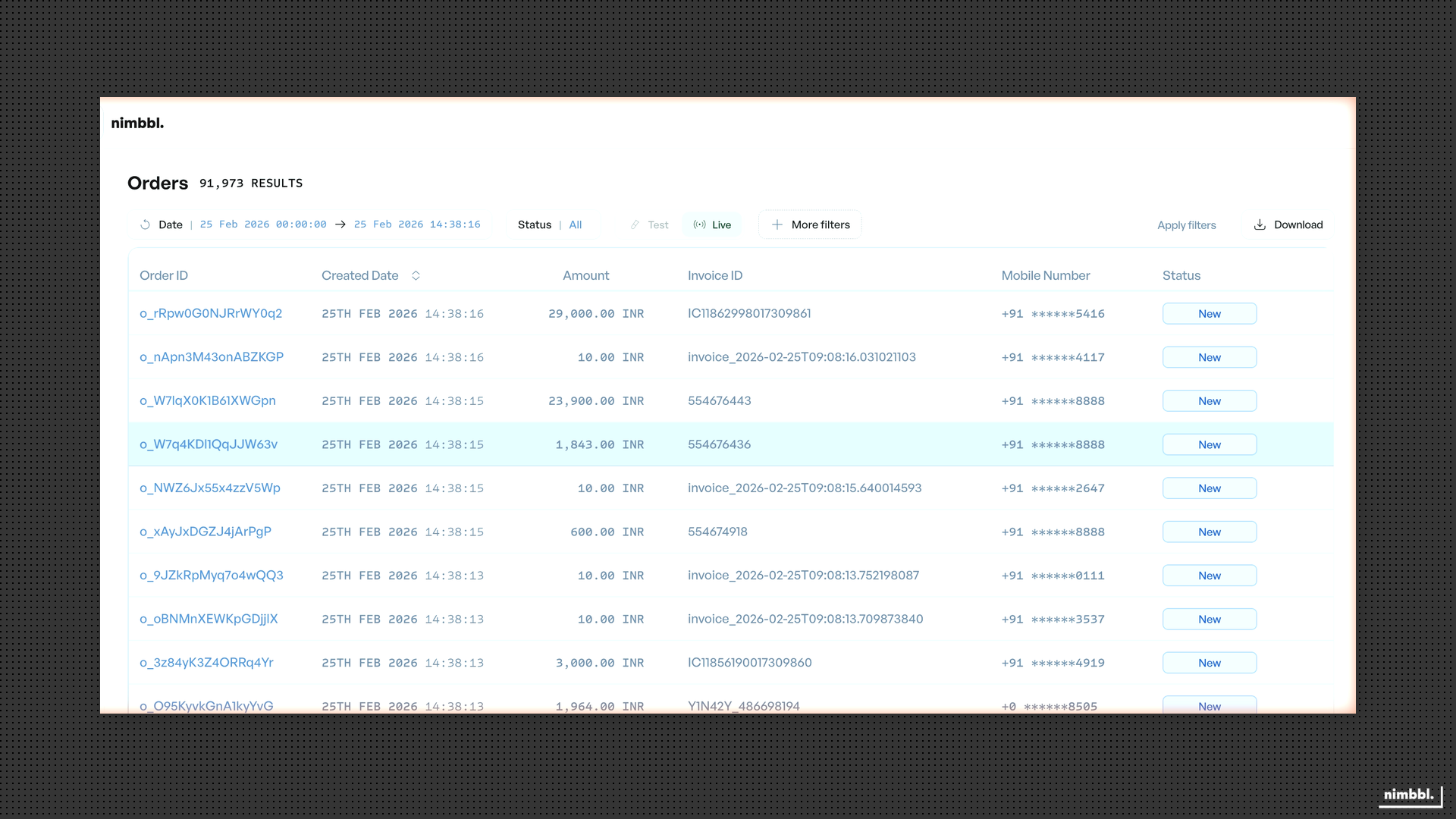 Basic filters -- always visible at the top of every Search list
Advanced Filters
Open the Advanced Filters section to access additional criteria shared across all entities:
- Partners, Merchants, Submerchants -- Multi-select (available for partner and multi-entity users).
- Currency -- Multi-select dropdown.
- Amount range -- Min/max with operators (equals, greater than, less than, between).
- Email, Mobile, Invoice ID -- Search by customer or invoice identifier.
- Custom Attributes -- Key-value pair search.
- Currency Conversion -- ACC (Alternate Currency Conversion) and DCC (Dynamic Currency Conversion) status filters.
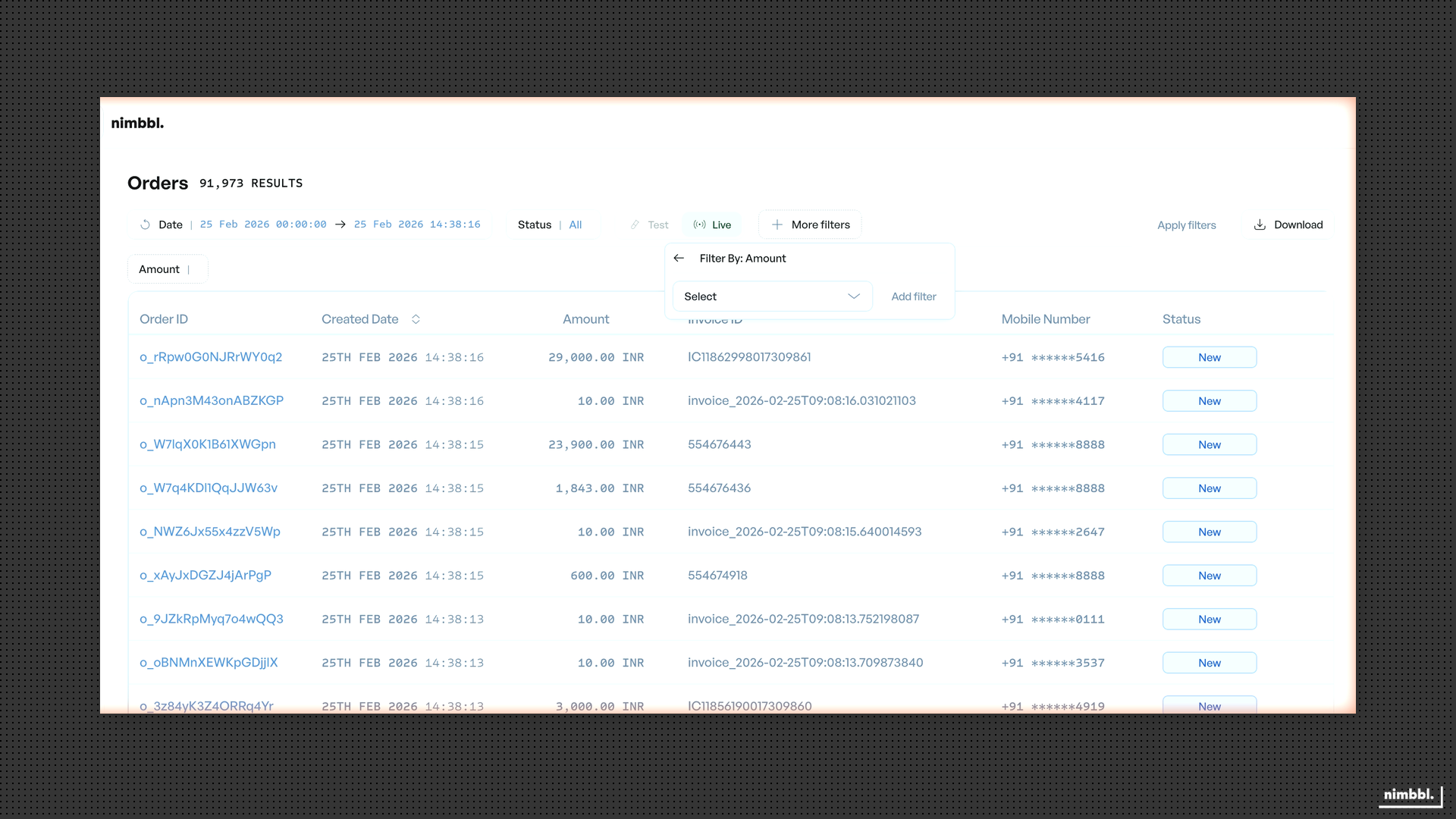 Advanced filters -- expand to access additional search criteria
How Filters Work
Filters are staged before they take effect. This means you can build up a combination of filters before updating your results:
- Open the Advanced Filters section.
- Set your first filter (for example, Currency). A filter chip appears, but results do not change yet.
- Add more filters as needed. Each one adds a chip to the filter bar.
- Review the filter chips to confirm your selections.
- Select Apply Filters to update results with all selected criteria.
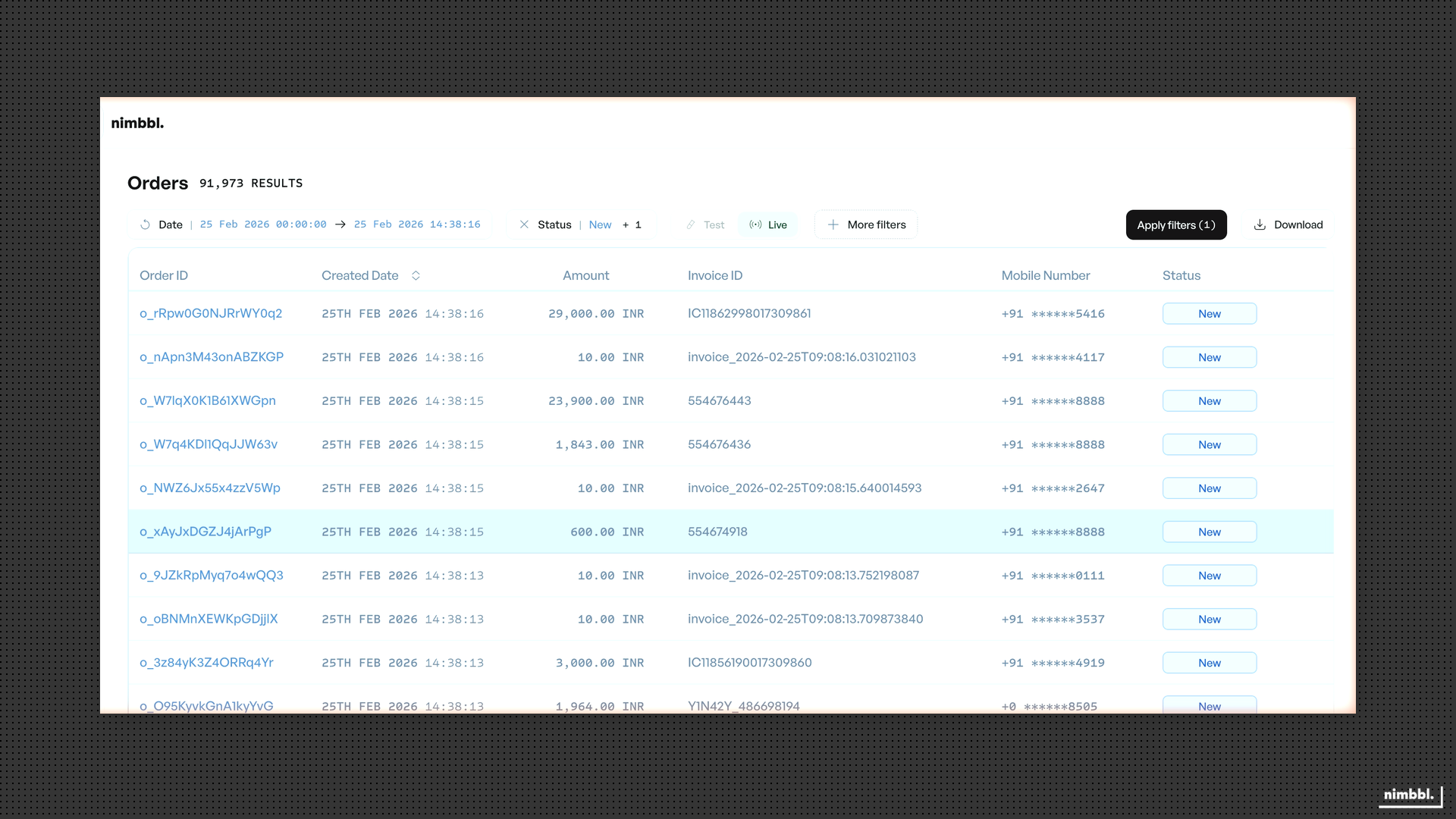
- To remove a single filter, click the X on its chip, then select Apply Filters again.
- To clear everything, select Clear All.
After applying, the URL updates with your filter parameters. You can share the URL to give someone else the same filtered view.
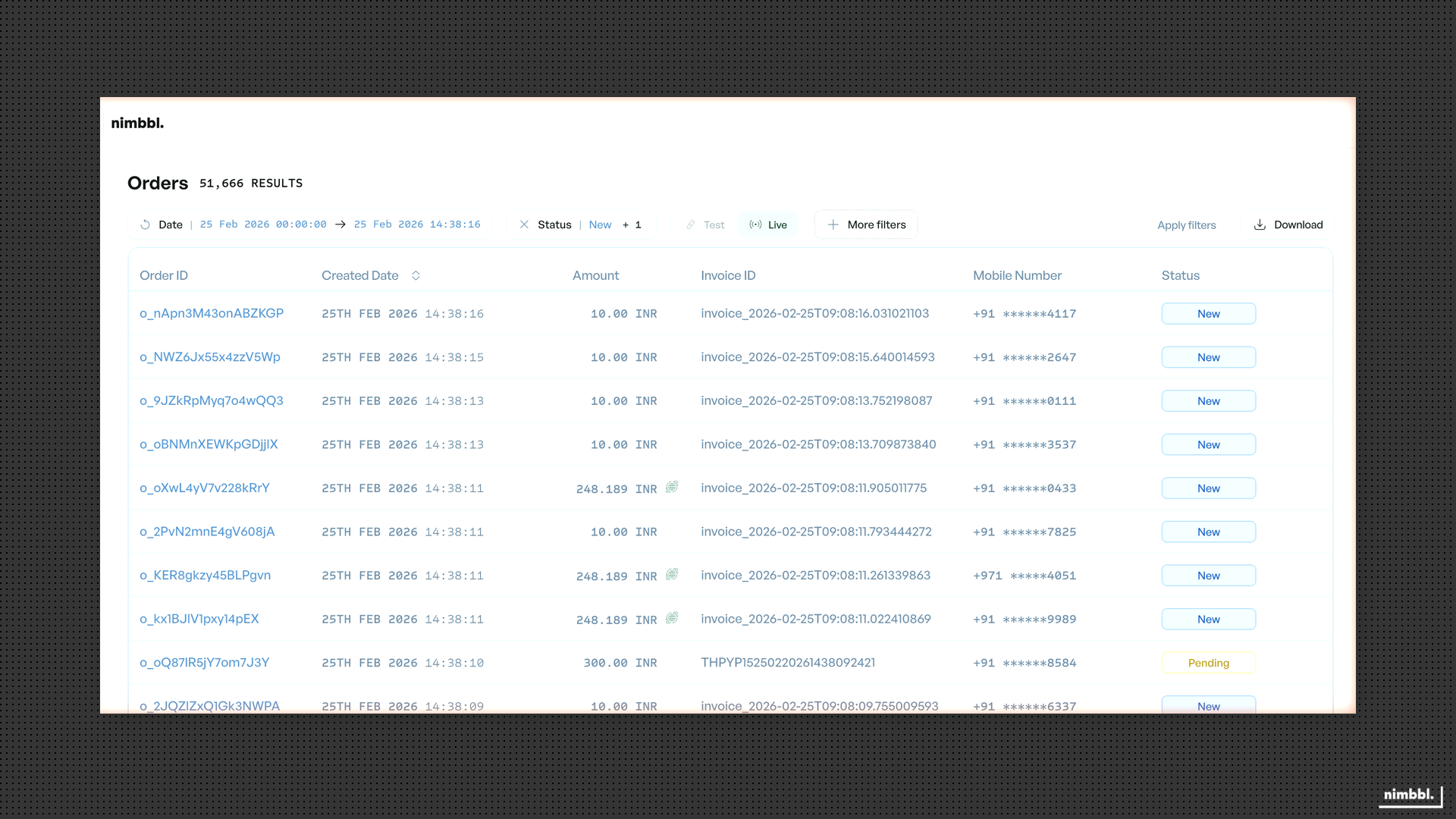 Filter parameters are reflected in the URL -- share the link to give someone else the same filtered view
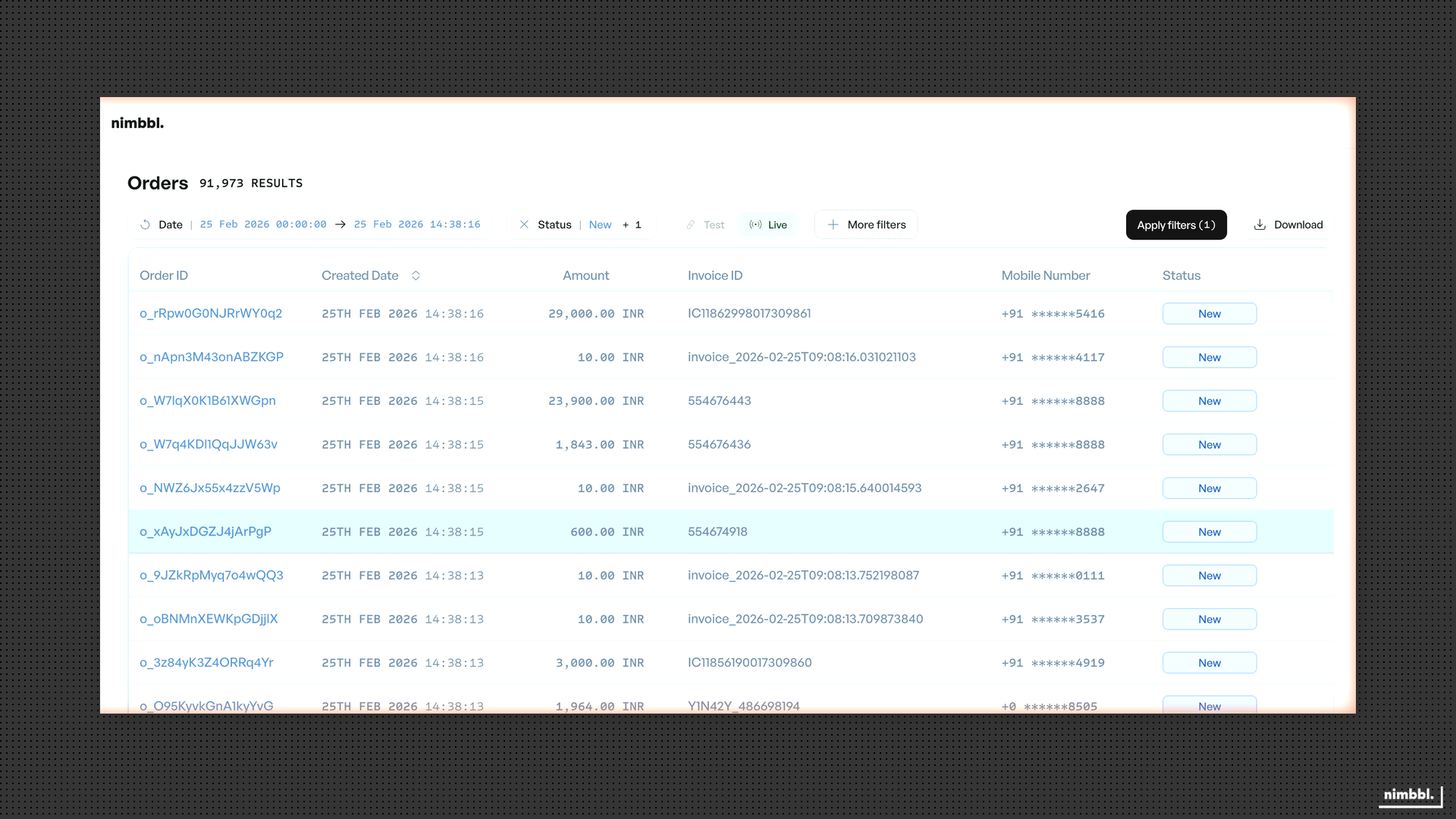 Filter chips appear as you add criteria -- select Apply Filters to update results
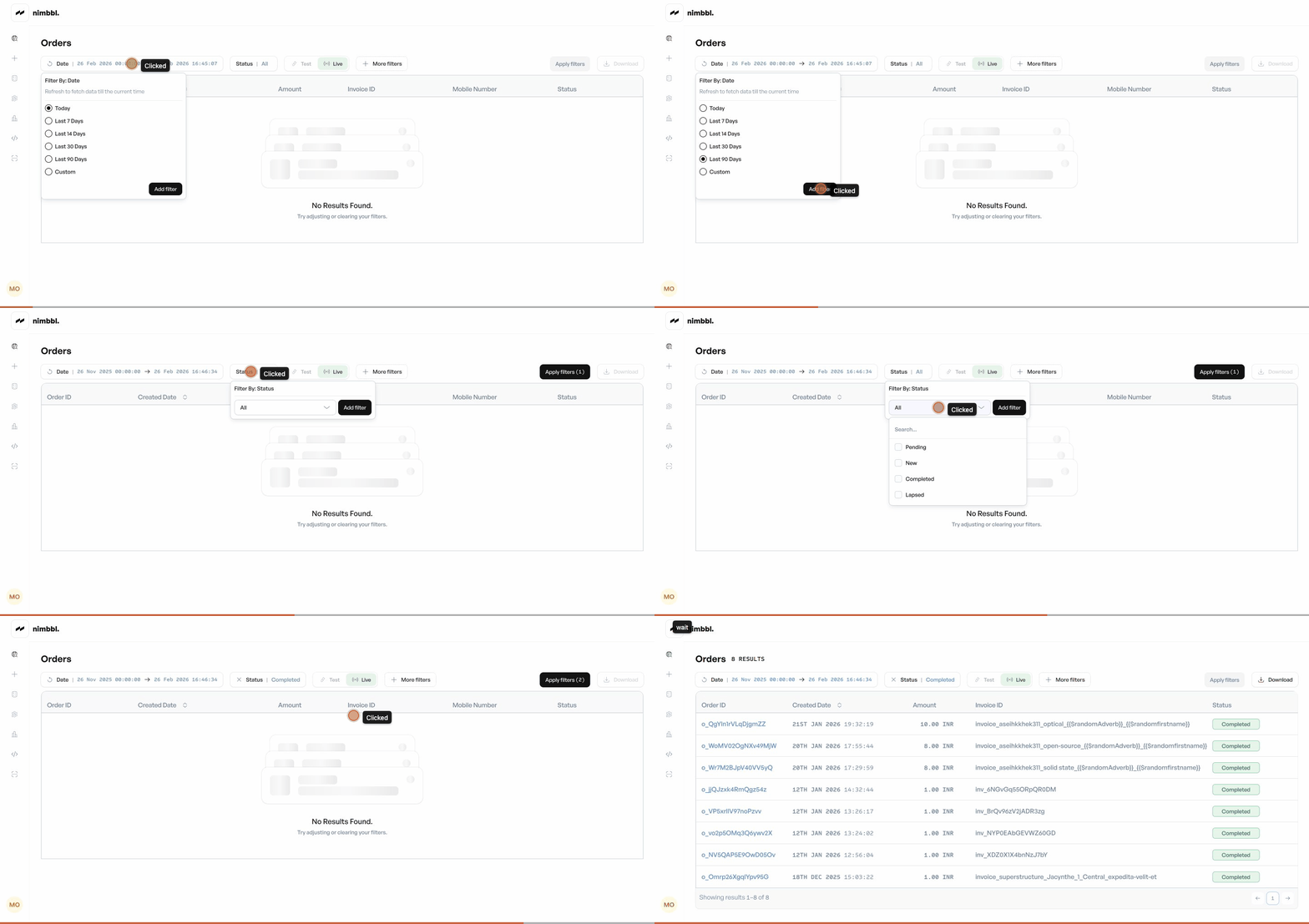 Applying filters -- select criteria, review filter chips, then select Apply Filters to update results
Date filter refresh: To extend your date range to the current moment without changing the start date, use the refresh icon on the Date filter chip. The end date updates to now and results refresh automatically -- no need to select Apply Filters separately.
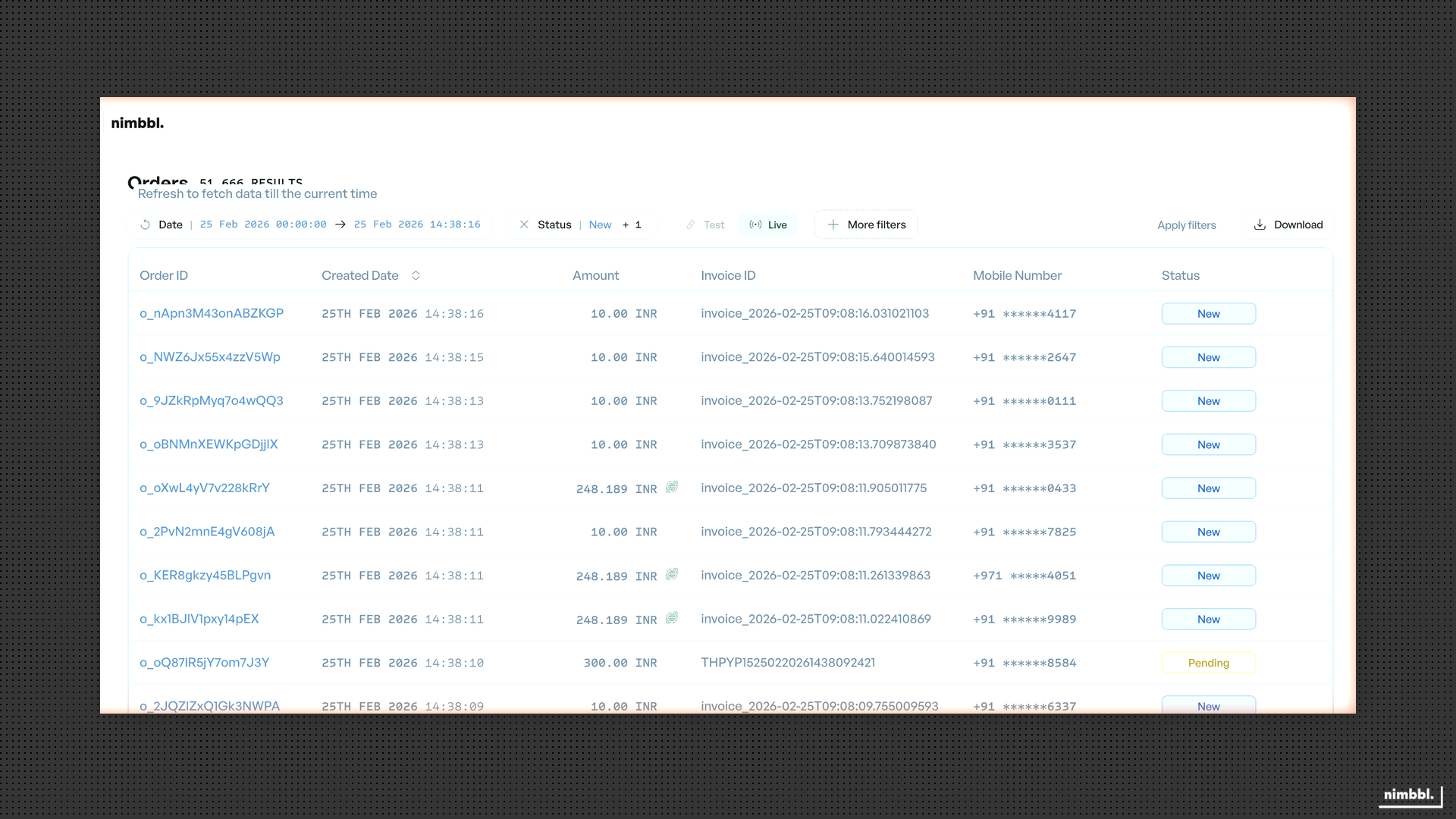 Date filter chip with refresh icon
 Date filter refresh -- use the refresh icon to extend the date range to the current moment
Filter Reference
| Basic Filter | Type | Description |
|---|---|---|
| Date | Range | Today, Yesterday, Last 7/30 days, or custom |
| Status | Multi-select | Entity-specific statuses |
| Environment | Toggle | Sandbox or Live |
| Advanced Filter | Type | Description |
|---|---|---|
| Partners, Merchants, Submerchants | Multi-select | Scope by entity hierarchy |
| Currency | Multi-select | Transaction currency |
| Amount | Range | Min/max with operators |
| Email, Mobile, Invoice ID | Text | Customer or invoice search |
| Custom Attributes | Key-value | Custom field search |
| Currency Conversion | Filter | ACC/DCC status |
Common Browsing Patterns
- Pagination and sorting -- Use the list controls to change pages and sort by column. Pagination and sort state are reflected in the URL, so you can bookmark or share a specific view.
- Viewing details -- Click a row (or the entity ID) to open the detail view. From there, navigate to related entities through clickable IDs (for example, from an order to its payments, or from a payment to its refunds).
Downloading Data
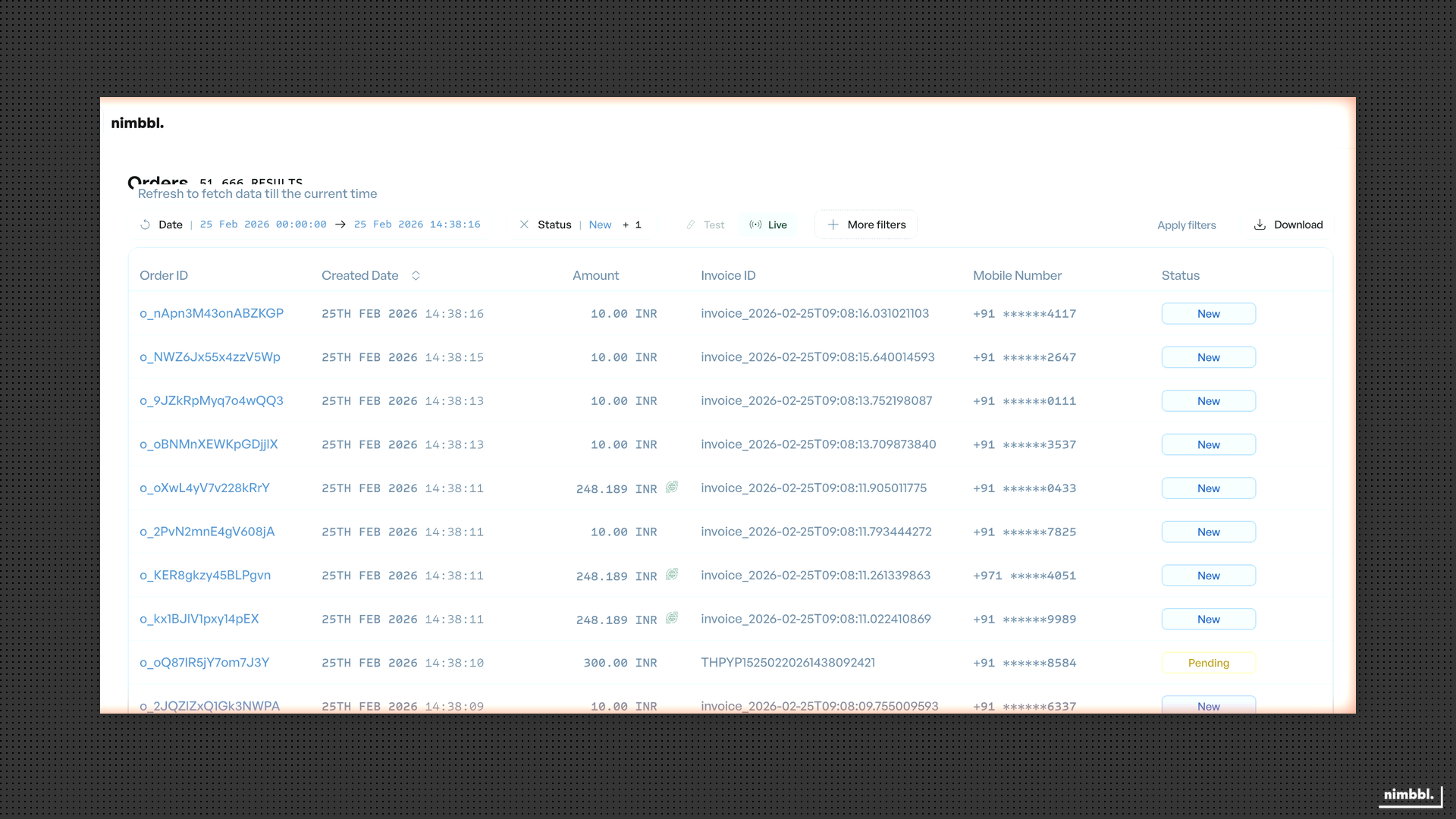
Each Search page has a Download button for exporting data. Downloads respect your current filters and are processed asynchronously.
- Select the Download button on any Search list (Orders, Payments, or Refunds).
- A confirmation shows the filters that will be applied to the export.
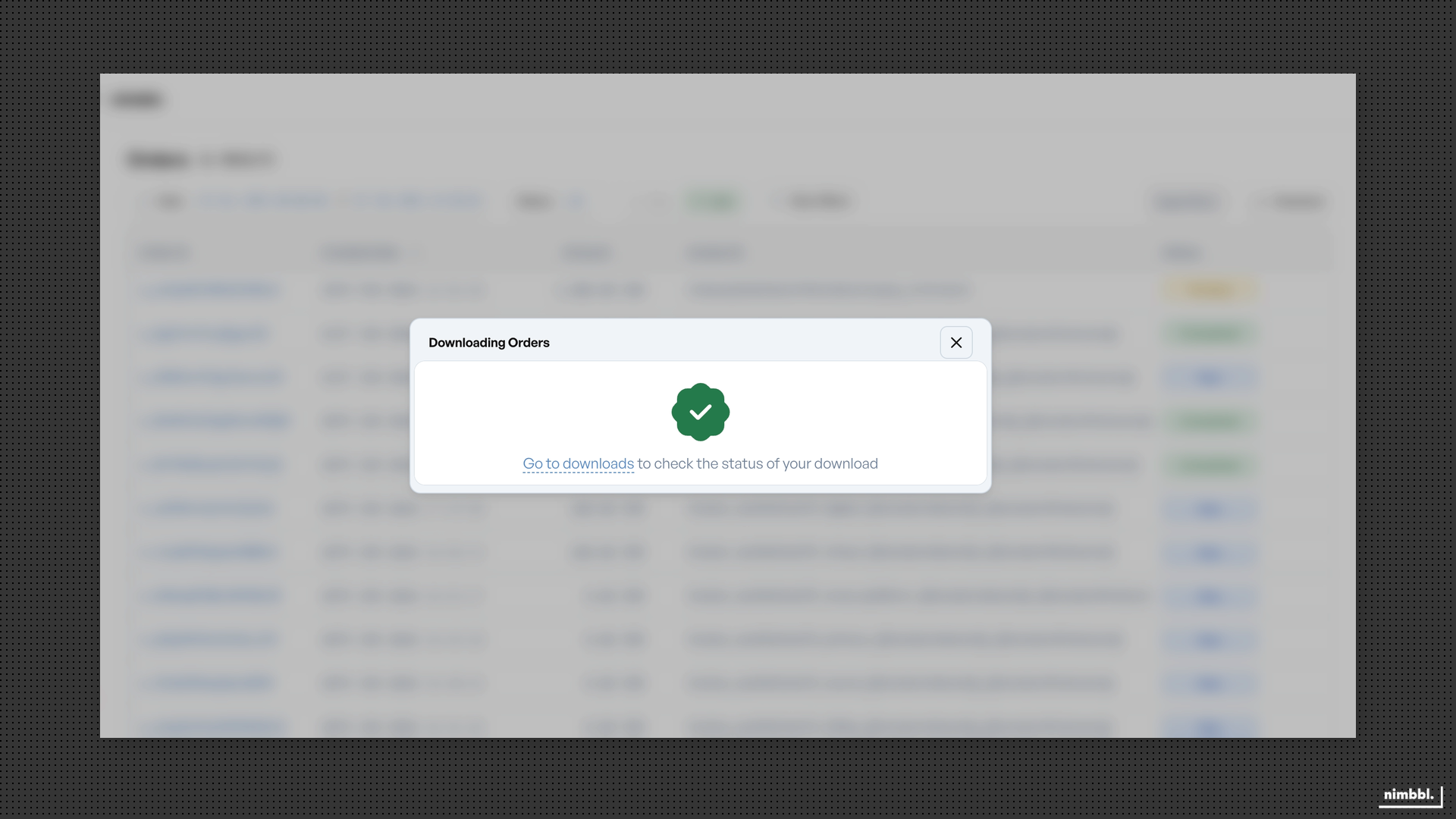
- Confirm to start the export. A success message appears with a link to Go to downloads.
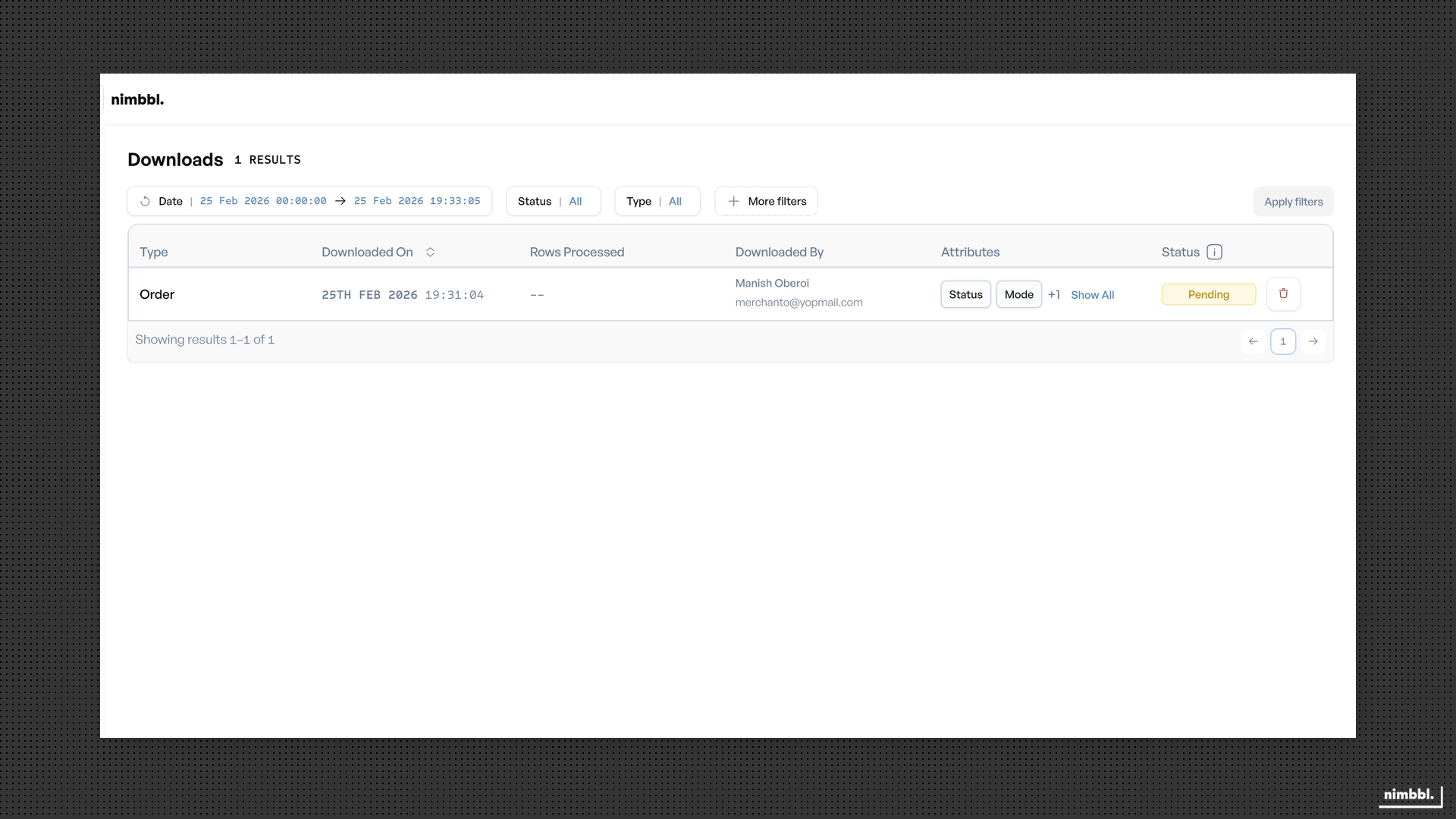
- The file is generated in the background. When ready, it appears under Files > Downloads.
- Navigate to Files > Downloads to check the status and download the file.
Each download supports a maximum of 500,000 rows. Downloaded files expire after 30 days.
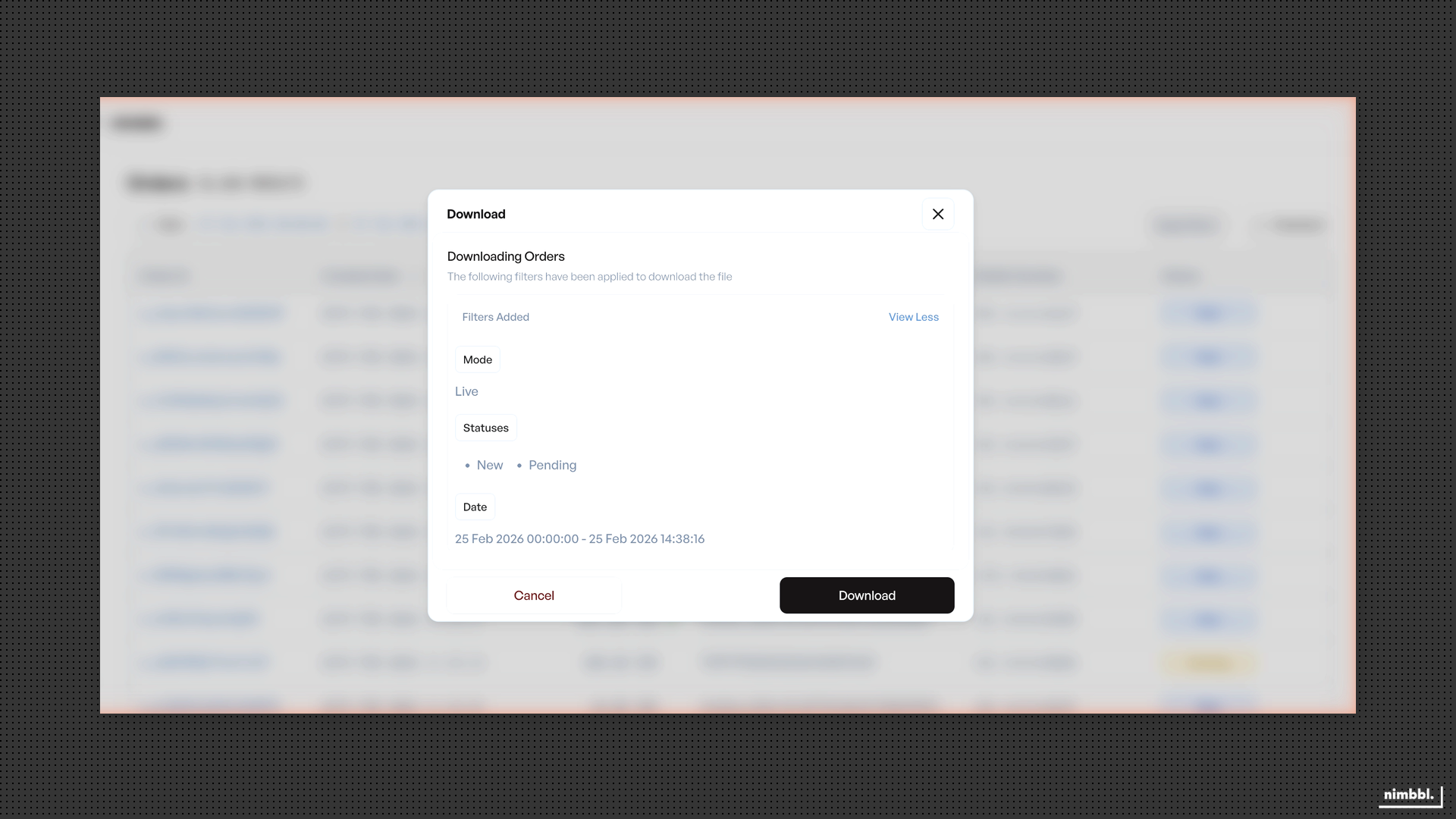 Download confirmation -- review filters before starting the export