People
People is where you manage team members in Command Center. You can add users, assign Merchant roles, control which sub-merchants each user can access, and activate or deactivate accounts. This page is for managing other users in your organization. To update your own details (name, contact number, or password), go to Profile.
Adding Users
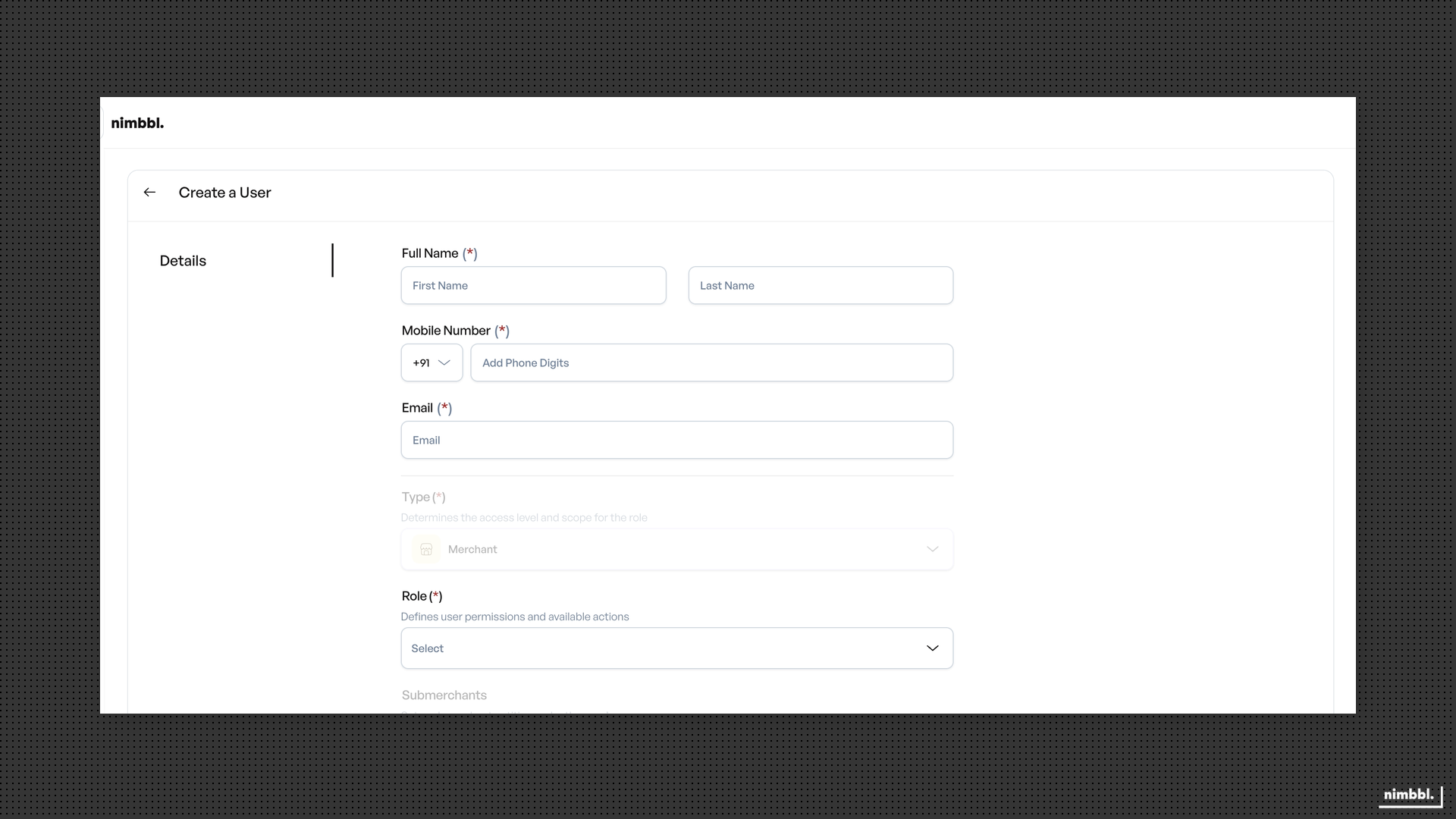
To invite a new team member, go to Manage > People and select the Add User action. The add-user form collects the following information:
- First name and Last name -- required.
- Email -- required and must be unique across your organization. Email cannot be changed after the user is created.
- Mobile number -- with country code.
- Profile image -- optional.
After entering user details, assign a Merchant role and configure sub-merchant access, then save. The new user receives an email invitation to set their password and log in.
Merchant Roles
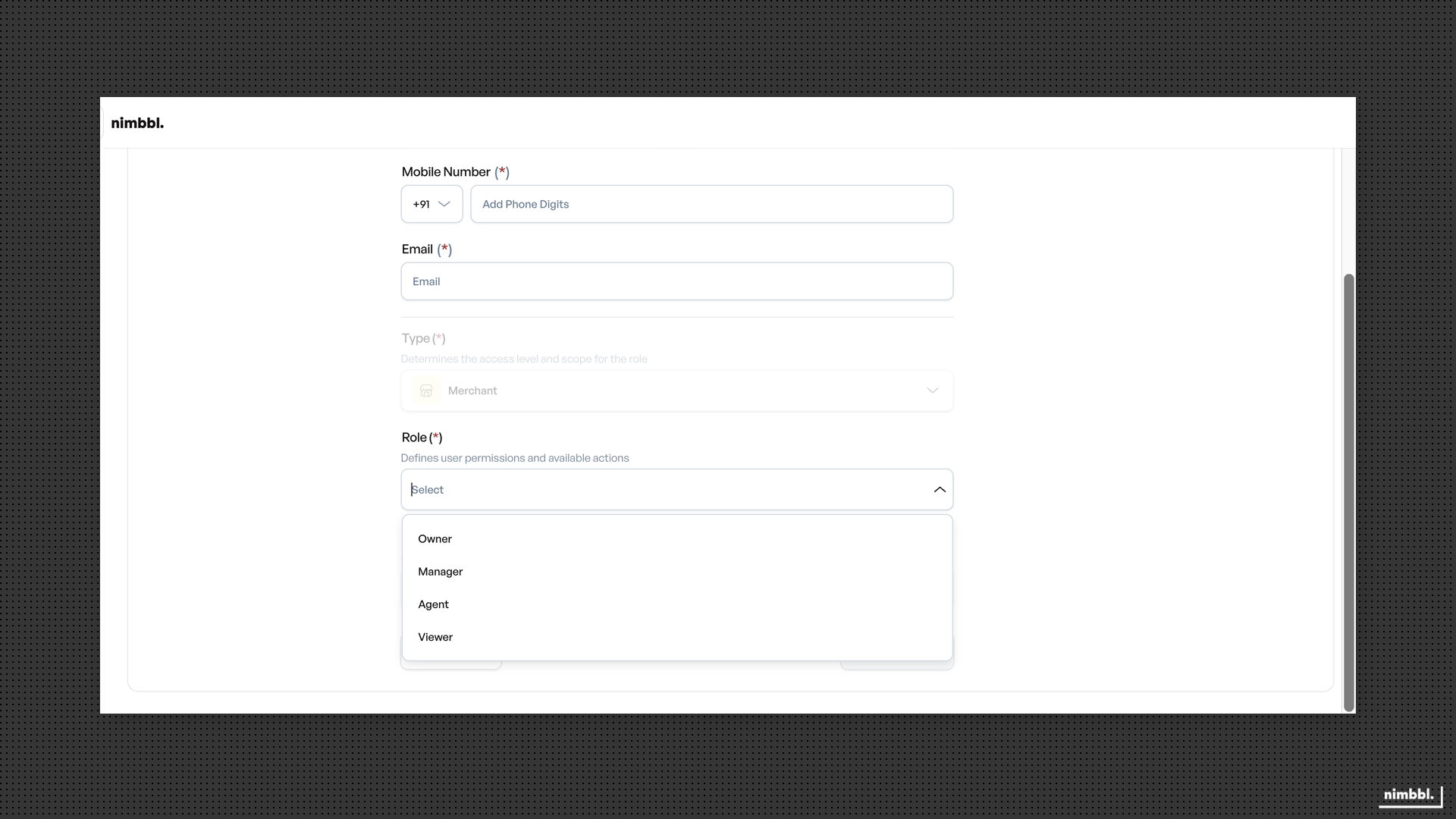
Every user is assigned one Merchant role that determines what they can do in Command Center. Four roles are available, listed from most to least access:
| Role | Description |
|---|---|
| Owner | Full control over the merchant account. Can add and remove team members, assign roles (below Owner), configure payment settings, manage sub-merchants, and access all reports and data. |
| Manager | Operational access across most areas. Can view and create orders, process refunds, manage payment links and pages, and view reports. Cannot add team members or modify account-level settings. |
| Agent | Day-to-day operational access. Can view transactions, create payment links, and process routine tasks within assigned sub-merchants. No access to reports, analytics, or team management. |
| Viewer | Read-only access to merchant data. Can view transactions, orders, and reports but cannot create, edit, or delete anything. Useful for finance teams or stakeholders who need visibility without write access. |
Roles follow a hierarchy from Owner (highest) to Viewer (lowest). Three rules govern role assignment:
- You can only assign roles below your own level. A Manager cannot assign the Owner or Manager role.
- You cannot edit or deactivate users at your level or above.
- You cannot change your own role. Another team member with sufficient access must do this.
Access Control
Access control determines which sub-merchants a user can see and operate on. When adding or editing a user, you assign sub-merchant-level access so the user only sees data for those specific entities.
- Sub-merchant access -- Select one or more sub-merchants the user should have access to.
- Role + Access -- The role defines what a user can do; access defines which entities the user can see. Together they form the complete permission set.
Managing Existing Users
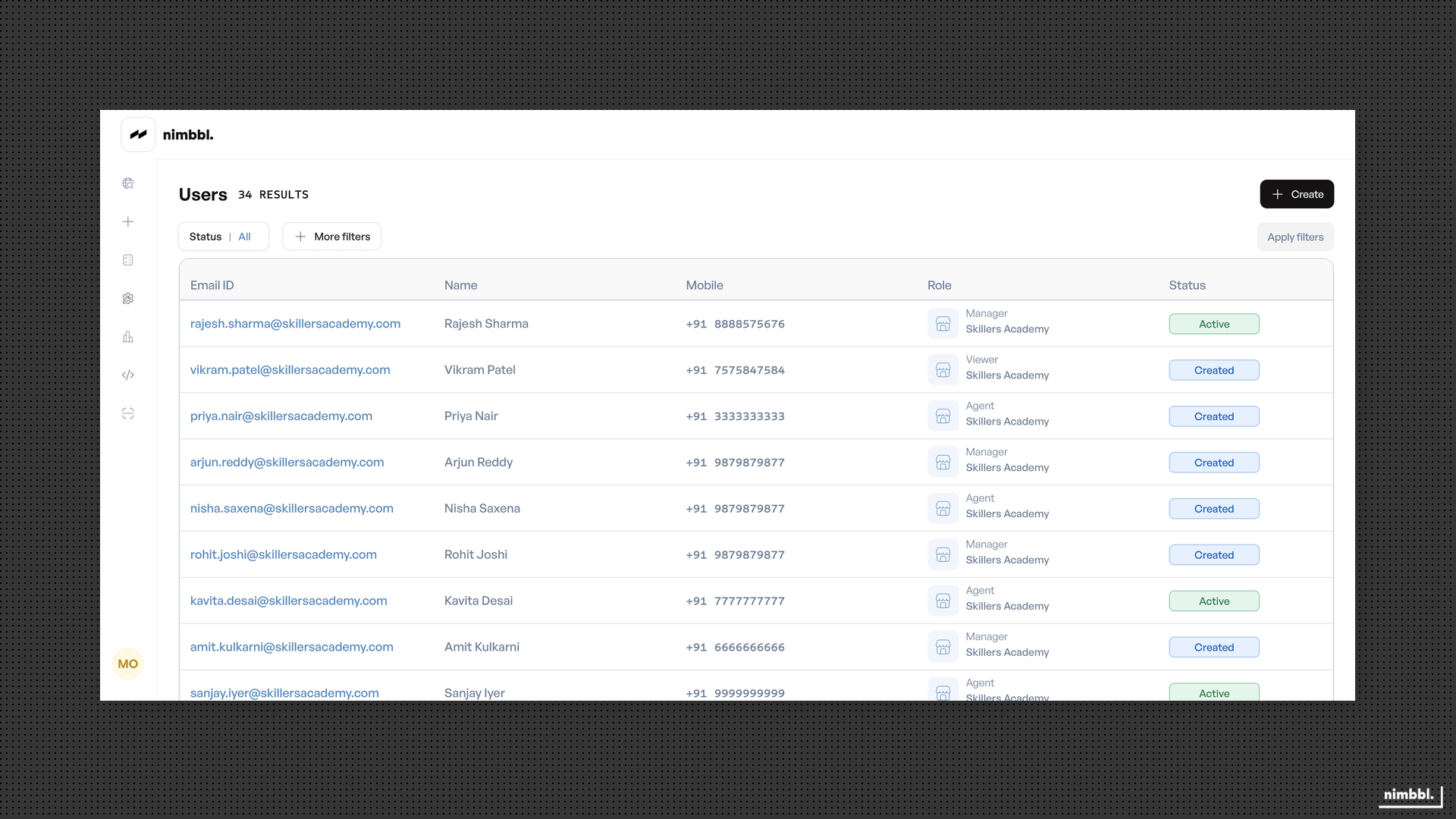
The People page displays a list of all users in your organization. From this list you can:
- View user details -- Select a user to see their profile, role, and access configuration.
- Edit role or access -- Update the assigned Merchant role or change sub-merchant access.
- Activate or deactivate -- Toggle a user's status. Deactivated users cannot log in to Command Center until reactivated.
- Reset password -- Trigger a password reset link that is sent to the user's email.
Deactivating a user immediately prevents them from accessing Command Center. Make sure the user no longer needs access before deactivating their account.