Shopify Checkout
Give your Shopify store a modern checkout experience with our Sonic Checkout. Our plugin integrates seamlessly to simplify payments and deliver a faster, more engaging checkout journey for your customers. Follow this guide for a quick, step-by-step setup and start accepting payments effortlessly with Nimbbl.
- To see our checkout in action on Shopify, visit the live demo store and perform a live transaction.
Compatibilities and Dependencies
- Active Shopify account with a Store
Prerequisites
You should have registered with Nimbbl and received your test access key and secret key. If you haven’t registered, please sign up on the Nimbbl website or fill this form, and our team will contact you.
in the given form make sure, in the domains section where it says canonical domain, enter your myshopify domain which for example looks something like this - "vtbasy-jf.myshopify.com".
this is generated right when you create your shopify store.
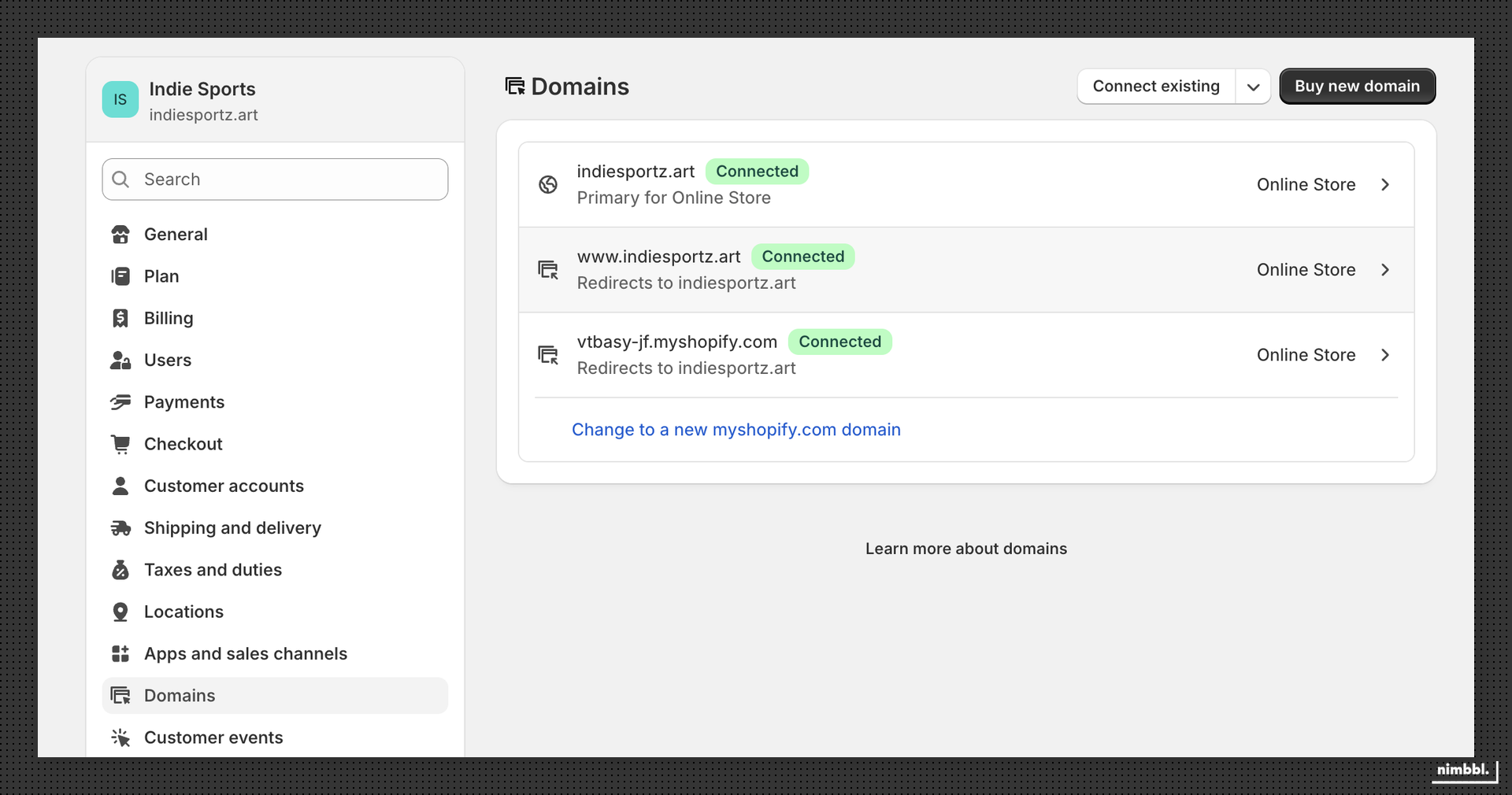
apart from this, make sure you also provide your rest of domains configured in shopify, you can find these in Settings -> Domains section shown below, here "indiesportz.art", "www.indiesportz.art" are the rest of the domains.
Plugin Installation
- Begin by installing the application via the provided link sent to your email address.
How to Install Our Plugin From Shopify?
- Click on the link
- Select your shopify account
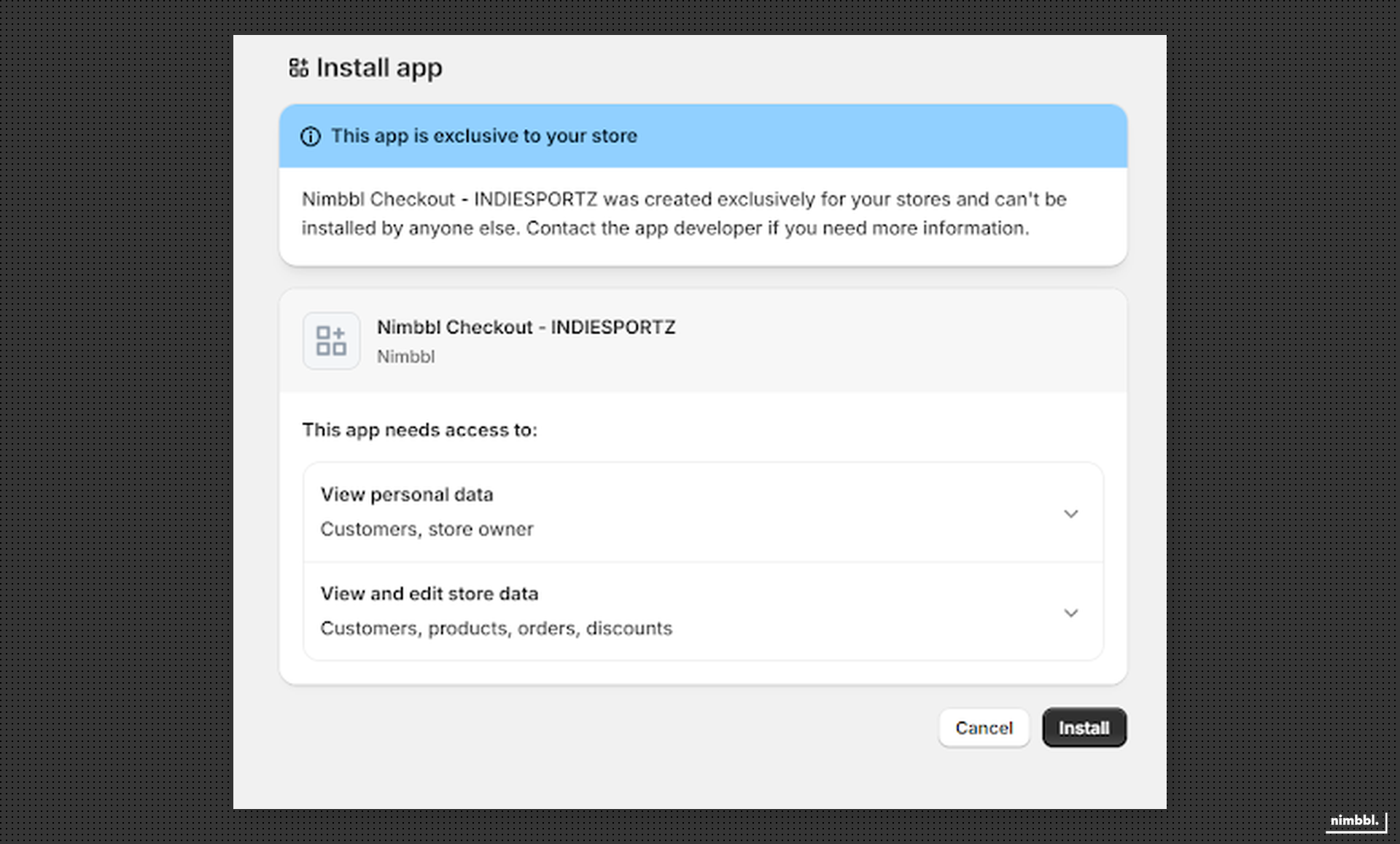
- Click “Install”
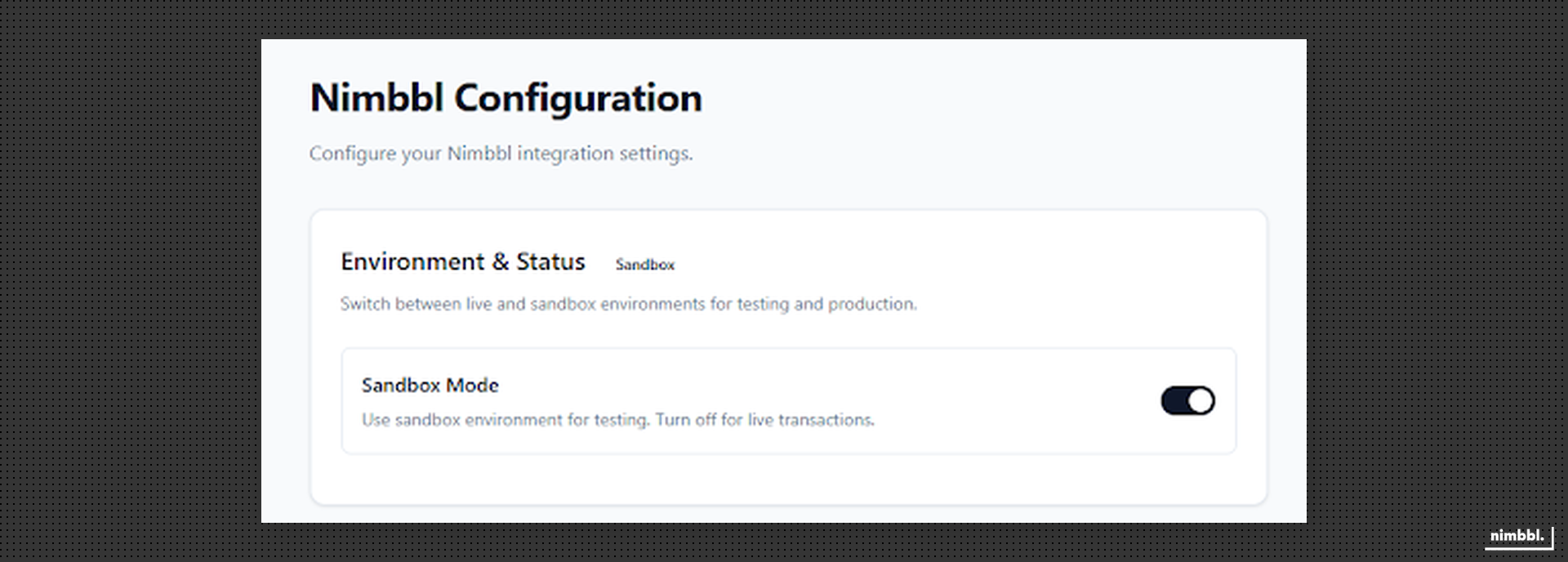
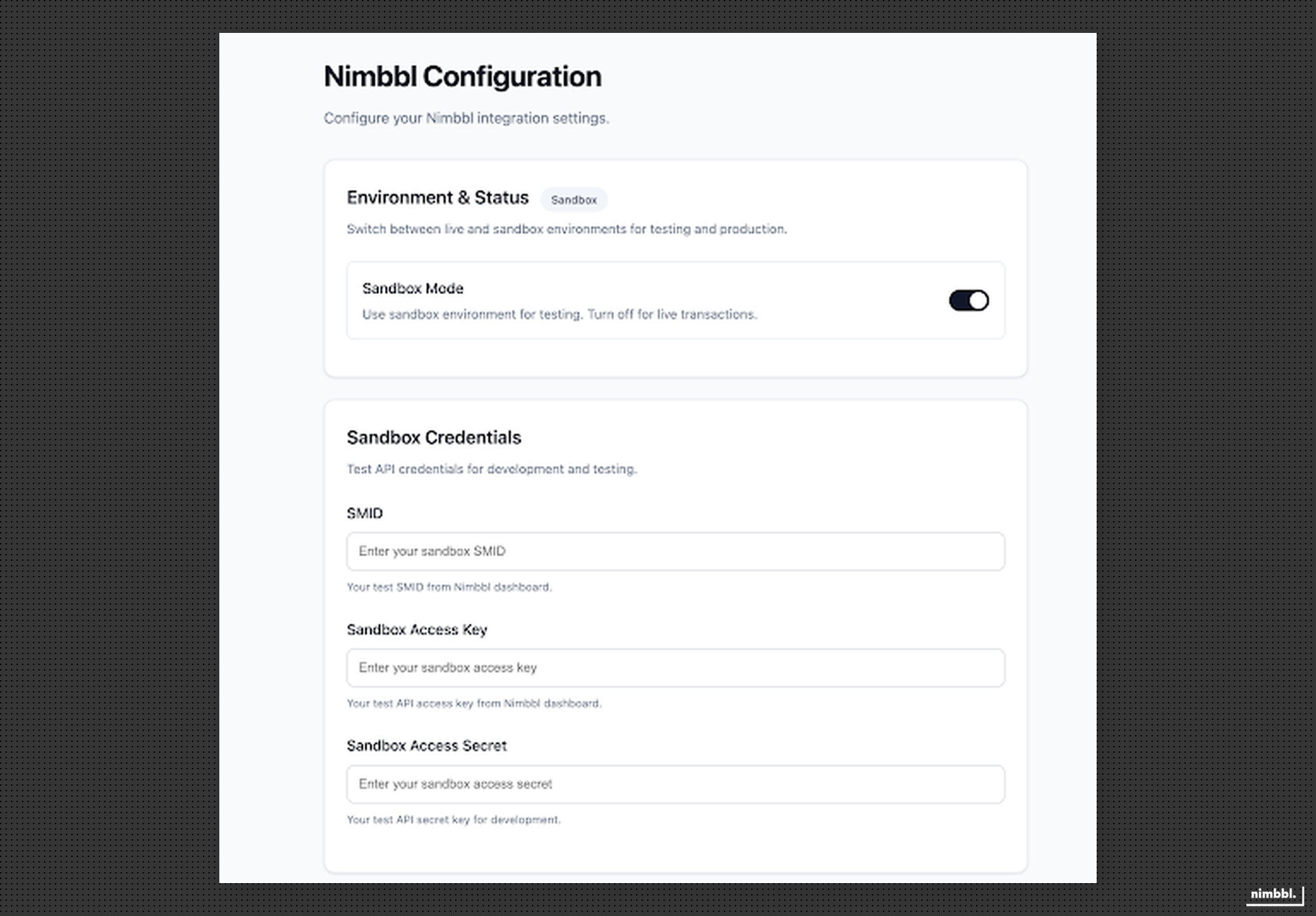
- Plugin Configuration page will open where you can configure your nimbbl plugin preferences
Access App Preferences
Once the installation is complete, open the app from the list of installed applications and navigate to its "Preferences" section.
Enter Credentials
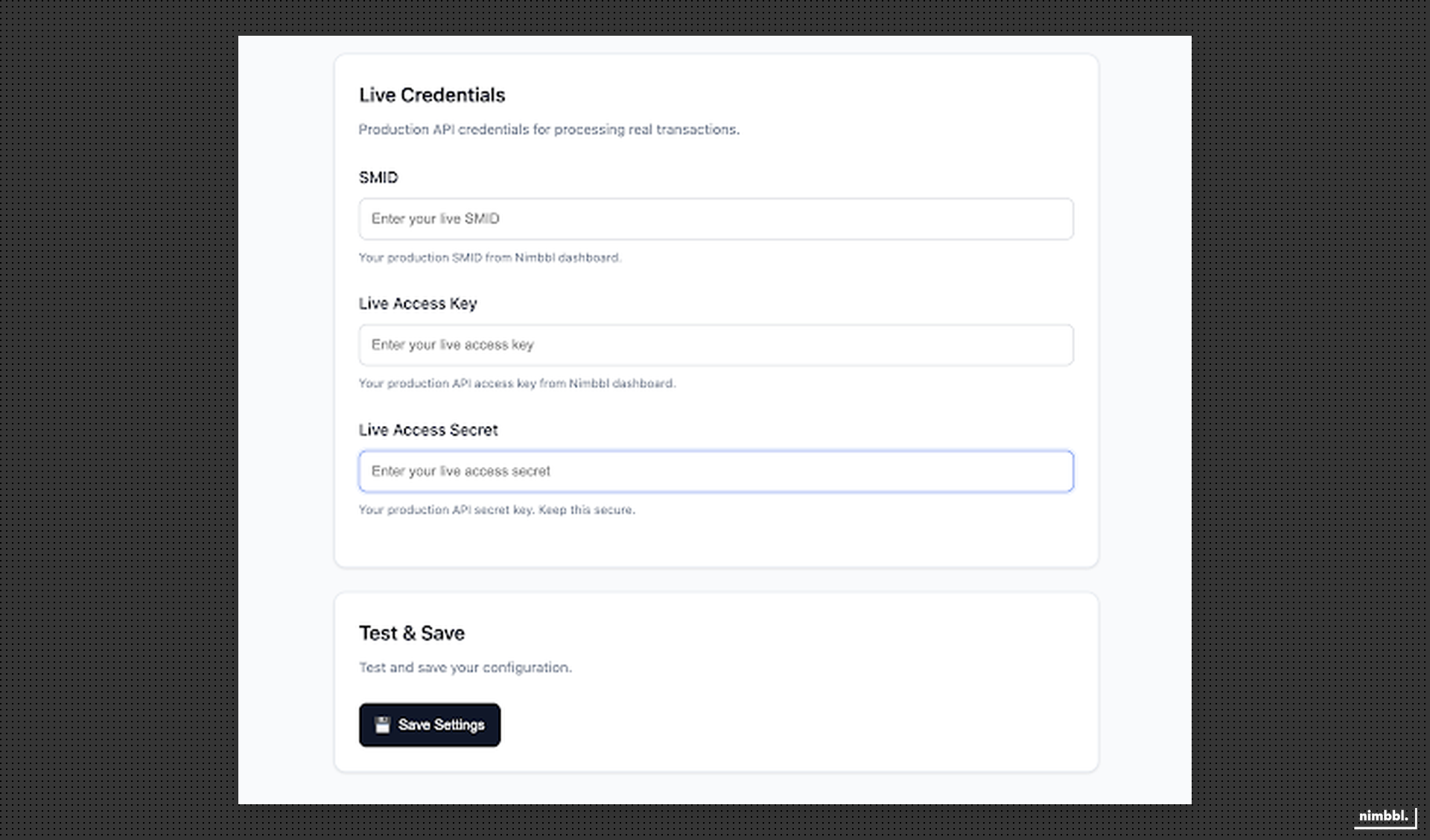
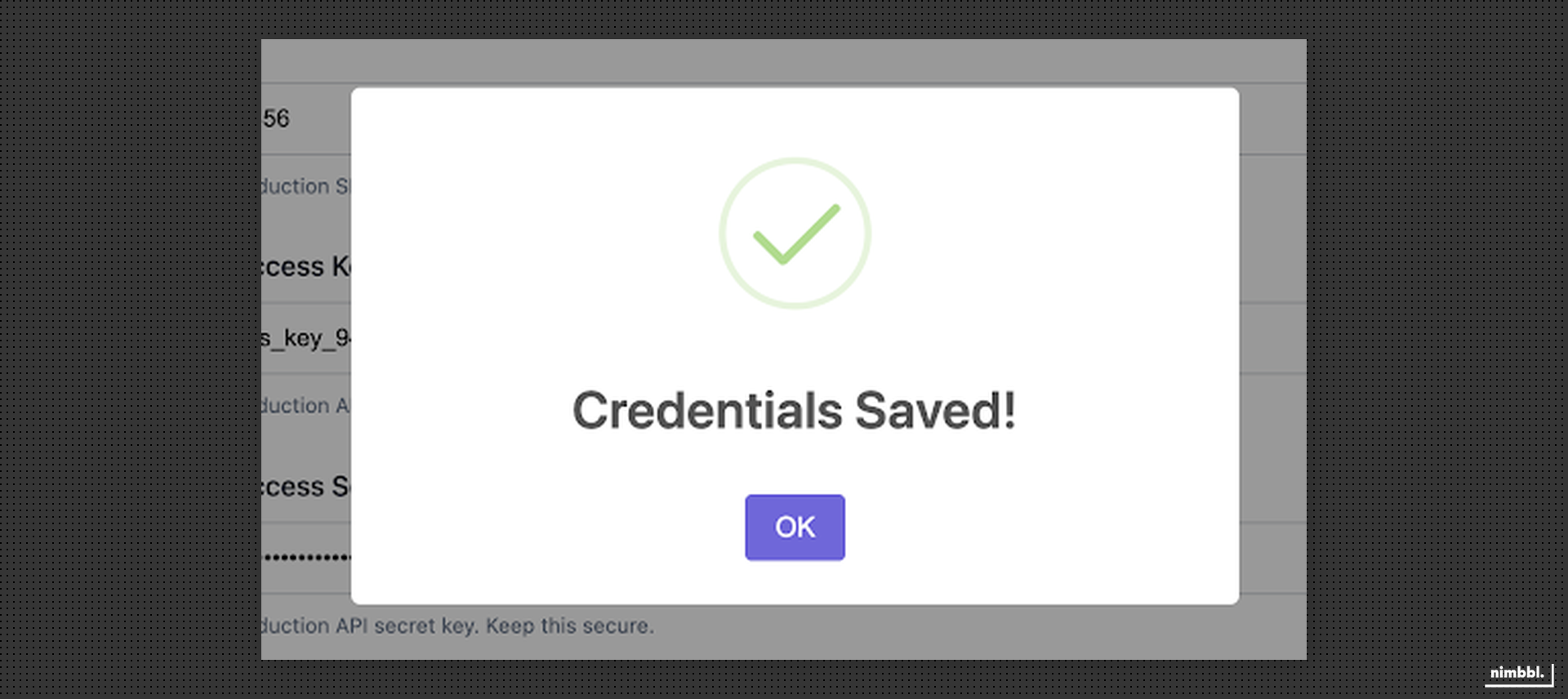
- In the Preferences, Nimbbl Sandbox toggle will be selected by default , input your sandbox key and secret and click save changes to start testing the plugin in your test environment
- Make sure that you toggle off sandbox when using your live environment credentials.
Implement Checkout Override
To ensure the checkout override functions correctly, a script must be included in the store's theme. This script will execute every time a product page or checkout drawer is opened, overriding the existing functionality of the "Buy Now" and "Checkout" buttons to open the Nimbbl checkout.
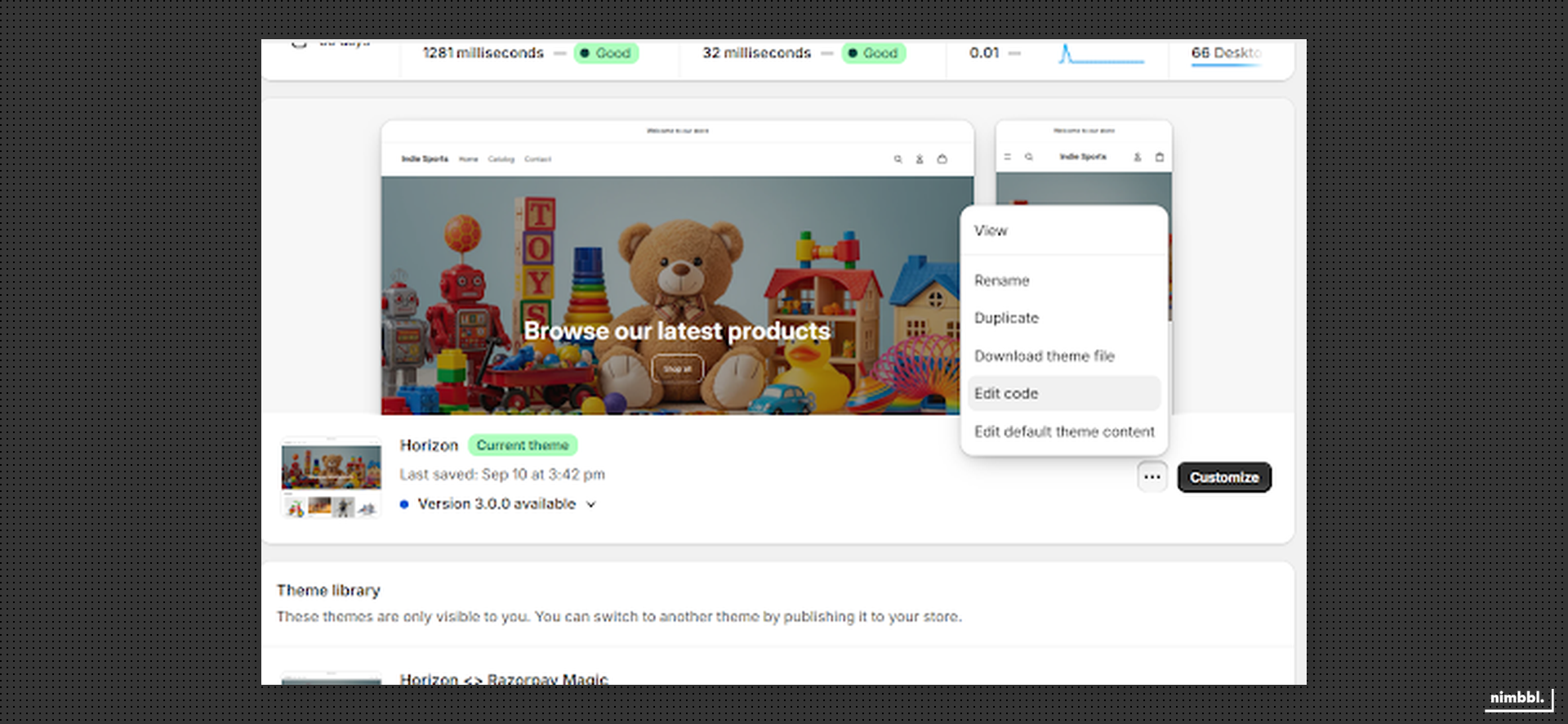
- In the Shopify admin homepage, click on "Online Store."
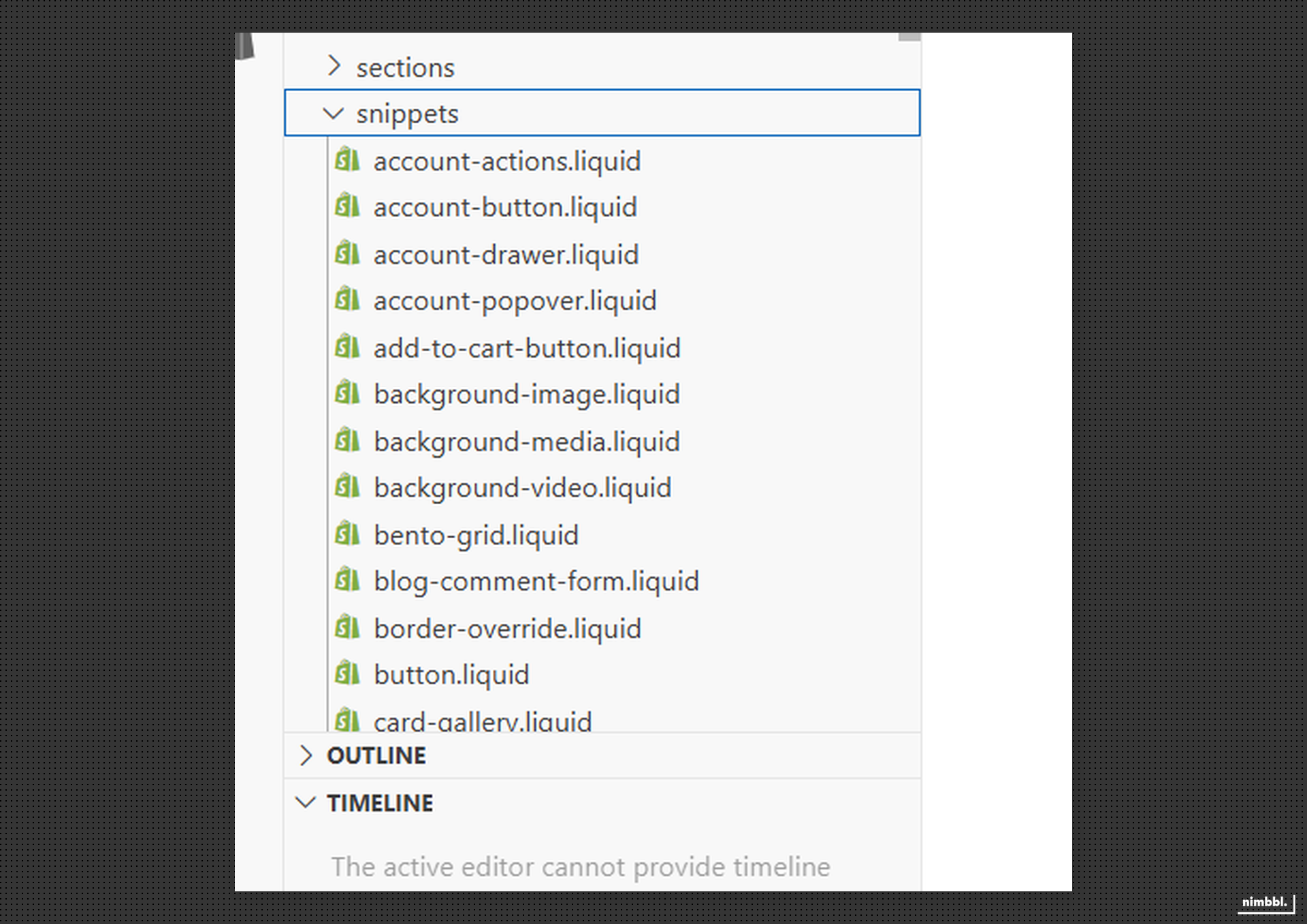
- Click on the three dots located to the left of the "Customize" button and select "Edit Code." This action will open the theme code editor, resembling Visual Studio Code.
- In the editor, locate the
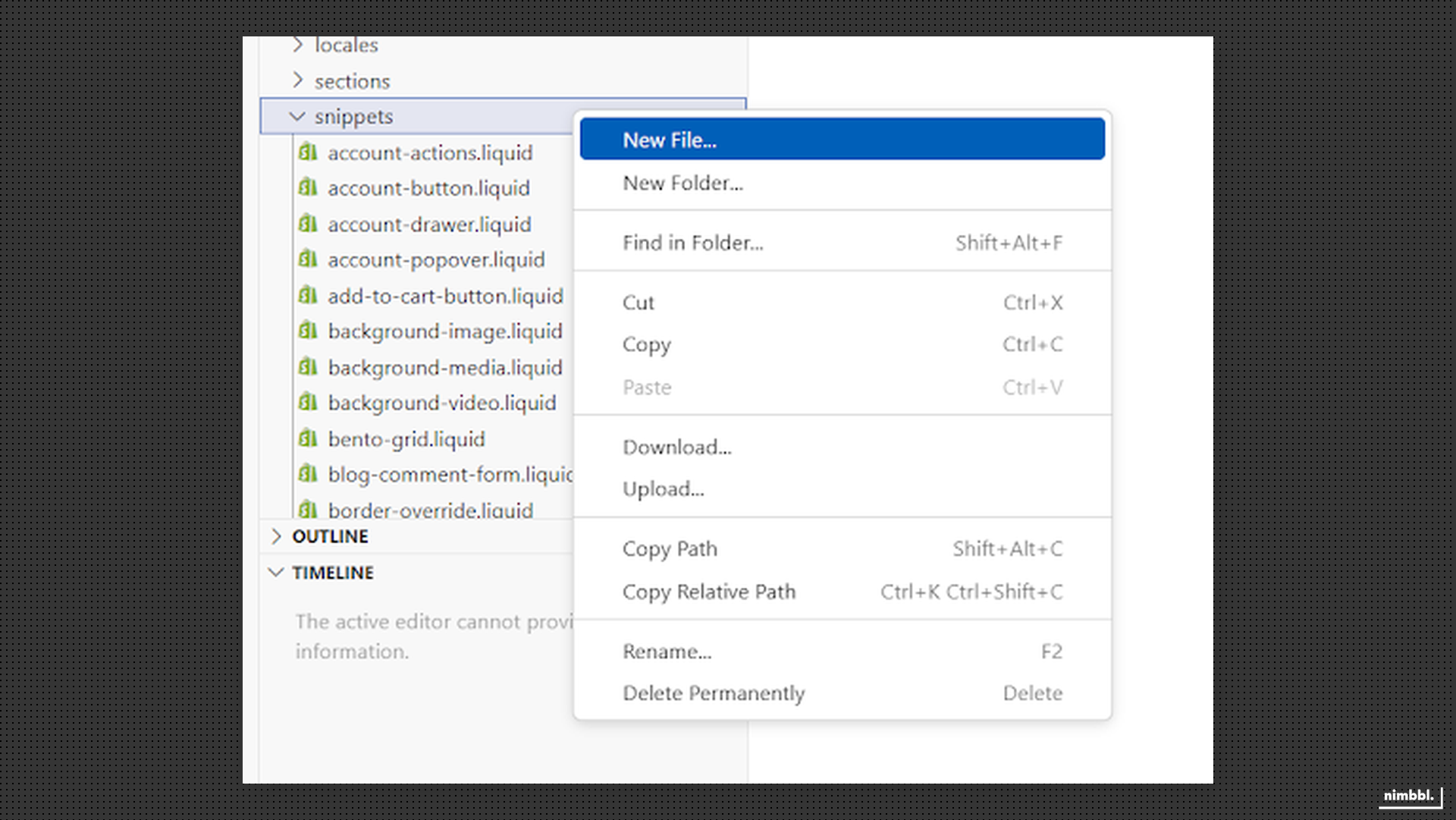
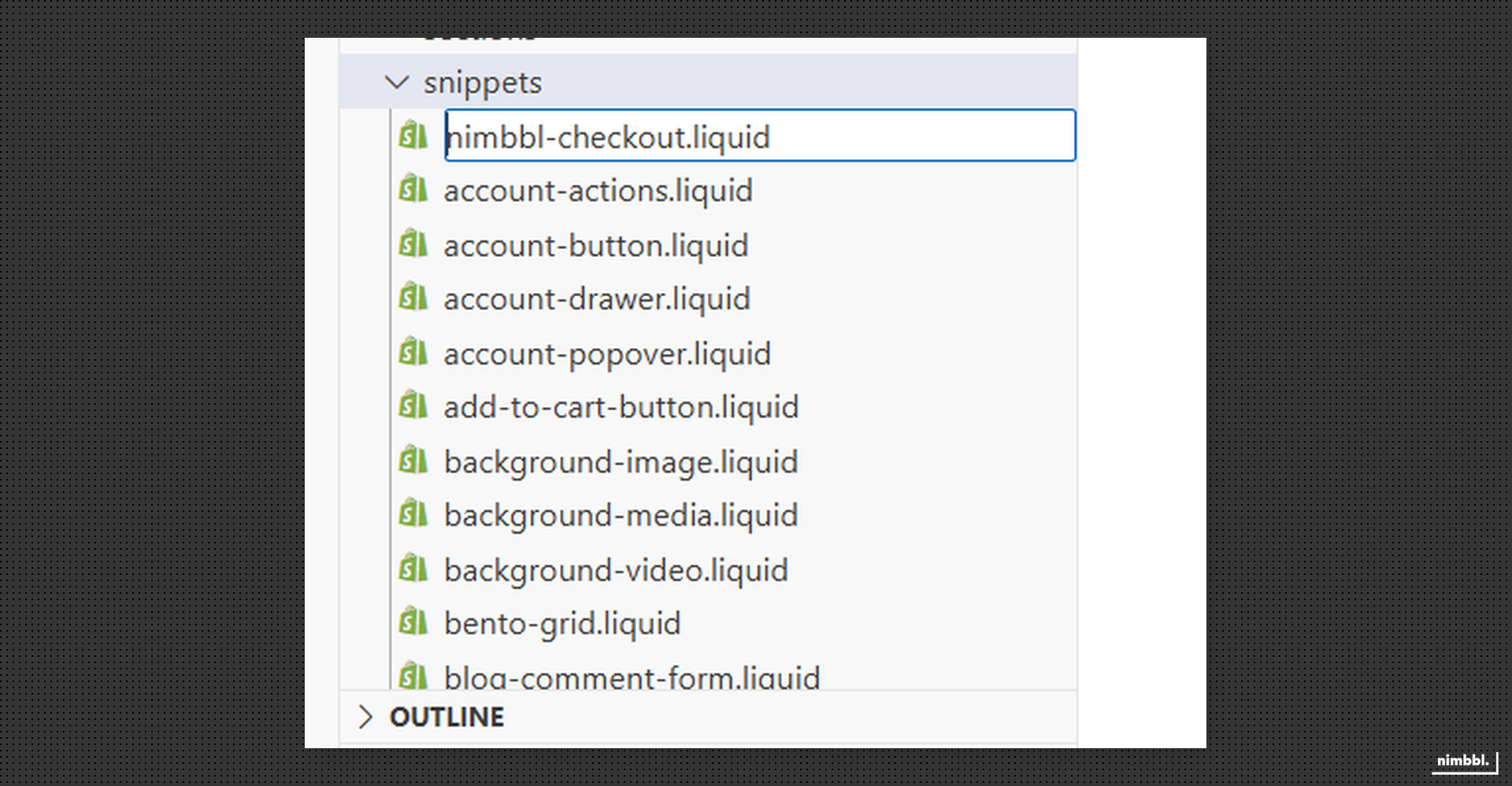
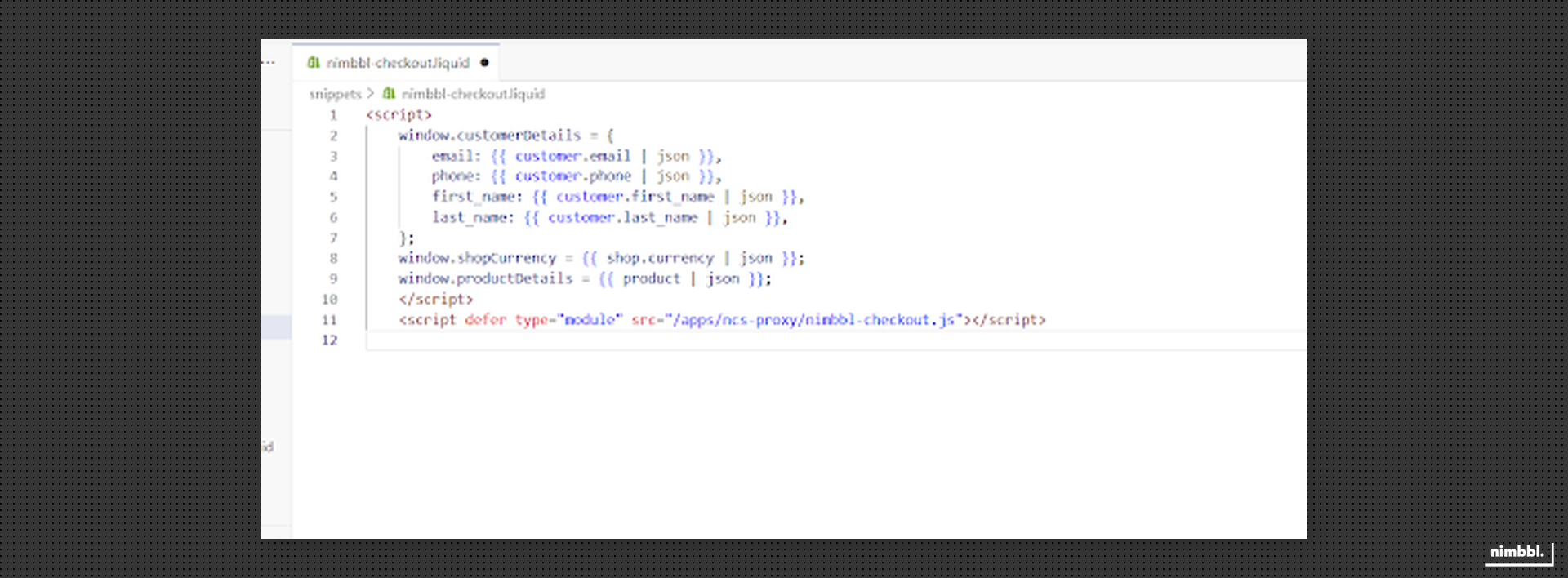
Snippetsfolder and create a new file namednimbbl-checkout.liquid. Paste the following code:
<script>
  window.customerDetails = {
    email: {{ customer.email | json }},
    phone: {{ customer.phone | json }},
    first_name: {{ customer.first_name | json }},
    last_name: {{ customer.last_name | json }},
  };
  window.shopCurrency = {{ shop.currency | json }};
  window.productDetails = {{ product | json }};
</script>
<script defer type="module" src="/apps/ncs-proxy/nimbbl-checkout.js"></script>
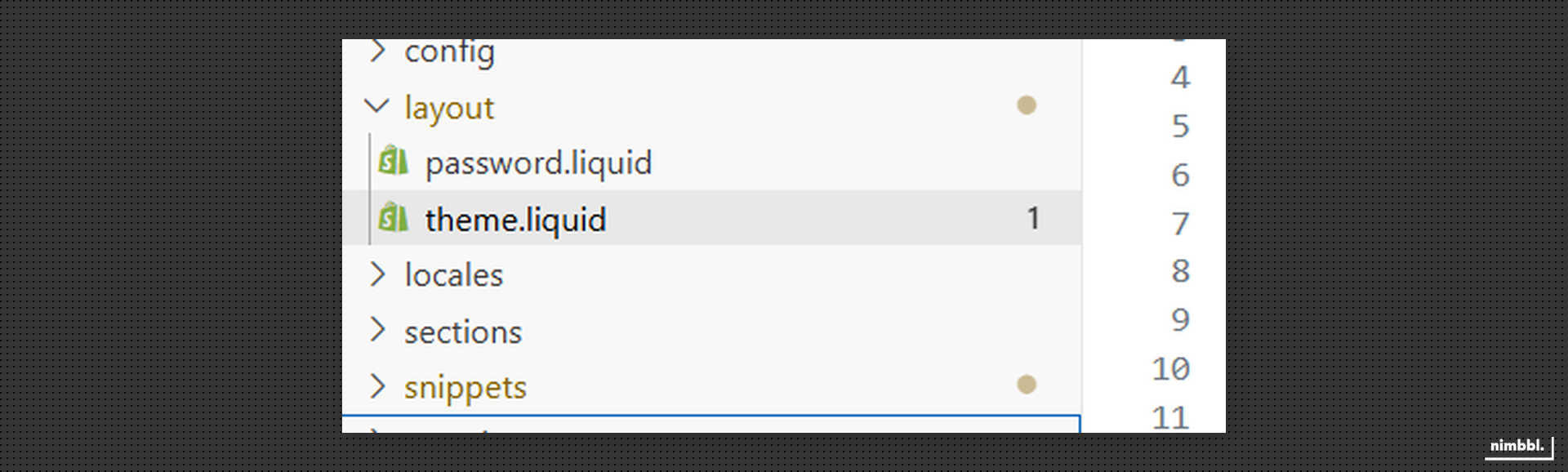
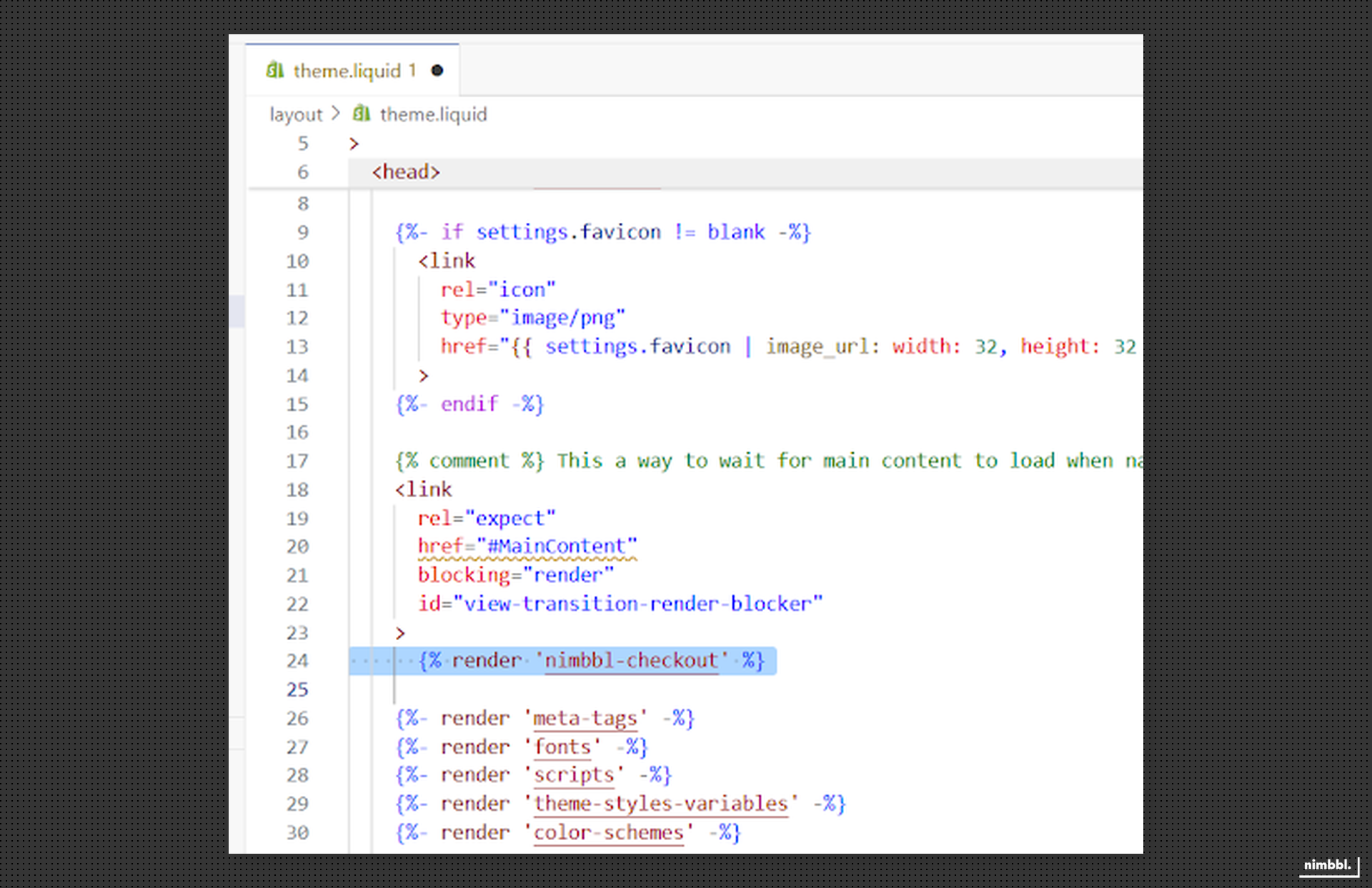
- To ensure the snippet functions correctly, it must be included in the theme.liquid file, which can be located by selecting “layout” and add the following line within the
<head>tag of “theme.liquid” file
{% render 'nimbbl-checkout' %}
Uninstallation
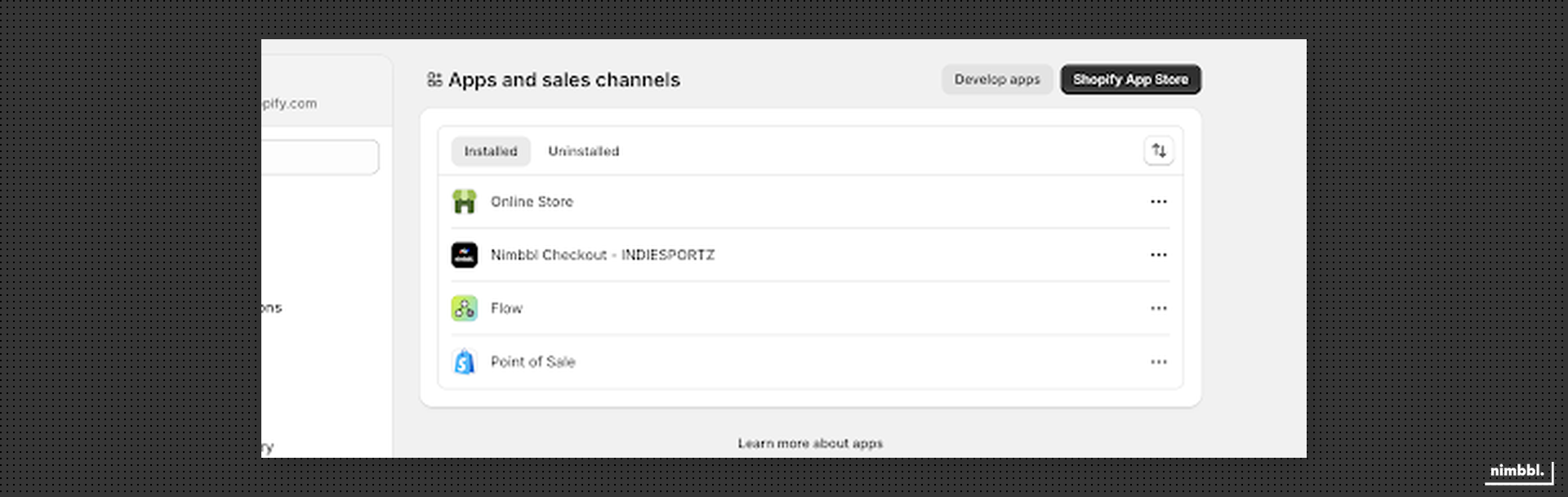
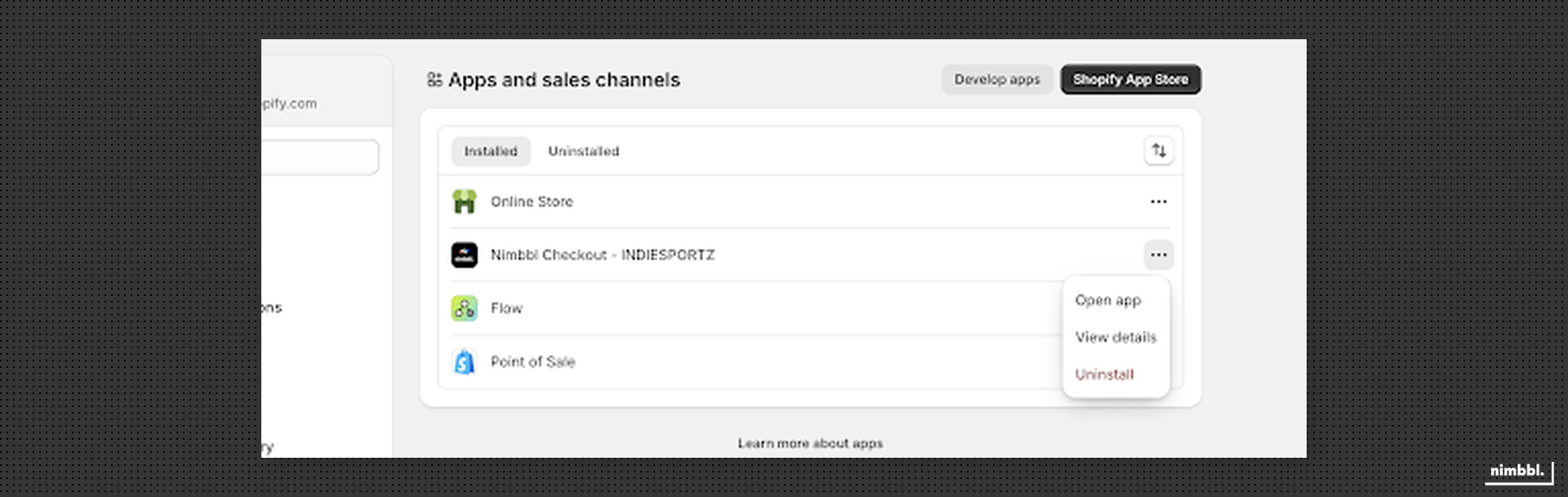
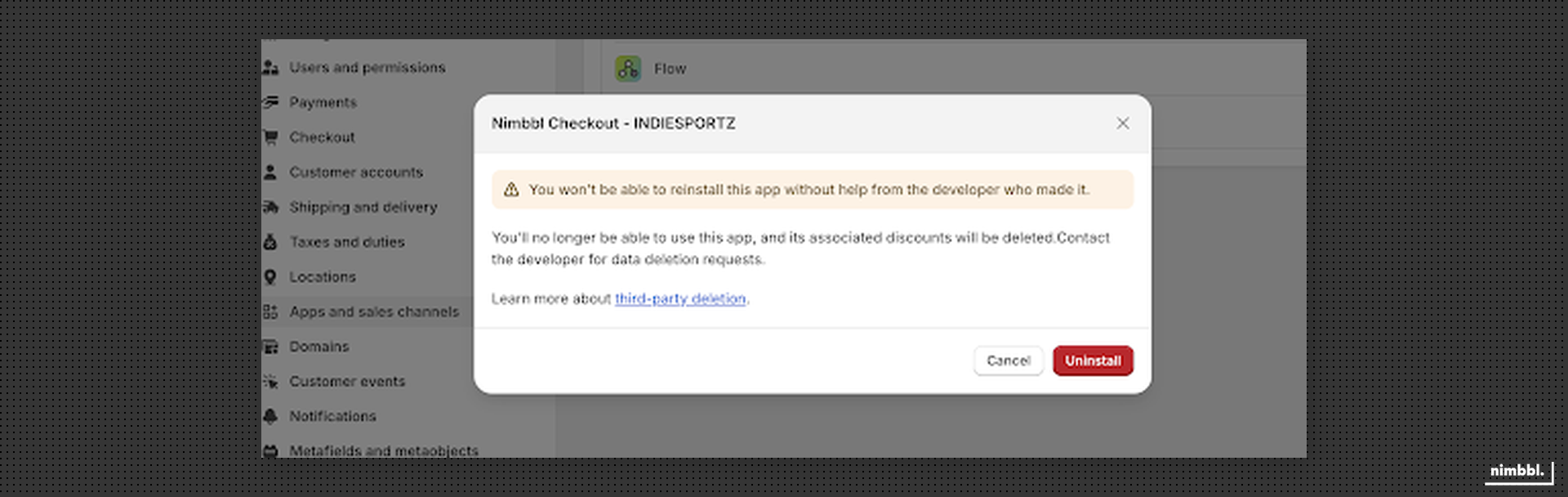
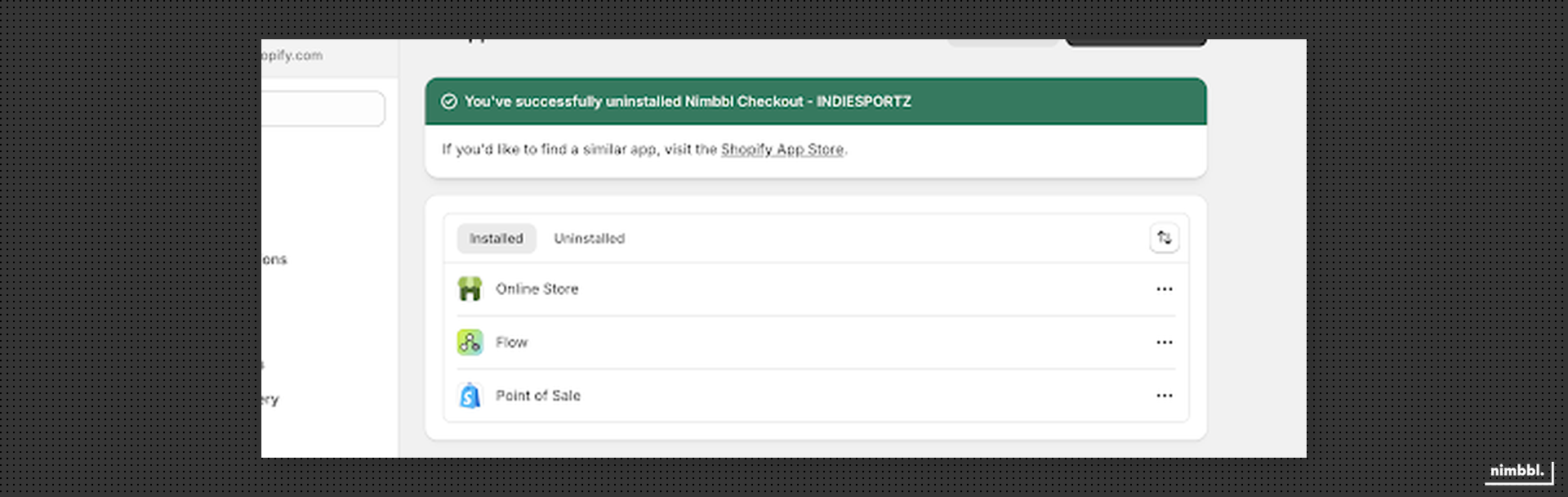
- Uninstall the app from the Apps list.
- Remove the snippet included from
theme.liquid. - Delete the
nimbbl-checkout.liquidsnippet from theSnippetsfolder.