Magento
Nimbbl supports easy payment acceptance on your Adobe Commerce store. We have created a simple plugin that you can install on your store. The prerequisite and step-by-step process is explained below.
Prerequisites
You should have registered with Nimbbl and received your test access key and secret key. If you haven’t registered, please sign up on the Nimbbl website, and our team will contact you.
Integration Steps
Follow these steps to start accepting payments on your store using Nimbbl Checkout.
Install Plugin
You can install the extension in two ways:
- Install Plugin Using Composer
- Install Plugin Without Using Composer
Install Plugin Using Composer
- You can install the extension on your Adobe Commerce store using the Composer Package Manager, which provides a standard format for managing PHP software dependencies and required libraries.
- Navigate to the root installation directory of Adobe Commerce and run the following command:
composer require nimbblcheckout/magento --ignore-platform-reqs - Enable and deploy the Nimbbl plugin using the following commands:
php bin/magento module:enable Nimbbl_Magento --clear-static-content
php bin/magento setup:upgrade
php bin/magento setup:static-content:deploy -f
php bin/magento cache:flush
Install Plugin Without Using Composer
- Download the latest source code zip file and unzip it.
- Place the code folder from Step 1 in your
appfolder. If you're performing an update, replace/overwrite the existing code folder. - Enable and deploy the Adobe Commerce module using the following commands:
php bin/magento module:enable Nimbbl_Magento --clear-static-content
php bin/magento setup:upgrade
php bin/magento setup:static-content:deploy -f
php bin/magento cache:flush
Configure Your Store
-
Log into your Magento store.
-
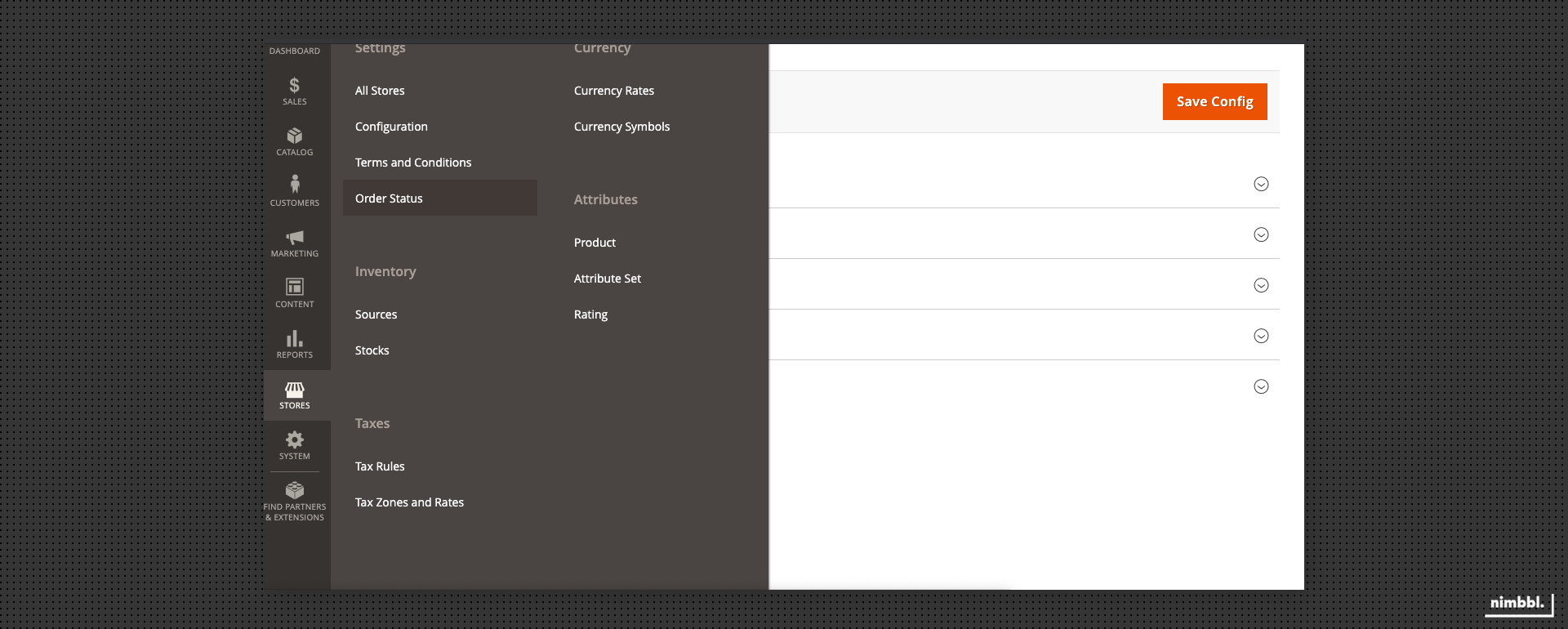
From the left sidebar, navigate to Stores and click on Configuration.
-
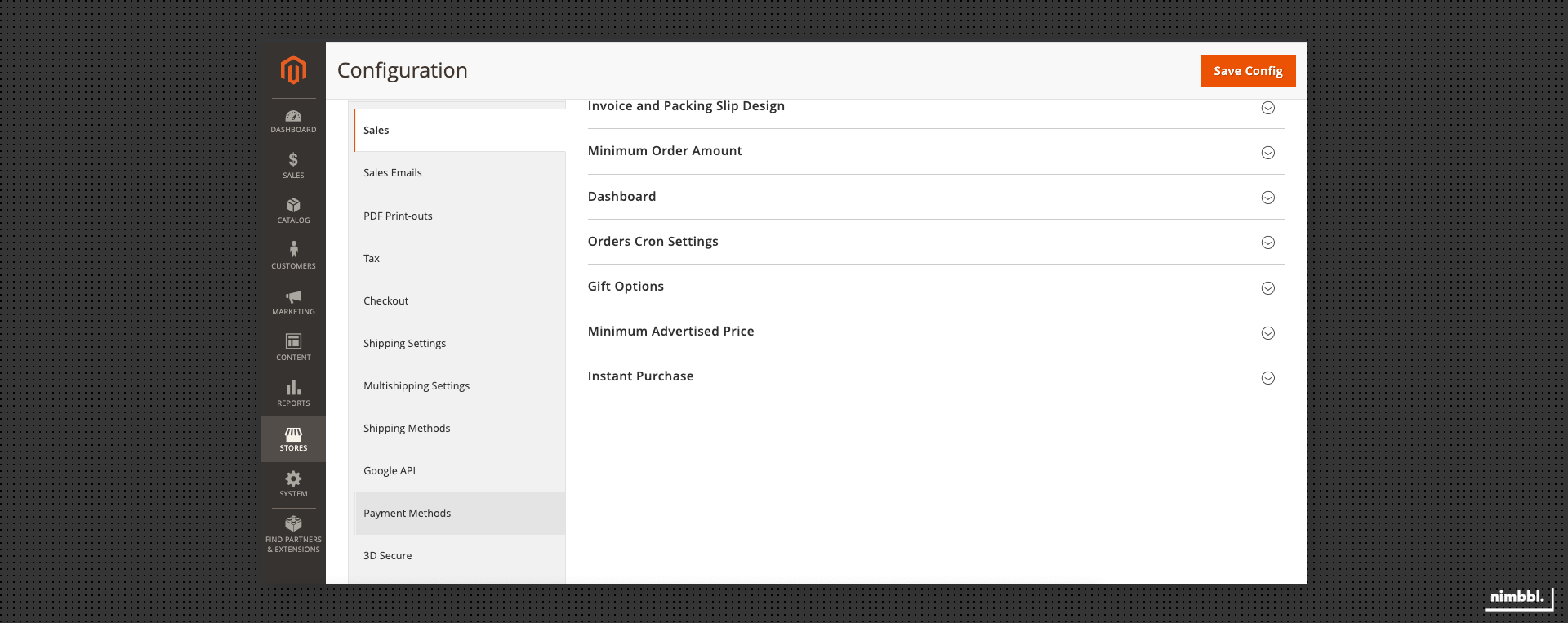
On the configuration page, navigate to Sales > Payment Modes.
-
To enable the Nimbbl payment mode, navigate to Nimbbl on the payment page.
-
Add your test
key_idandkey_secretgenerated from the Nimbbl Command Center.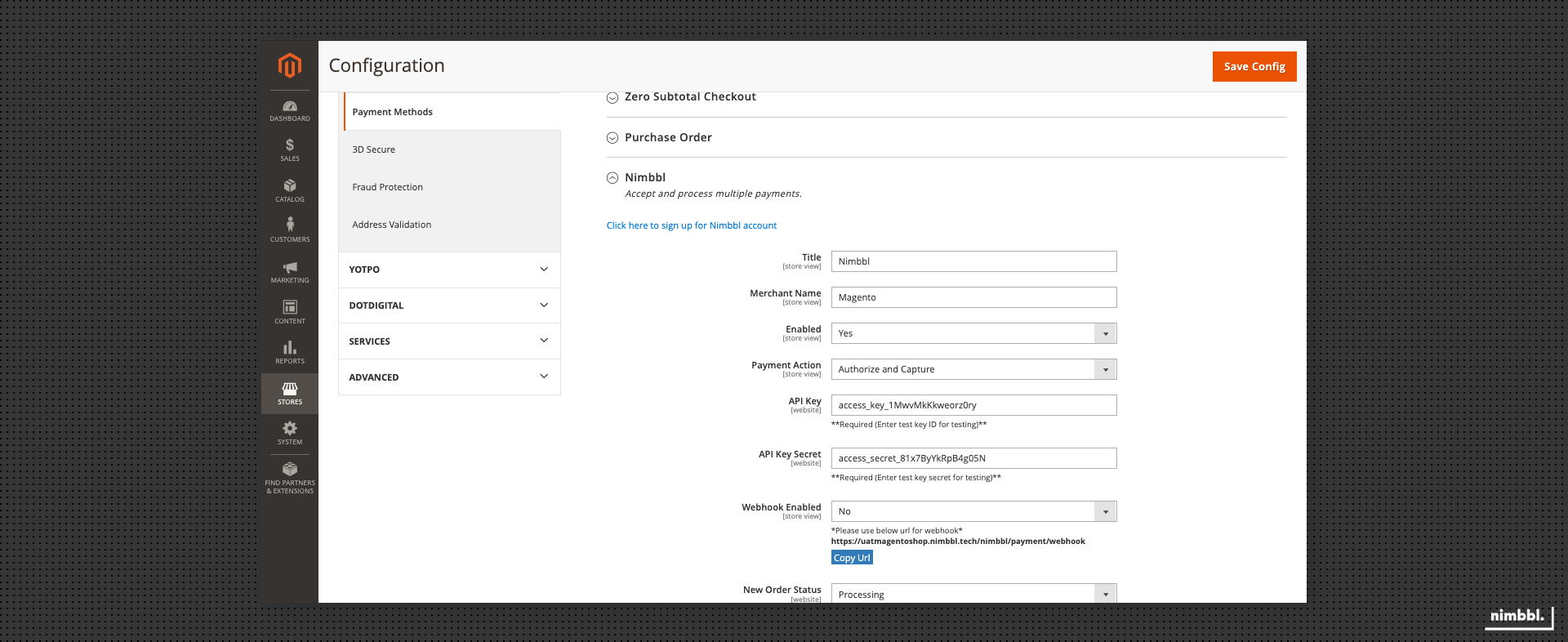
-
Select Yes for the option Enabled.
-
Save the configuration by clicking the Save Config button. Using test keys activates your account in test mode, and you can make a few successful payments using this account.
Set Up Webhooks
A webhook is called on certain events, which can be customized in the merchant Command Center. When any of the events get triggered, we send an HTTP POST payload in JSON format to the webhook URL you have configured by contacting [email protected] for assistance.
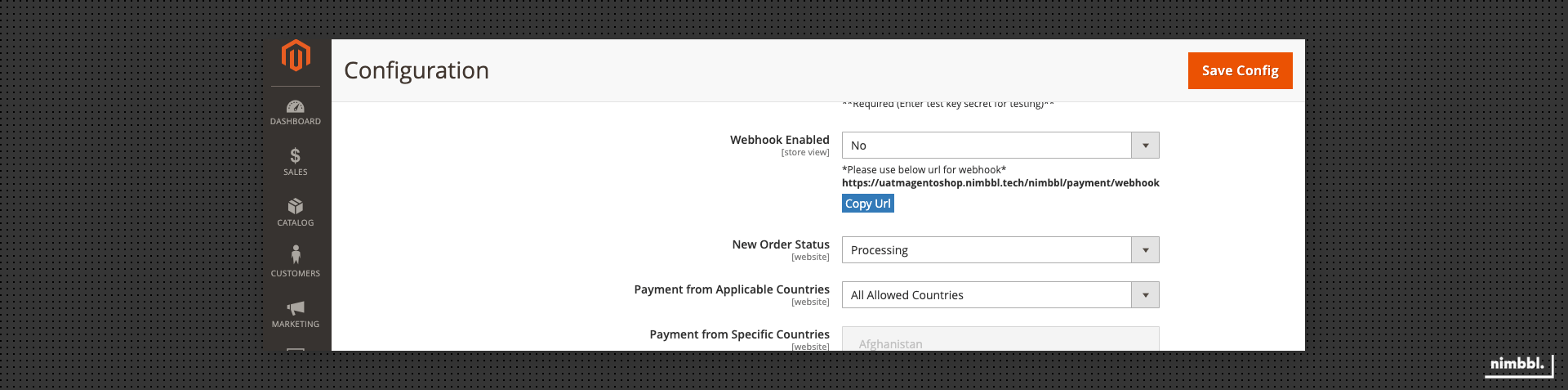
To receive webhooks in the Adobe Commerce shop, copy the webhook URL from the Adobe Commerce payment mode settings and share it with [email protected] to configure the webhook URL.
For more information on webhooks, refer to the completing integration guide.
By following these simple steps, you can integrate Nimbbl Payments into your Adobe Commerce store, providing your customers a smooth and secure payment experience. Enjoy the benefits of a hassle-free payment partner and focus on growing your business.
Go Live
After testing your Magento store, when you are ready to accept live payments:
-
Get your live
key_idandkey_secretfrom your Nimbbl Command Center. -
Enter the live
key_idandkey_secretin your Magento store.