OpenCart
Nimbbl supports easy acceptance of payments on your Opencart store. We have created a simple plugin that you can install on your store. This guide will explain the step by step process to integrate the plugin.
- To see our checkout in action on OpenCart, visit the live demo store and perform a live transaction.
Compatibilities and Dependencies
- Always keep a backup of your existing Opencart installation including the Mysql Database, before installing a new module
- Nimbbl supports Opencart 2.3 and 3.0
Install Plugin
You can Install the Nimbbl plugin either from the Opencart Extension Installer or by manually uploading the code zip file
Install via Opencart Extension Installer(Recommended)
-
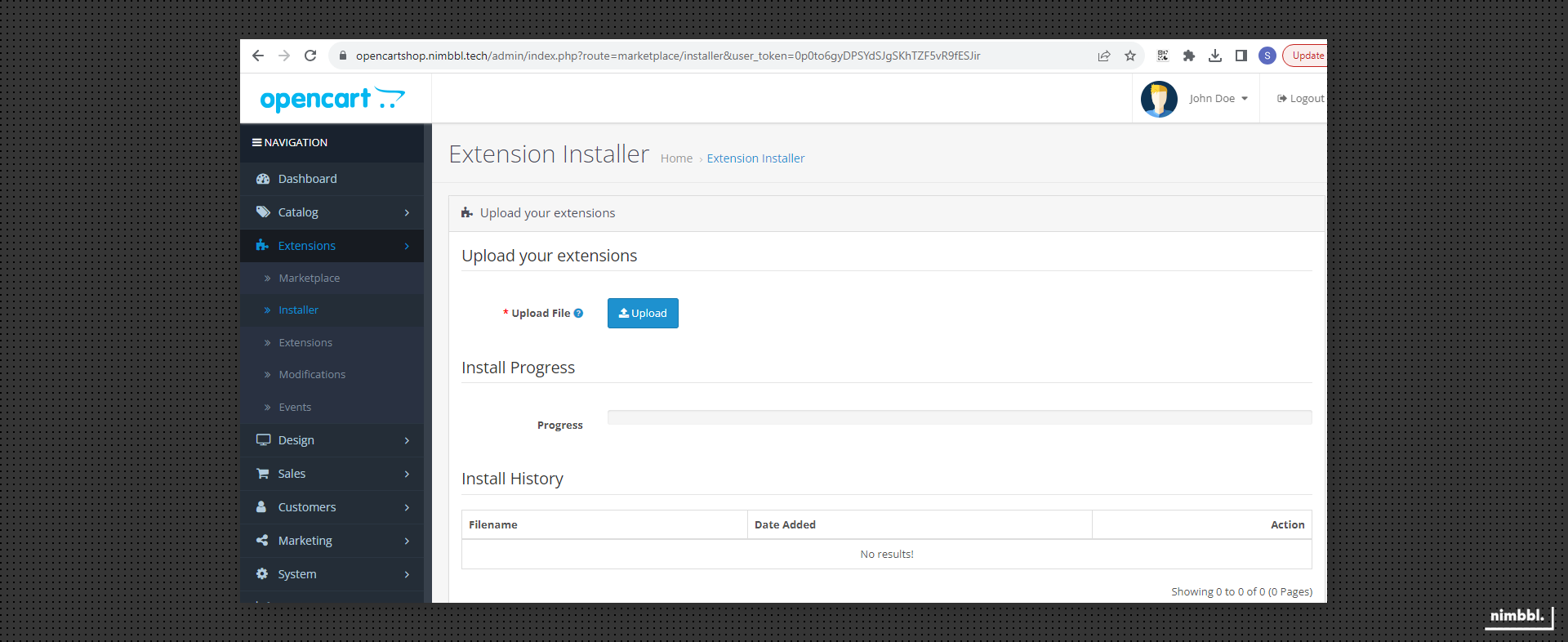
Login to the Opencart Admin panel and go to Extension Installer. Make sure the Extension installer is already configured and working
-
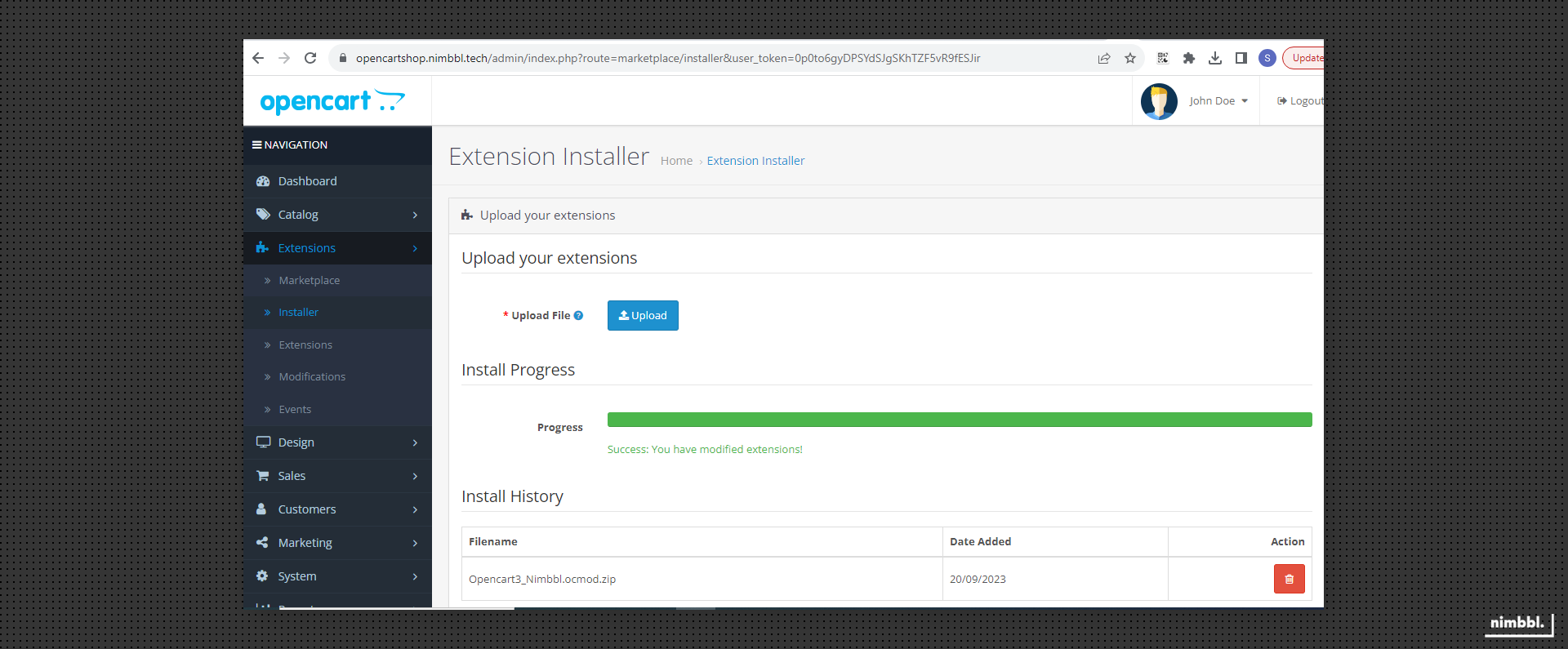
Click on "Upload file" and select the downloaded module ocmod.zip
Installing Manually
-
Download the latest Source code zip file.
-
Unzip the content of the module zip in a folder. Upload the content of “upload” folder (admin, catalogue) to your Opencart root folder.
-
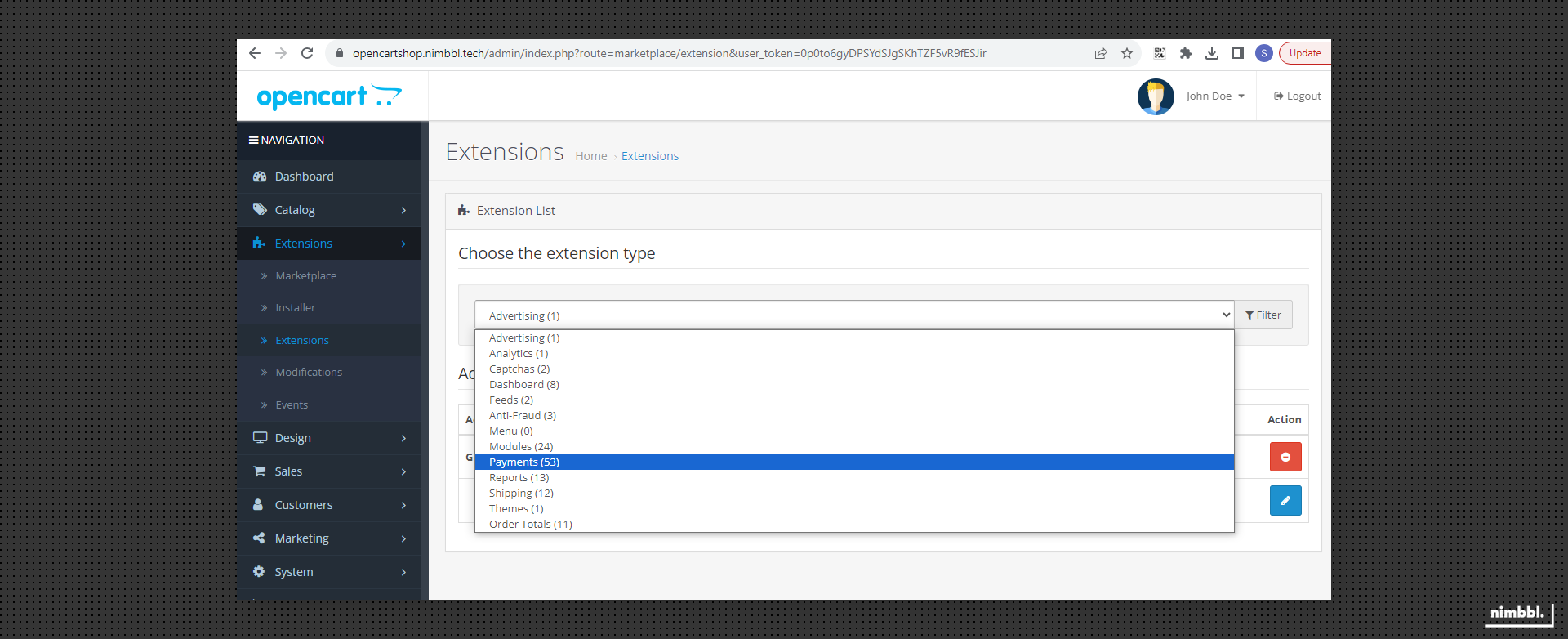
Now in Opencart, login to your admin account and go to Extensions-> Payments option. It will show you the Nimbbl module.
-
Click the Install option on the right to install the module in the Opencart engine.

-
Now click Save and your customers will get the Nimbbl option during the checkout process.
IMPORTANT- If you are installing the module for the first time then all files will be uploaded automatically to the appropriate locations, or else, a list of files will be shown to be overwritten, and clicking on the Continue button will perform the copy/installation.
Configure Plugin
Once the plugin has been installed, you need to configure it so you can start accepting payments. There are multiple configurations that you can do to customise the plugin for your needs.
To be able to manage the configuration, you need to search for Nimbbl
-
Choose extension type as payments
-
Find Nimbbl to be able to see your configuration options

Enable/Disable Nimbbl
To accept payments through Nimbbl, the plugin should always be Activated. If you deactivate the plugin, the Nimbbl option will not show up on your checkout page.
-
To Enable/Disable - click on "Install/Uninstall"

Managing Credentials & Environments
The Nimbbl opencart Plugin works for both Test and Live environments. You can configure different keys for each environment and toggle settings to use different environments.
-
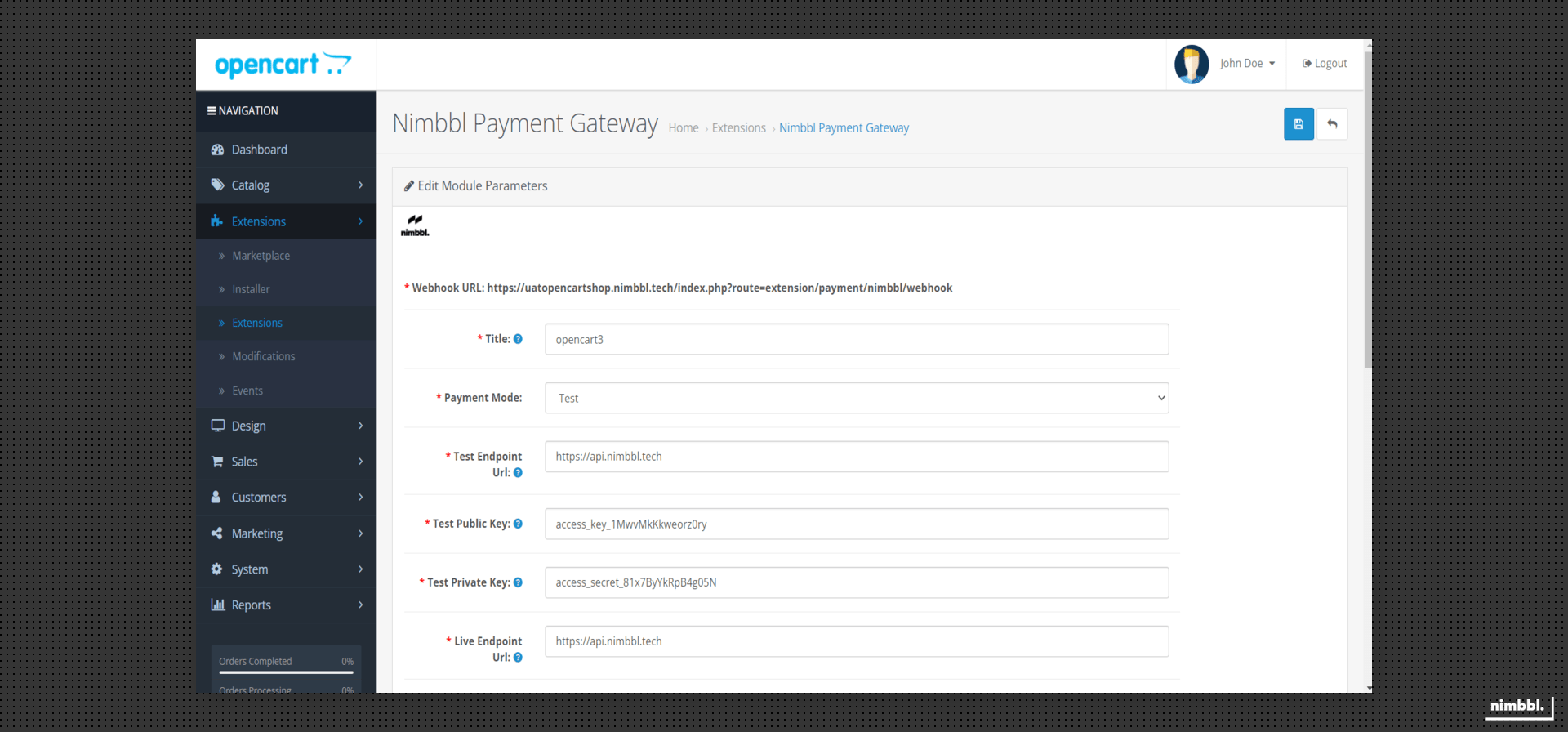
Click on Edit to conifgure credentials and manage environments.
-
Set the Payment Mode to Test or Live depending on your requirement.
 IMPORTANT
- Using Test Payment Mode does not affect your Live data or interact with the banking networks.
- Using Live Payment Mode results in actual transactions and money being deducted from your bank or card.
-
Add in your Live and Test
access_keyandaccess_secretavailable in the Nimbbl Command Center. Enter the endpoint URL ashttps://api.nimbbl.techfor both Environments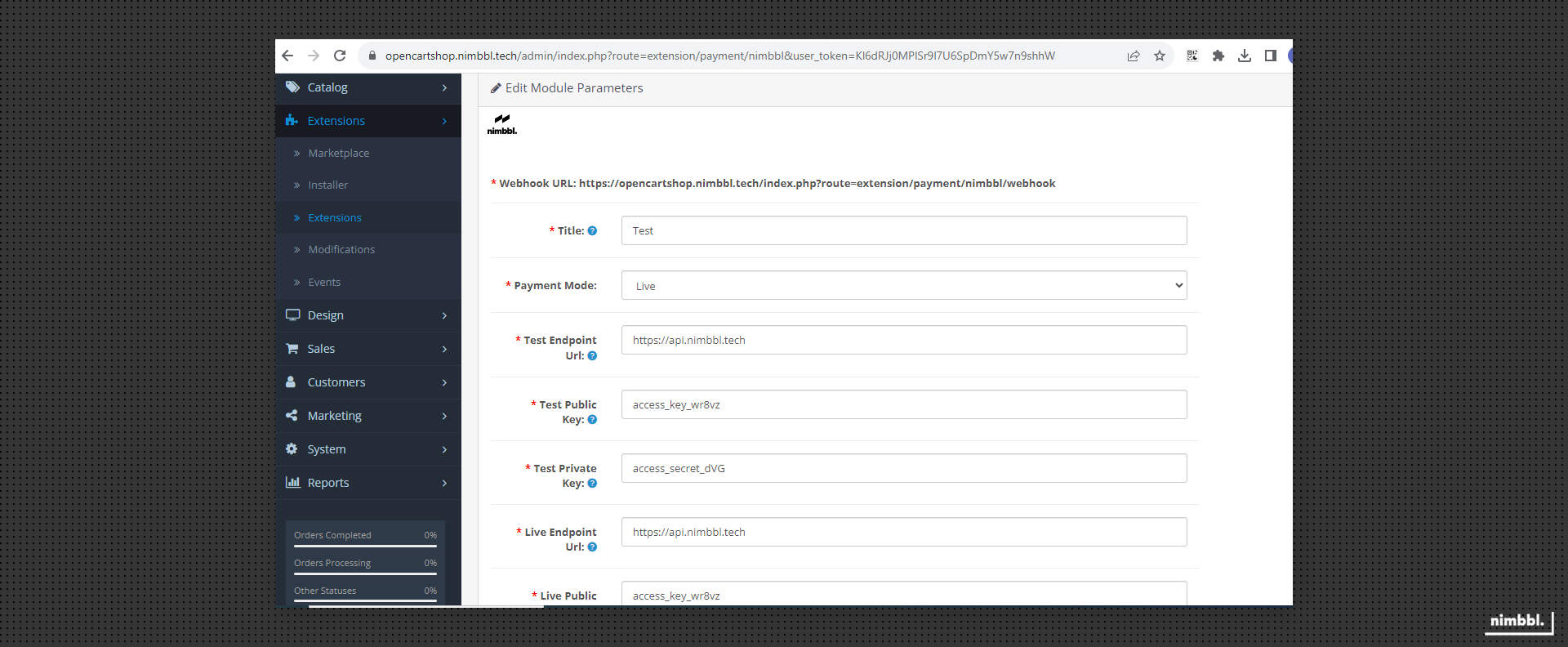 IMPORTANT
- If you don't currently have Live keys, you can keep it blank and update it later.
access_secretis like a password, please don't share with others.
Setting up Webhooks
The plugin is designed to consume webhooks from the Nimbbl server. These webhooks can help update the status of a "Pending" order if the payment transaction becomes successful in the future. It is rare but totally normal for payments to not succeed in real time. To read about payment states, see the Payments guide.
-
Click on Edit to conifgure credentials and manage environments.
-
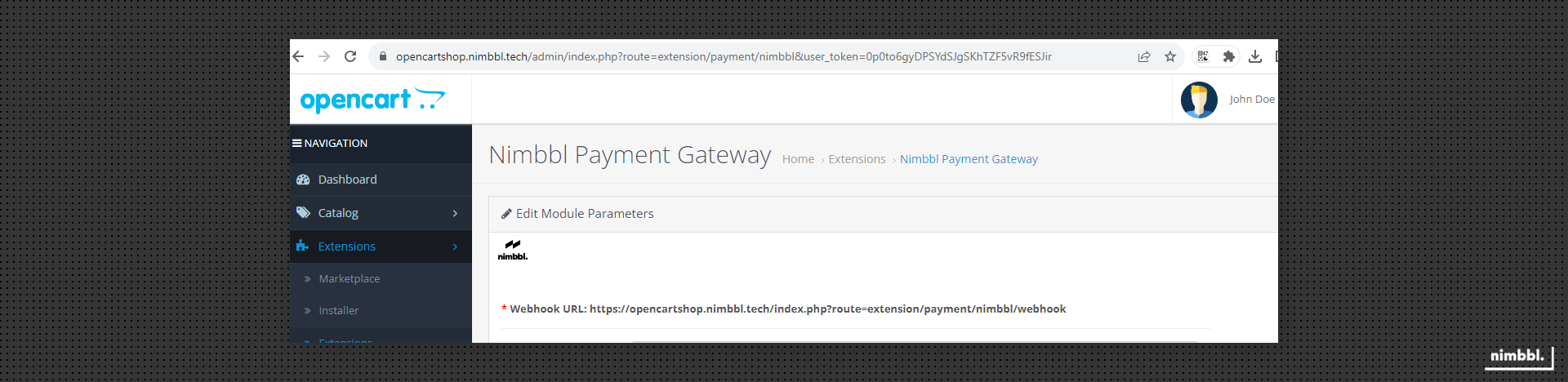
Your webhook URL is automatically generated by the plugin and is displayed as shown below.
-
Share this Webhook URL with the Nimbbl team to whitelist.
IMPORTANT- Ensure that your webhook URL is publicly accessible and is not blocked by a firewall
- If you need to whitelist our IP to hit this URL, please reach out to us and we will provide our IP address
Test Your Store
Ensure the Test Mode is enabled as shown above. You can test your store by using these test values.
Go Live
Once everything is running fine in the test mode, you can write to us at [email protected]. We will review your integration and help you get ready to go on production.
In parallel, ensure that you or your team has completed your payment partner documentation so that the payment partner of your choice can approve your credentials.
As soon as your account is approved by the payment partner and your integration is working fine, you will be able to view your Live access_key & access_secret in the Command Center. To learn how to view and download your keys, see the developer settings guide.
You will need to add the Live keys and toggle the Payment Mode to Live as explained above.