Wix
Nimbbl supports easy acceptance of payments on your Wix store. We have created a simple plugin that you can install on your store. This guide will explain the step-by-step process to integrate the plugin.
- To see our checkout in action on Wix, visit the live demo store and perform a live transaction.
Compatibilities and Dependencies
- Active Wix account with a Store.
Install Plugin
WIX Plugin installation steps are mentioned below,
-
Sign in on your WIX store
-
Select the site for which you want to enable the Nimbbl Plugin
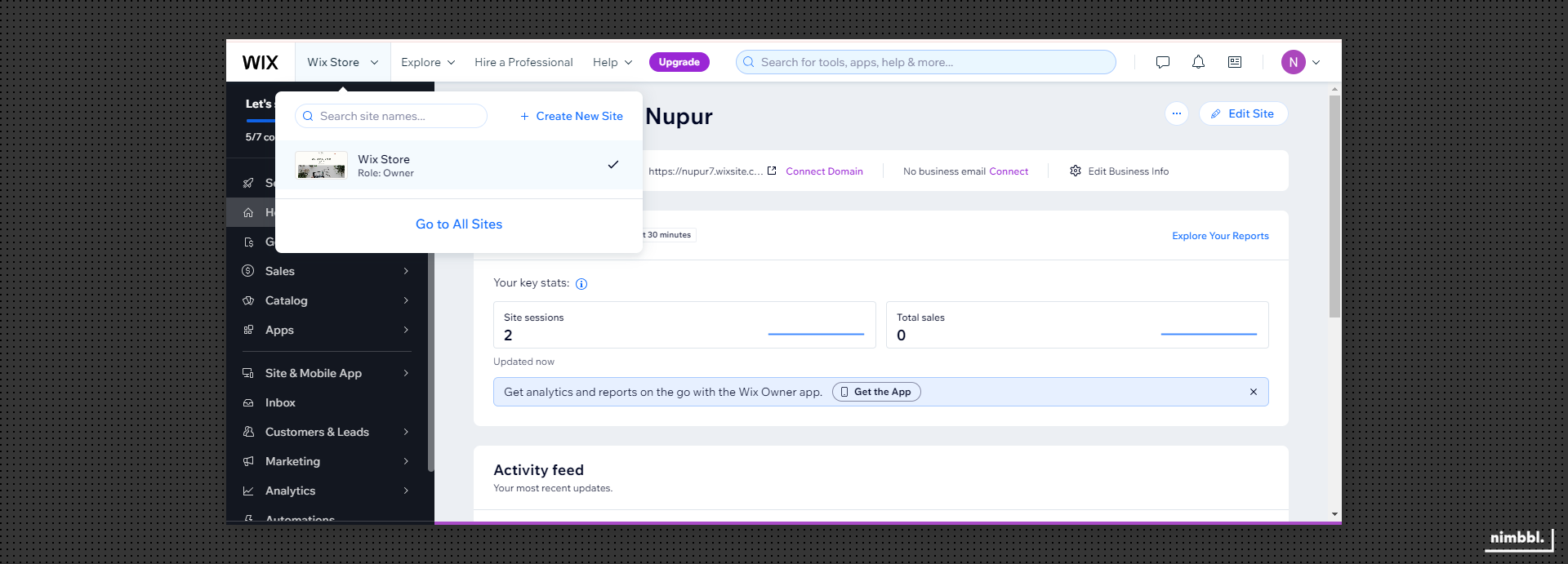
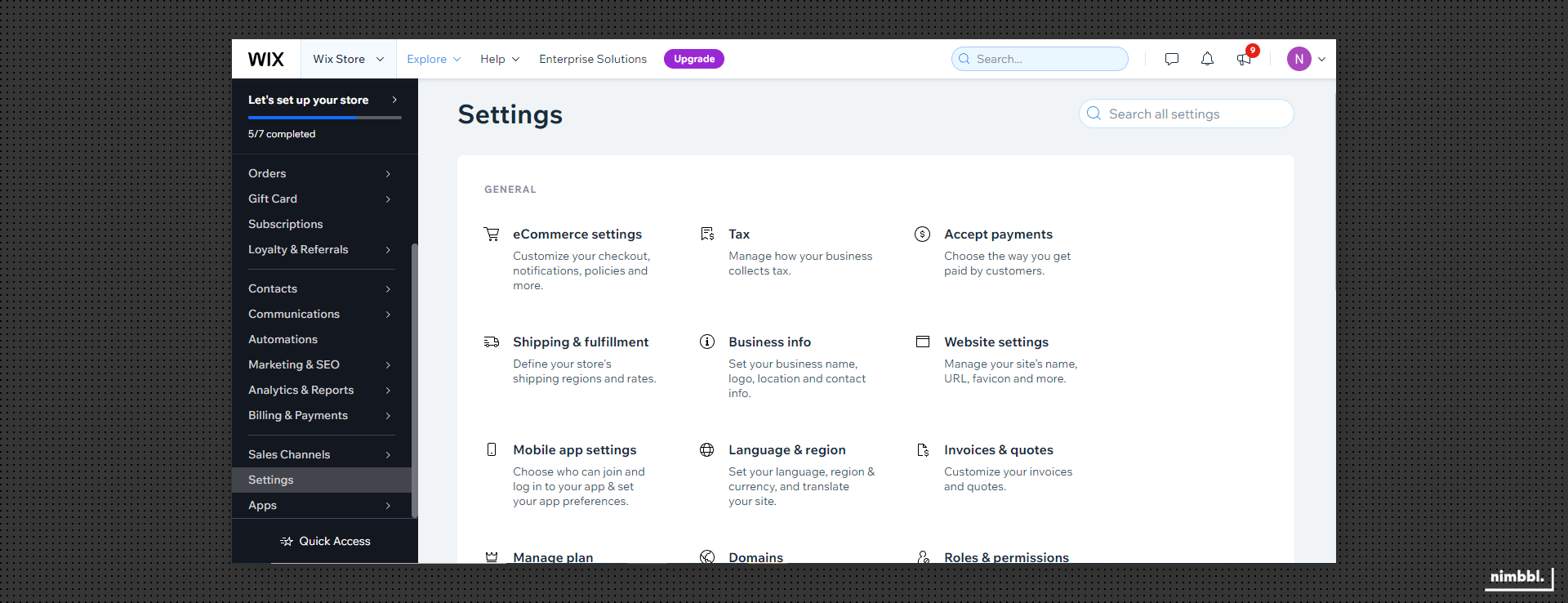
- Go to Settings → Accept Payment
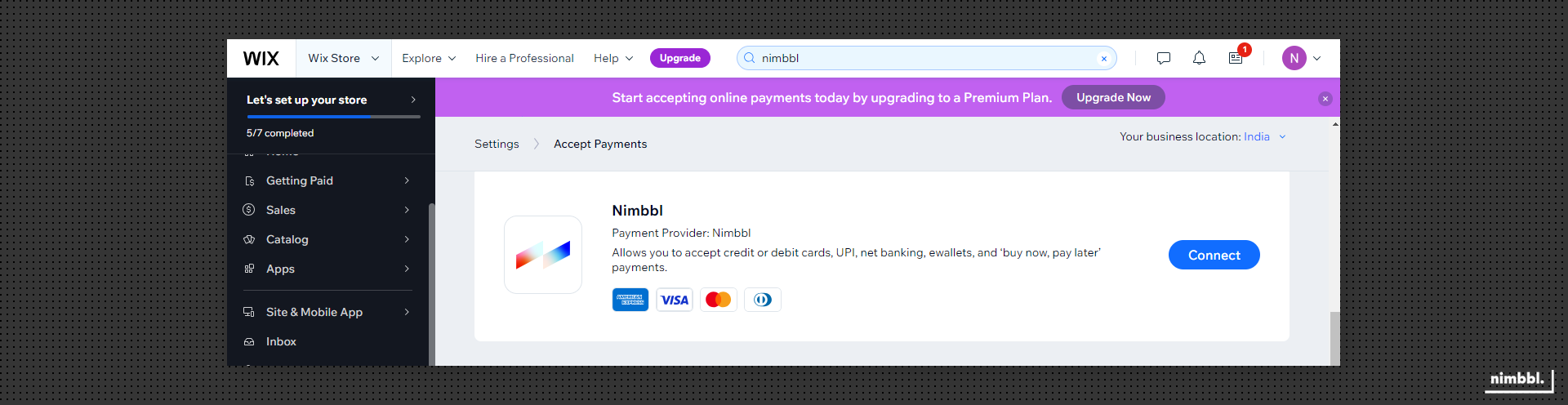
- You'll find Nimbbl as one of the payment option. Click on
Connectbesides Nimbbl
Configure Plugin
Once the plugin has been installed, you need to configure it so you can start accepting payments.
Managing Credentials & Environment
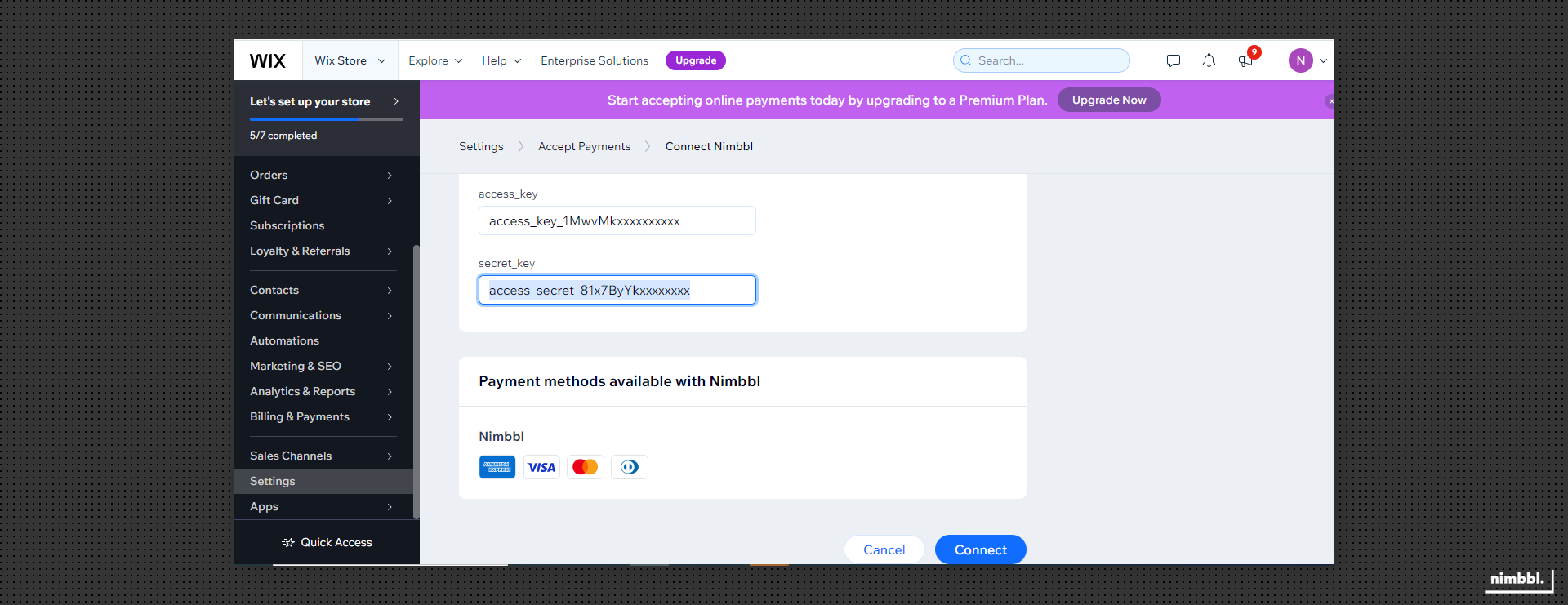
The Nimbbl WIX Plugin works for both Test and Live environments. However, You can only configure keys for only 1 environment at a time.
- Add in your Test (Sandbox)
access_keyandaccess_secretfor testing your plugin and then replace it with Live (Production)access_keyandaccess_secretwhen you go live. Keys are available in the Nimbbl Command Center.
Enable Nimbbl
To accept payments through Nimbbl, the plugin should always be Connected. If you Disconnect the plugin, the Nimbbl option will not show up on your checkout page.
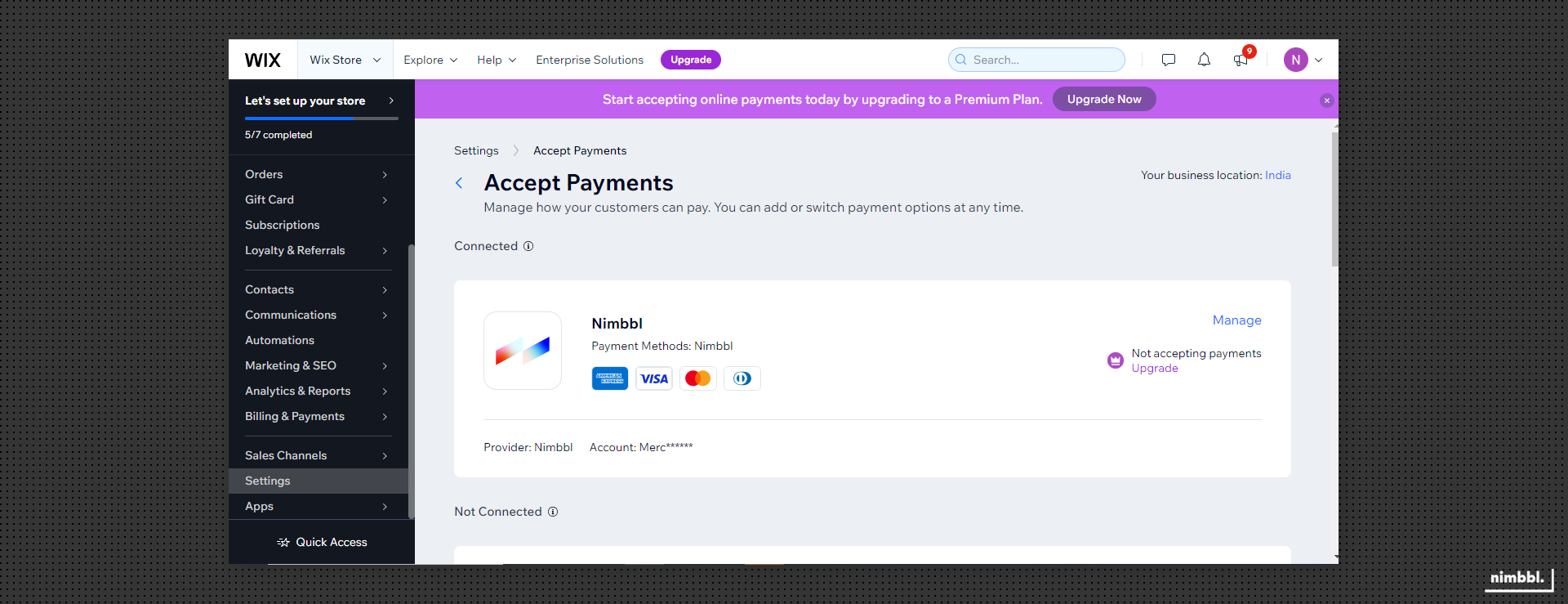
- After you have added the credentials, click Connect. Your Nimbbl account will be connected to your Wix account and you’ll be able to see Nimbbl Payment.
Test Your Store
You will be able to view your Sandbox access_key & access_secret in the Nimbbl Command Center. To learn how to view and download your keys, see the developer settings guide.
The Nimbbl Wix Plugin is designed to function in both Test and Live environments. During store testing, you can use Nimbbl sandbox API keys. Once the testing is complete, you can replace these keys with production API keys to accept live payments.
Go Live
Once everything is running fine with the test API keys, you can write to us at [email protected]. We will review your integration and help you get ready to go on production.
In parallel, ensure that you or your team has completed your payment partner documentation so that the payment partner of your choice can approve your credentials.
If you already have live payment partner credentials, please keep them handy as we can assist you further with the onboarding process using these keys.
As soon as your integration is working fine, you will be able to view your Live Nimbbl access_key & access_secret in the Command Center. To learn how to view and download your keys, see the developer settings guide.
Refunds
Use Nimbbl Command Center to process refunds for payments made. Refer to the refunds documentation for detailed documentation on how to process refunds and explore more about Command Center