Refunds
The Refunds page lets you browse all refunds -- both single refunds issued from the Payment Details page and bulk refunds processed via file upload. Each refund represents a full or partial reversal of a completed payment.
For filters shared across all Search pages (Date, Status, Environment, Currency, Amount, and more), see Filtering on the Search overview.
Each refund is linked to a payment and an order. You can navigate to these related entities directly from the Refund Details view.
Browsing Refunds
The Refunds list displays your refunds in a table with the following columns:
- Refund ID -- Unique identifier for the refund
- Payment ID -- The payment this refund was issued against
- Refund Initiated -- When the refund was initiated
- Refund Type -- Whether this is a full or partial refund
- Refund Amount -- Refund amount with currency
- Invoice ID -- Your invoice reference
- Status -- Current refund status
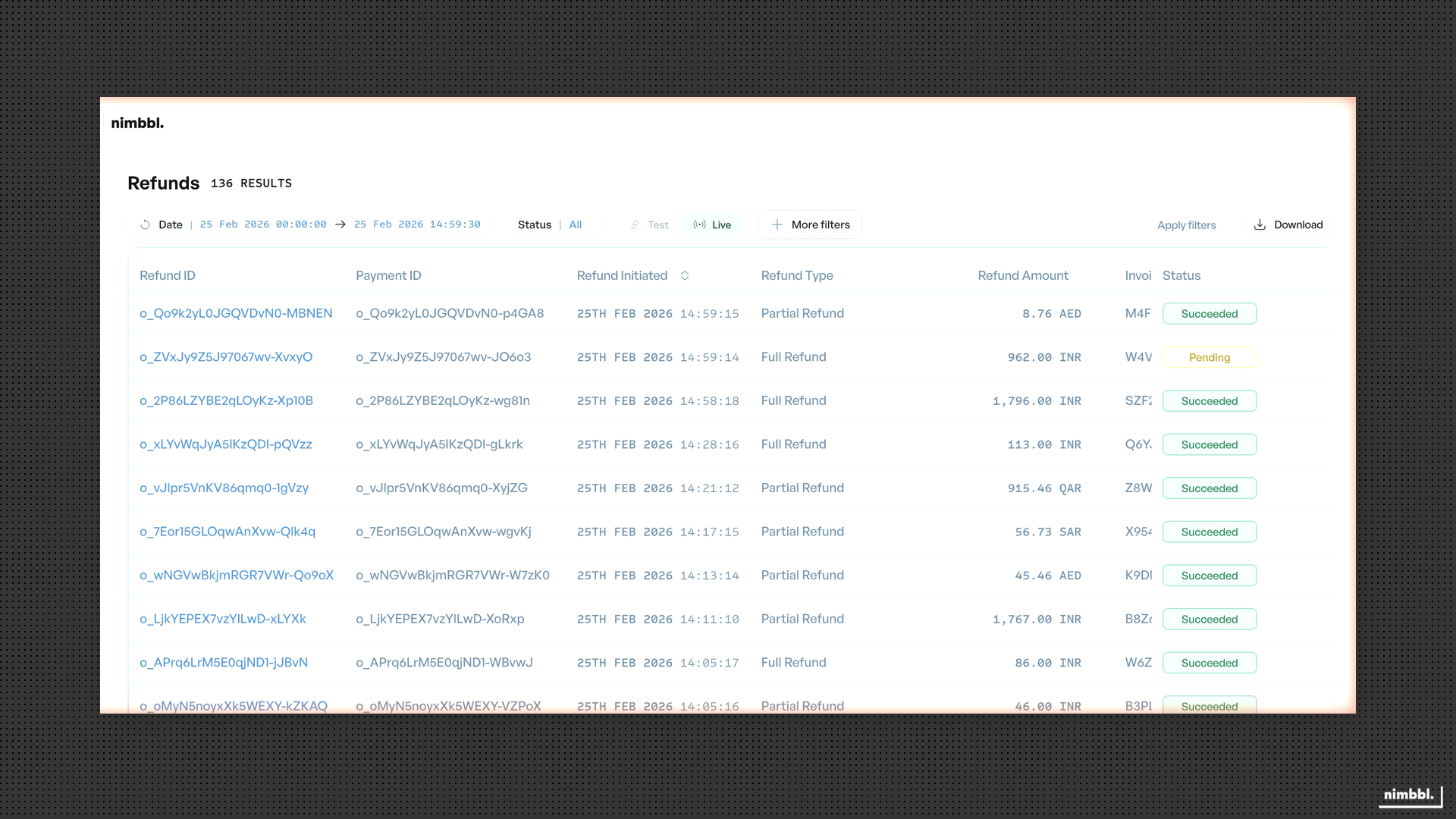 Refunds list -- click any row to open its detail view
Filtering Refunds
In addition to the common filters, the Refunds page has these unique filters:
Refund statuses: Pending, Succeeded, Failed
-
Refund ID -- Search by one or more exact refund IDs.
-
Payment ID -- Filter refunds for a specific payment. Enter the Payment Transaction ID.
-
Order ID -- Filter refunds for a specific order.
-
Refund Request ID -- Filter by the refund request identifier.
-
PSP Generated ID -- Filter by the transaction ID generated by the payment partner.
-
Payment Mode -- Filter by payment method: Cards, UPI, Netbanking, Wallets, EMI, Pay Later.
-
Payment Partner -- Filter by the payment service provider.
-
ARN -- Filter by Acquirer Reference Number. Useful for tracking card refund settlements.
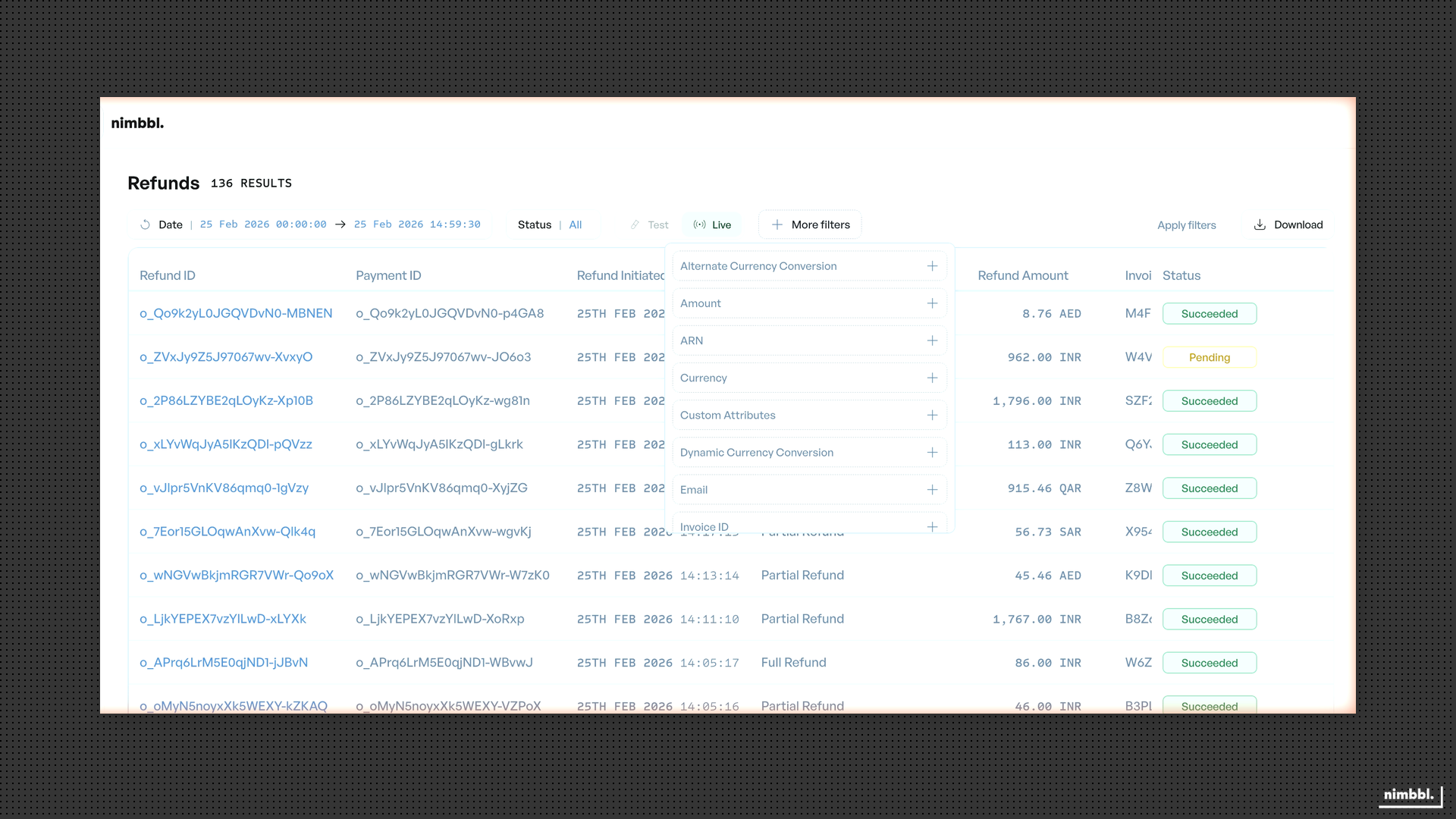 Refund-specific filters under More filters
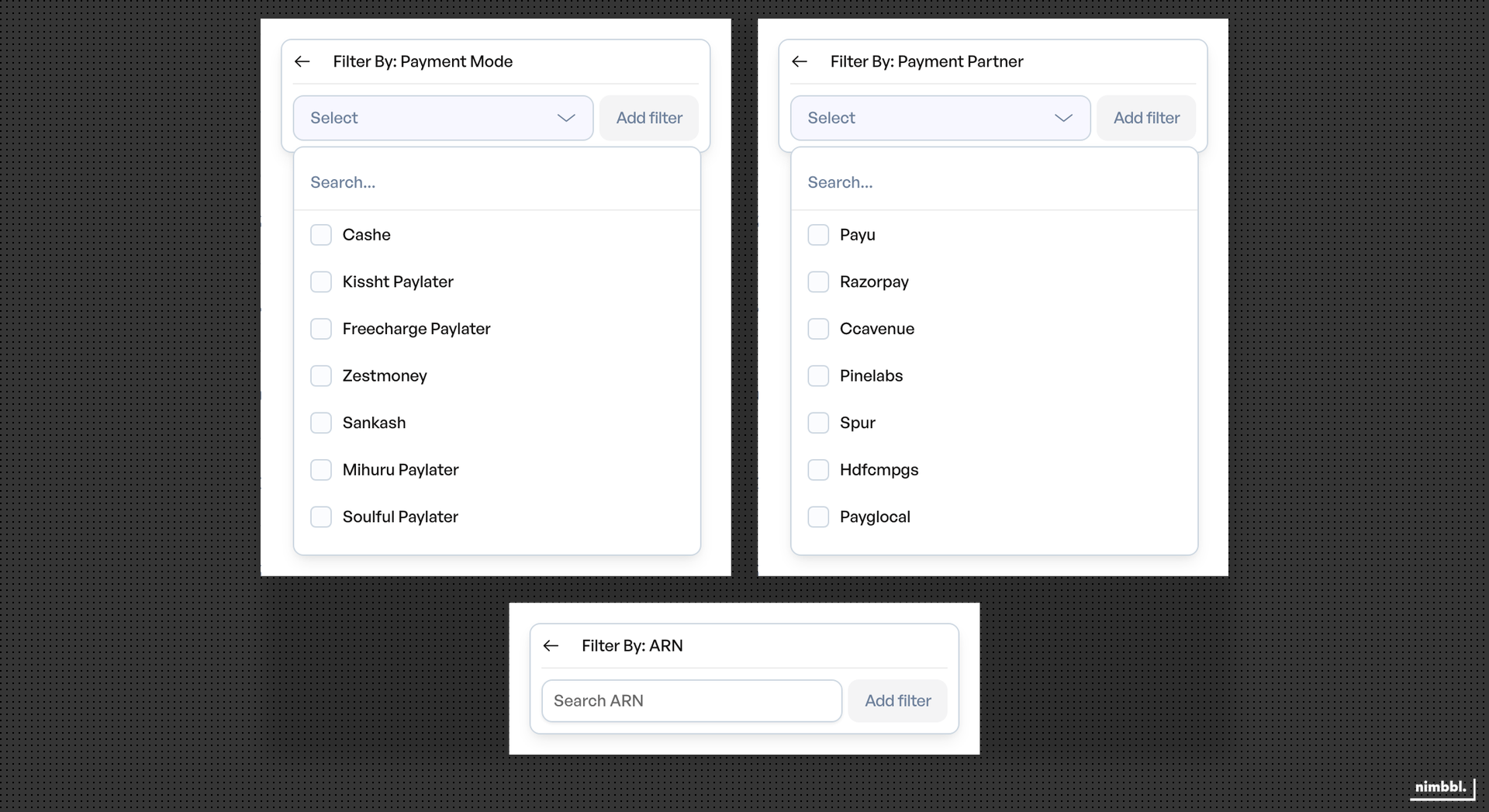 Payment Mode, Payment Partner, and ARN filters
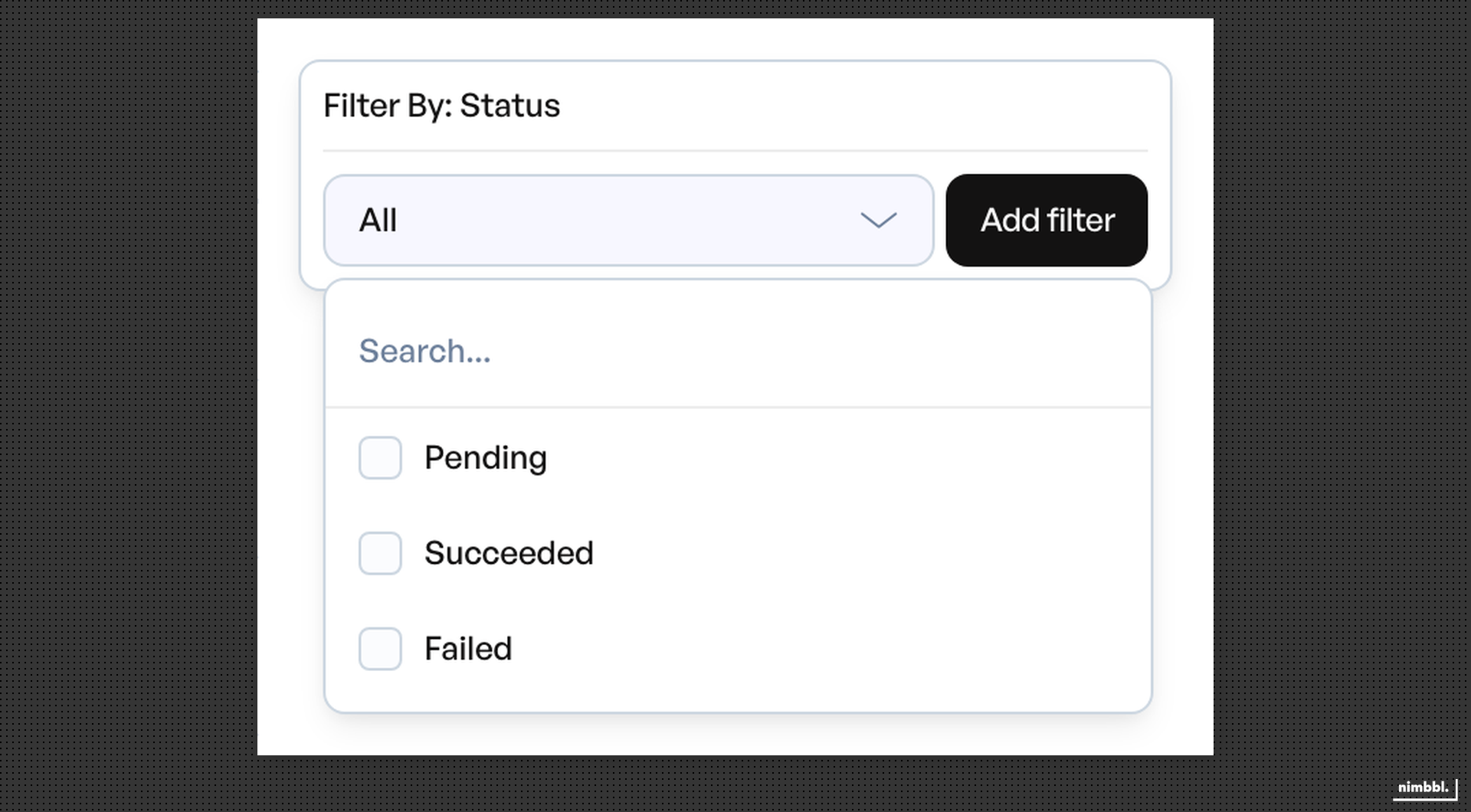 Refund status filter -- three possible statuses
Refund Details
Click any refund row to open its detail view. The detail page shows:
- Refund information: Refund ID, Payment ID, Transaction ID, Order ID (clickable link to Order Details), status, amount, currency, refund type, created and updated dates
- Linked Payments: The payment this refund was issued against. Payment ID is a clickable link to Payment Details.
- Refund reason: The note/comment provided when the refund was issued
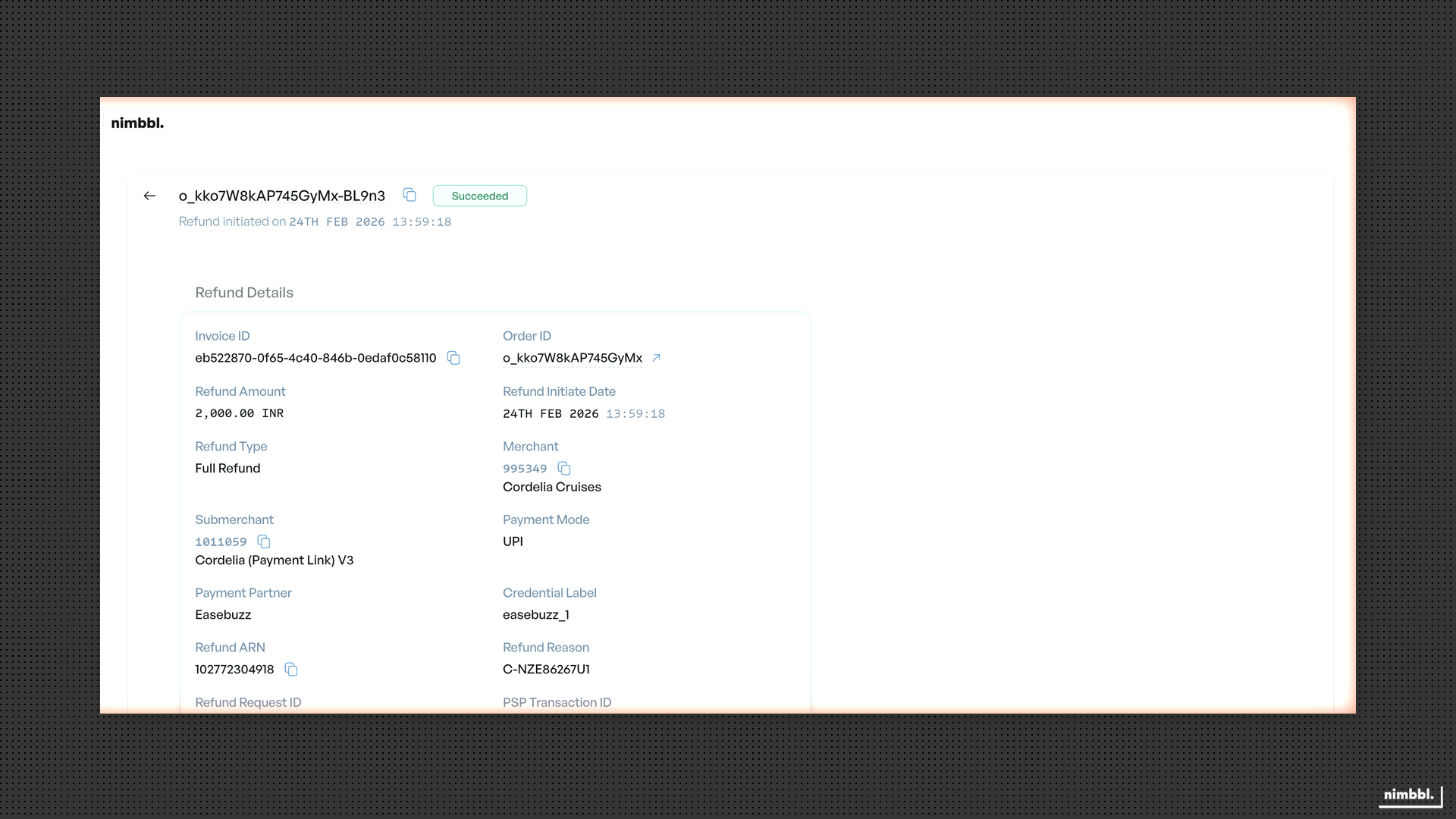 Succeeded refund -- refund details with linked payment
Failed refunds show a Failure Details section with the error code and description.
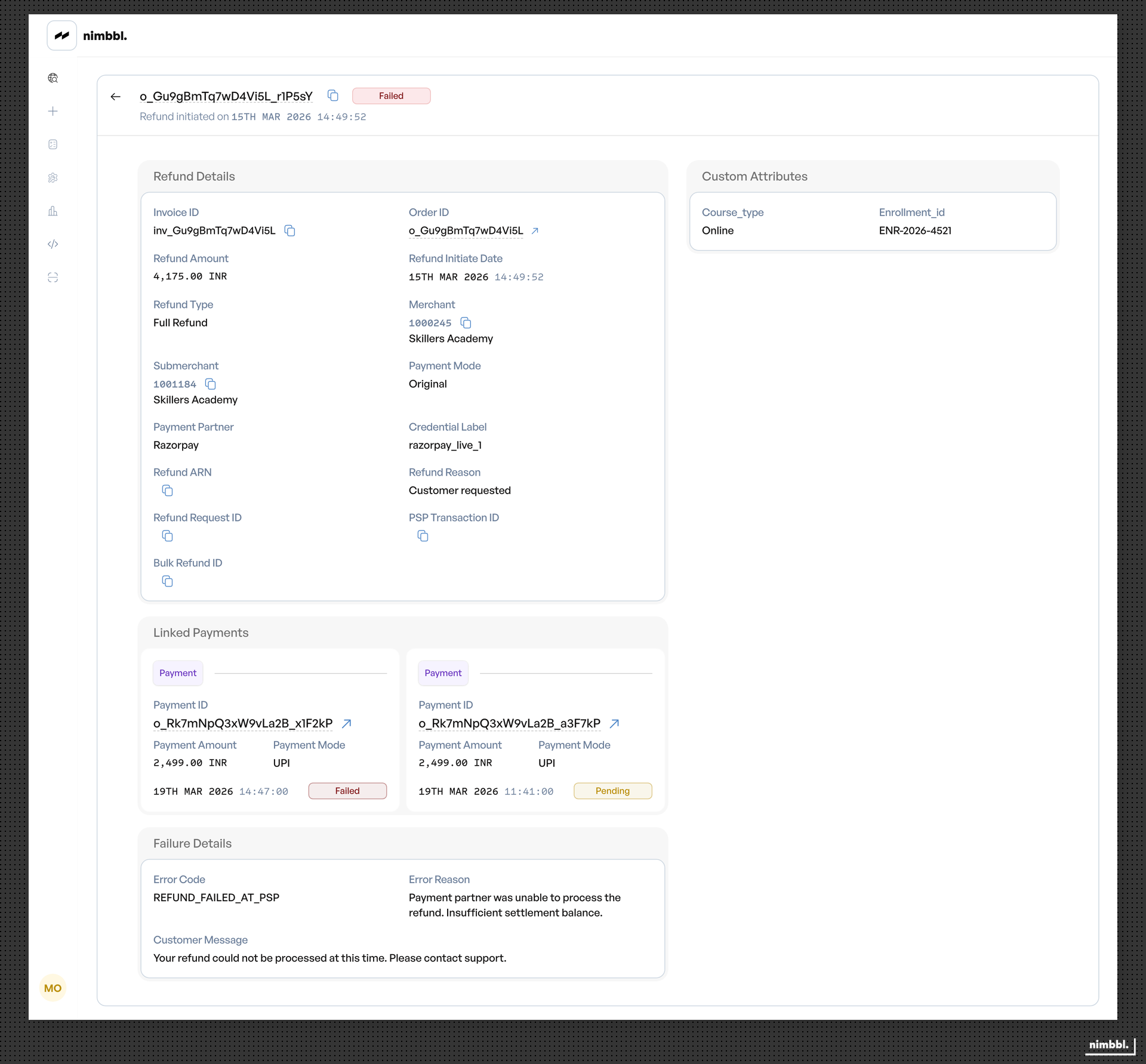 Failed refund -- Failure Details section with error code and description
Issuing Single Refunds
Single refunds are issued from the Payment Details page, not from the Refunds list. To issue a refund:
- Go to Payments and click the payment you want to refund.
- On the Payment Details page, click Issue Refund (visible only for succeeded payments with available refundable amount).
- The refund modal opens.
The Issue Refund button appears only when the payment status is Succeeded and there is a positive available refundable amount.
Full Refund
Check Refund Full Amount to refund the entire available amount. The amount field auto-fills and becomes read-only.
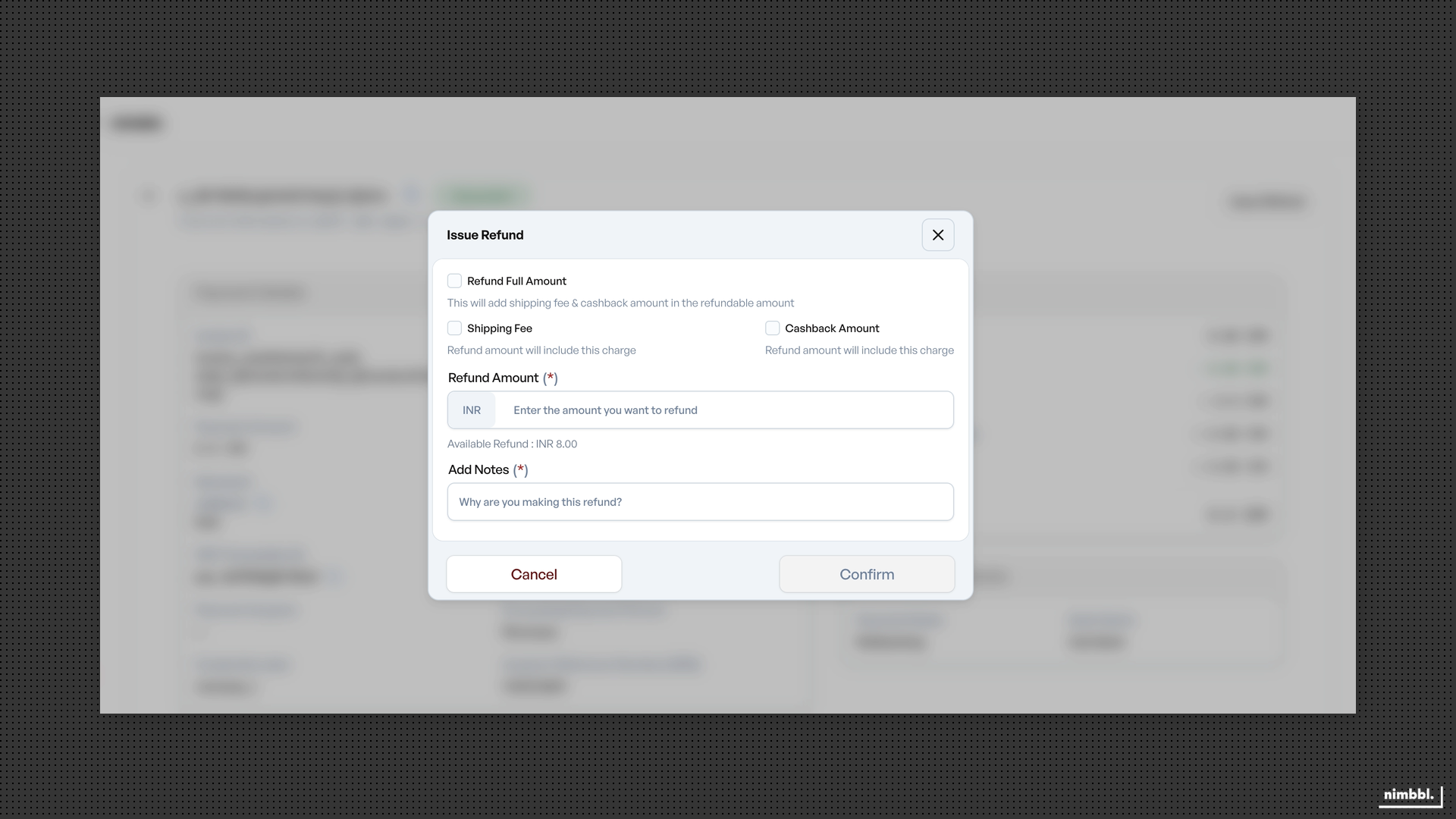 Refund modal -- initial state with empty amount field
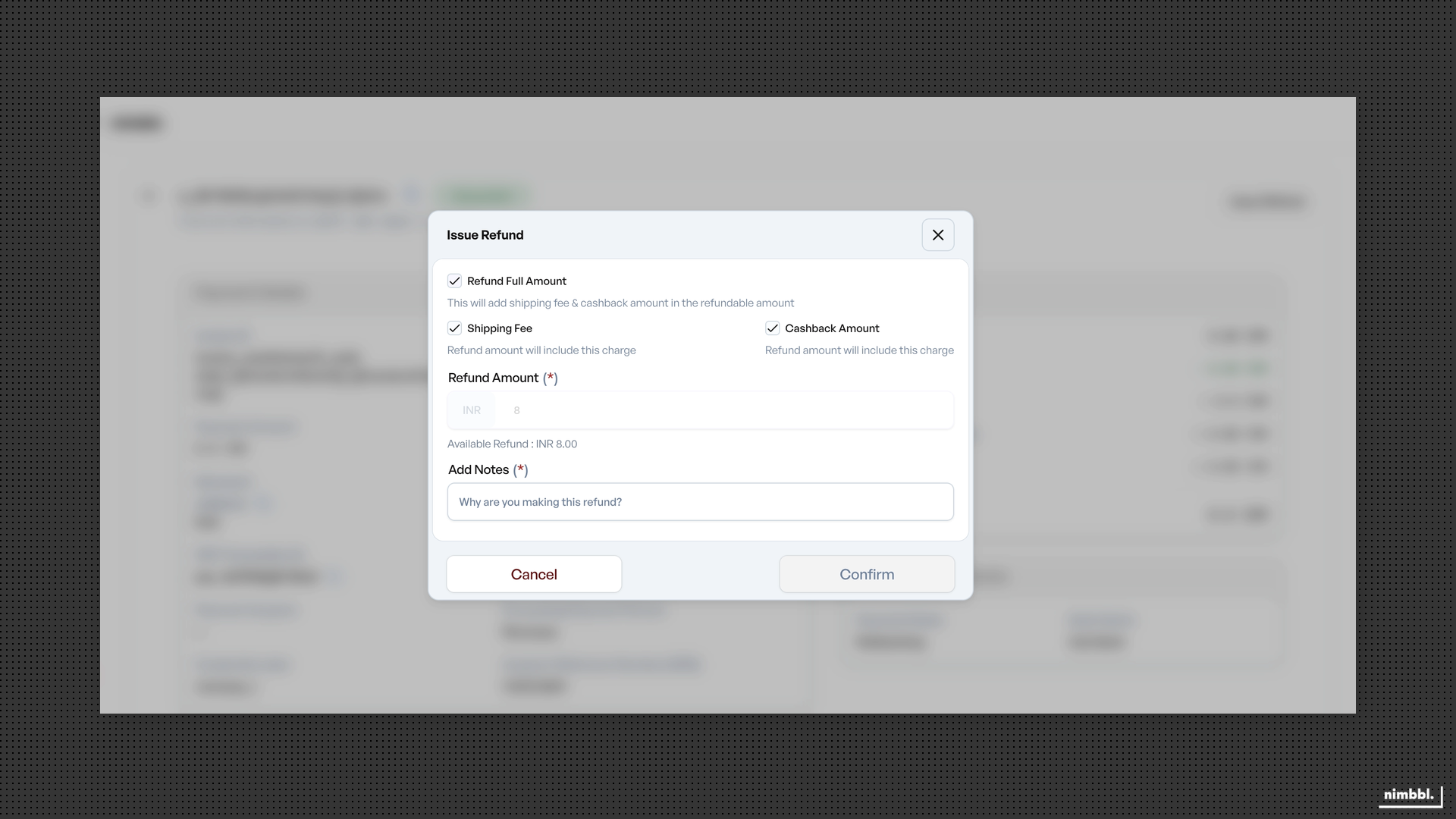 Full refund -- amount auto-fills when Refund Full Amount is checked
Partial Refund
Leave Refund Full Amount unchecked to enter a custom amount. The amount must be greater than zero and cannot exceed the available refundable amount.
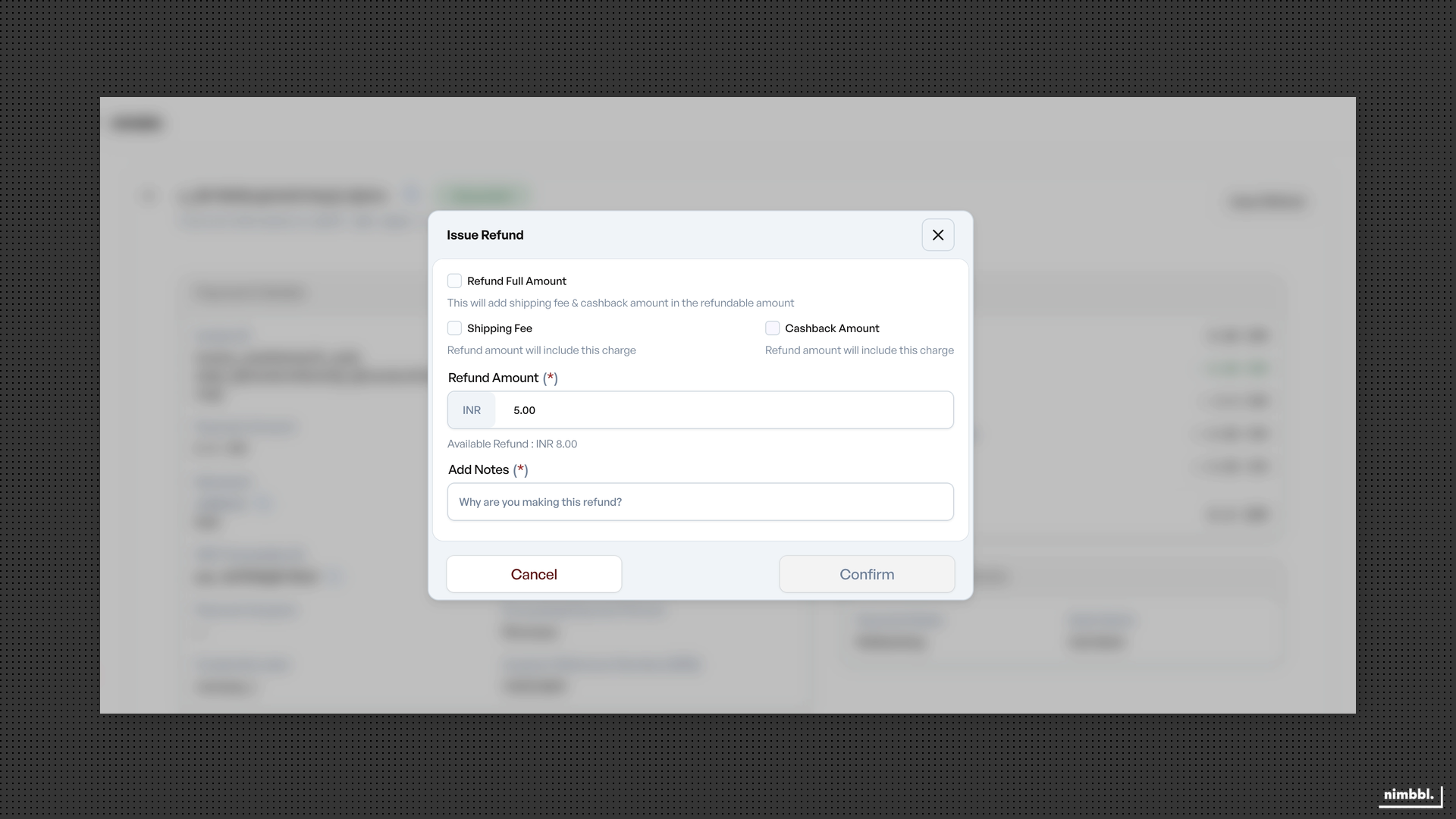 Partial refund -- enter a custom amount
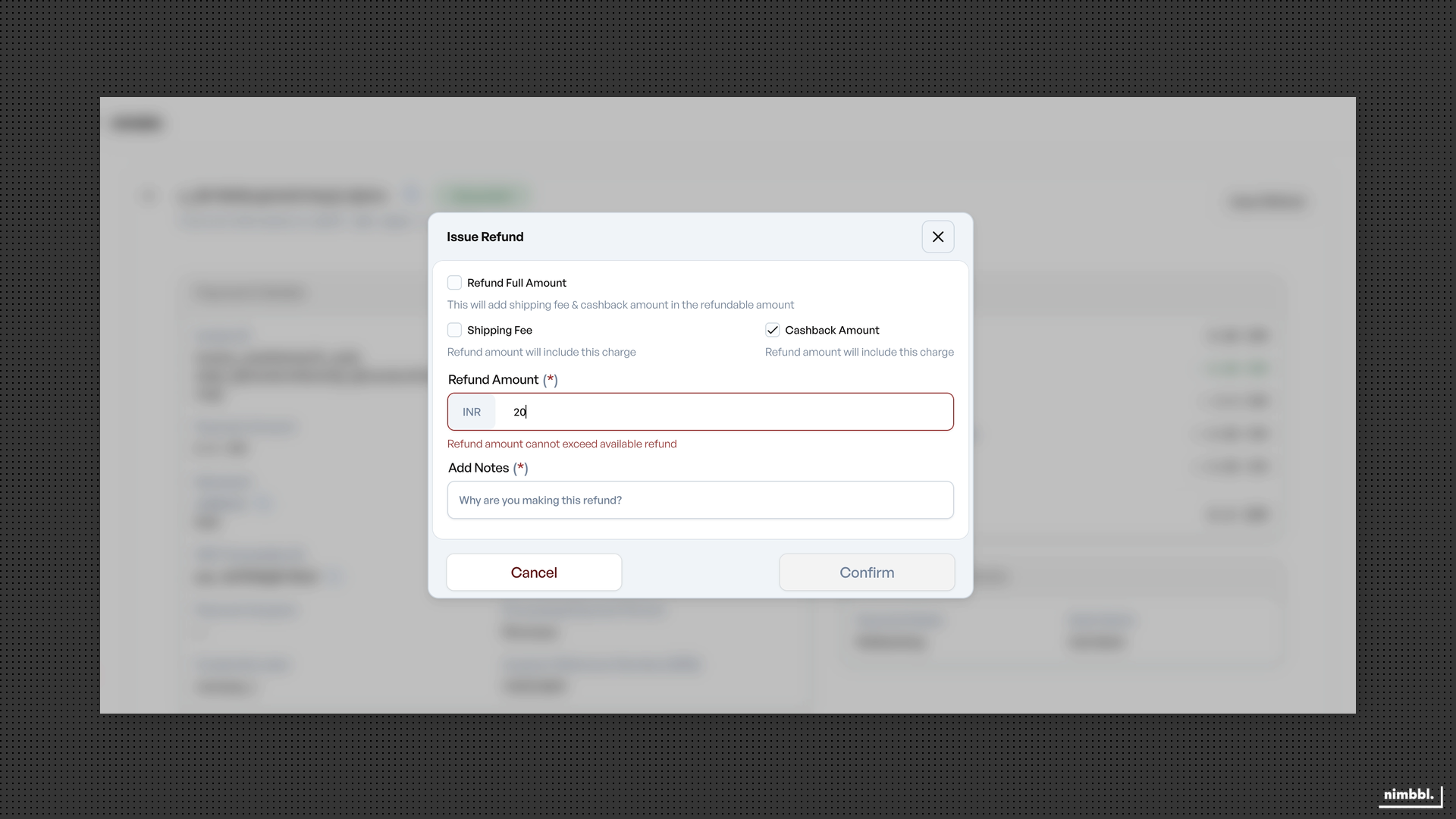 Validation error -- amount cannot exceed the available refundable amount
Shipping Fee and Cashback Options
If the payment includes shipping charges or cashback, additional checkboxes appear in the refund modal:
- Shipping Fee — Check to include shipping charges in the refund. Uncheck to exclude.
- Cashback Amount — Check to include cashback in the refund. Uncheck to exclude.
When Refund Full Amount is checked, both options are automatically selected. Unchecking either option unchecks Refund Full Amount.
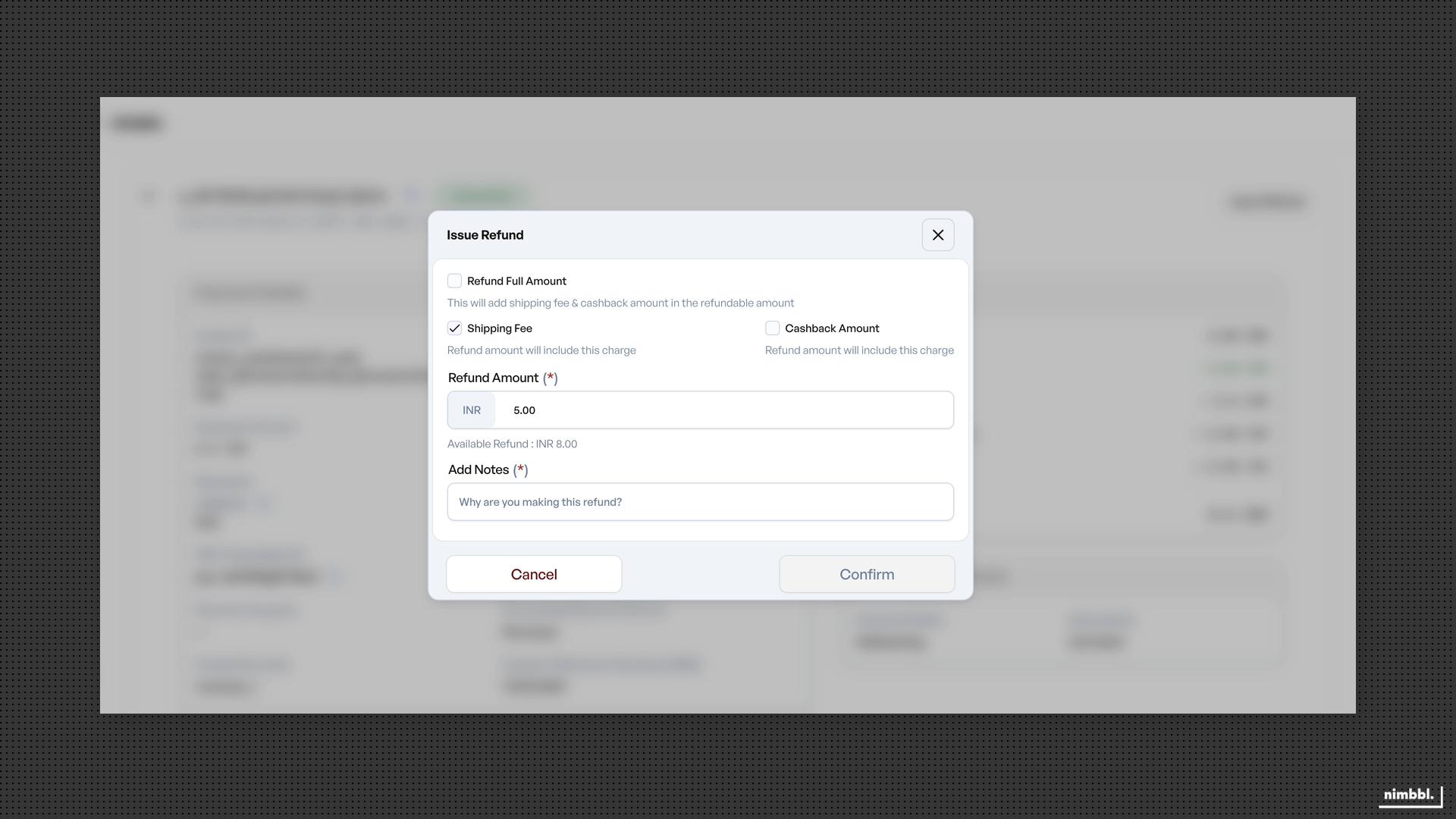 Shipping Fee included, Cashback excluded
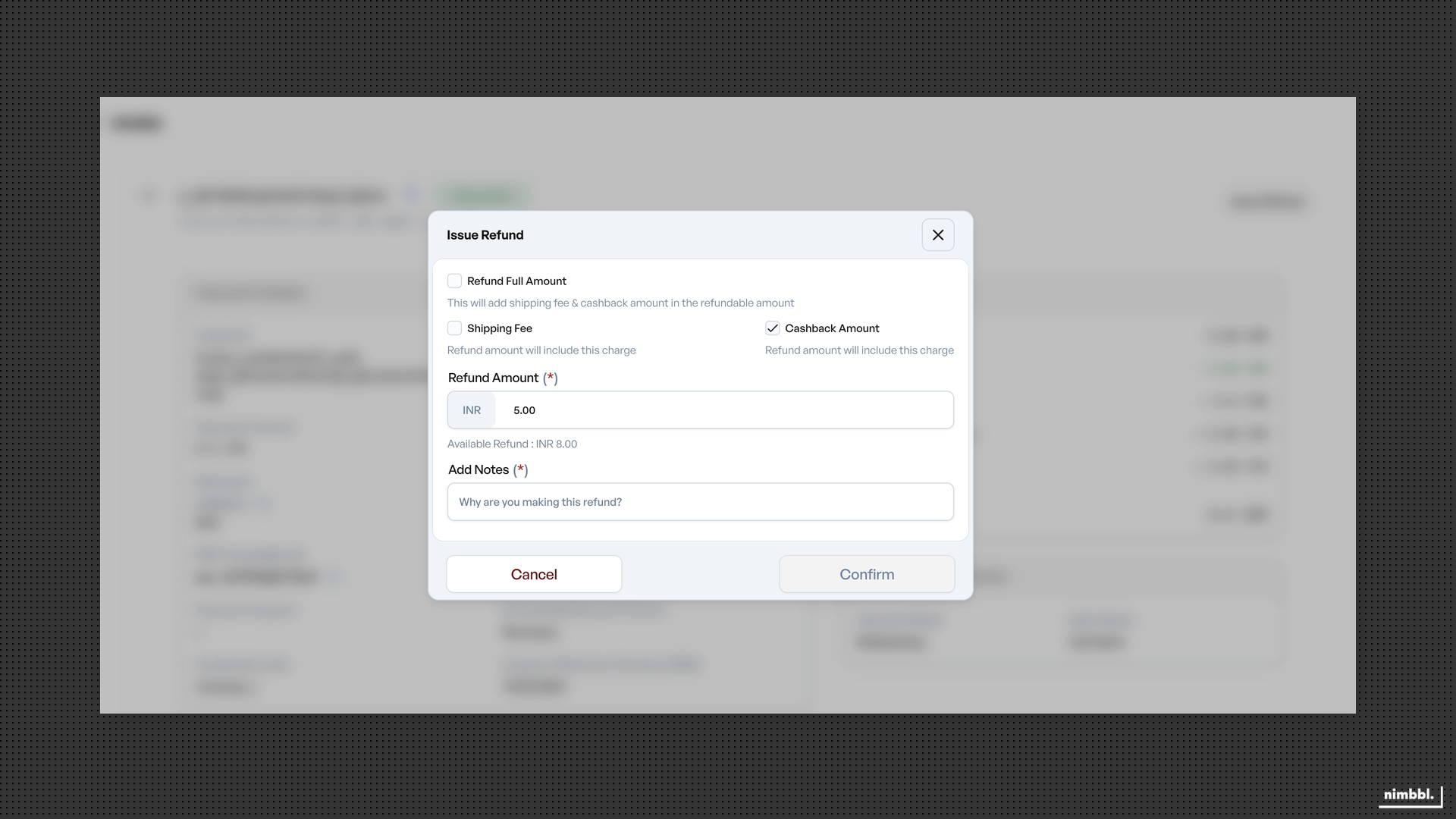 Cashback included, Shipping Fee excluded
Completing the Refund
- Enter a reason in the Add Notes field (required).
- Review your selections and select Confirm.
- The refund is created and appears in the Refunds list with status Pending.
Bulk Refunds
To process multiple refunds at once, use the file upload feature in Files > Uploads. Upload a CSV file containing payment IDs and refund amounts. All processed refunds appear in the Refunds list for tracking.
For the detailed bulk refund file format, see Uploading Files.
Downloading Refund Data
To download your filtered refund data, see Downloads in Files.