Orders
Orders represent customer purchase requests in Command Center. Each order tracks the customer's intent to pay, including the amount, currency, and associated metadata. Use Search > Orders to browse your order history, apply filters to find specific records, and inspect individual order details along with their associated payments and refunds.
For common filters shared across all Search pages (date, status, environment, partners, merchants, currency, amount, email, mobile, invoice ID, custom attributes, and currency conversion), see Common Filters on the Search overview.
Browsing Orders
Open Search > Orders from the Command Center sidebar to see the orders list. The default view shows your most recent orders, sorted by creation date. The list displays columns for Order ID, date, amount, currency, and status. You can sort by clicking column headers and use the pagination controls at the bottom to move between pages.
The URL updates as you paginate and sort, so you can share a link to a specific page or sort order with your team.
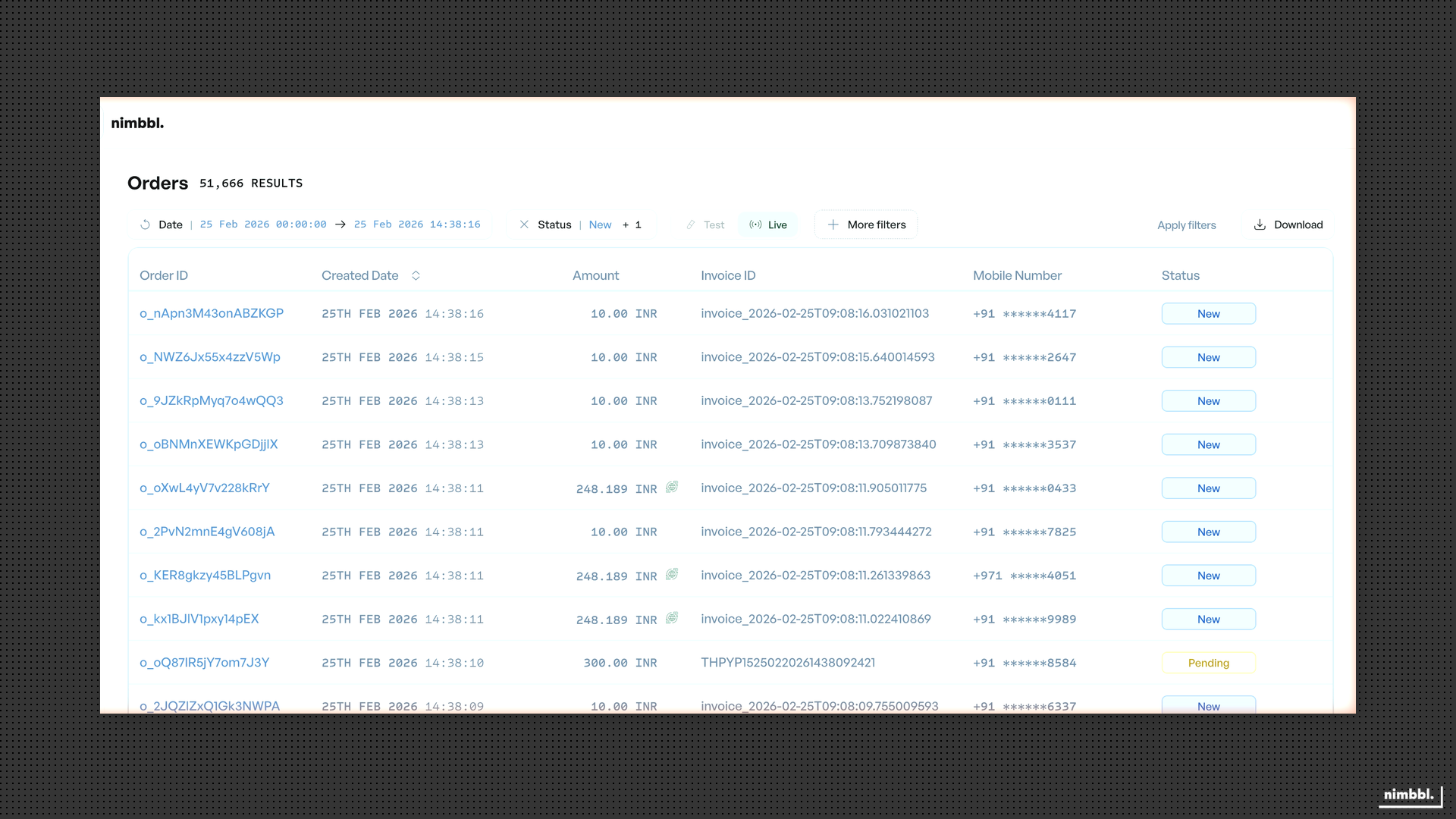 Orders list with filters applied
Filtering Orders
In addition to the common filters, the Orders page supports these unique filters in the Advanced Filters section:
- Order ID -- Search by exact Order ID. You can enter multiple Order IDs to find several orders at once.
- Payment Link ID -- Filter orders that were created through a specific payment link. Useful when you want to see all orders generated by a particular link.
- Page Slug -- Filter orders created via a specific payment page. Enter the merchant page slug to narrow results.
Add these filters alongside any common filters, then select Apply Filters to update the results. All filters work together -- for example, you can combine a date range with a specific Order ID and environment.
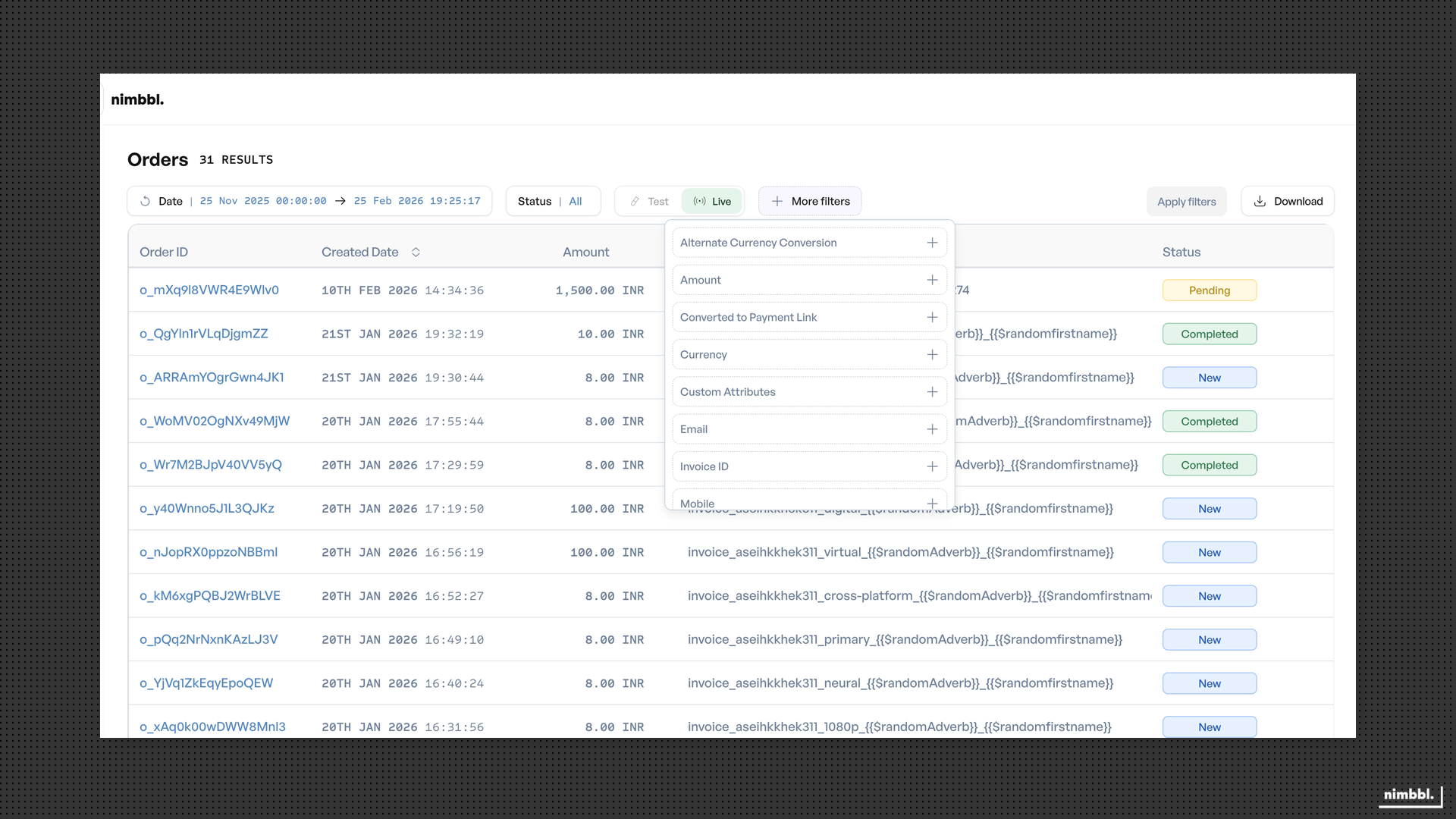 Orders-specific filters -- Order ID, Payment Link ID, and Page Slug
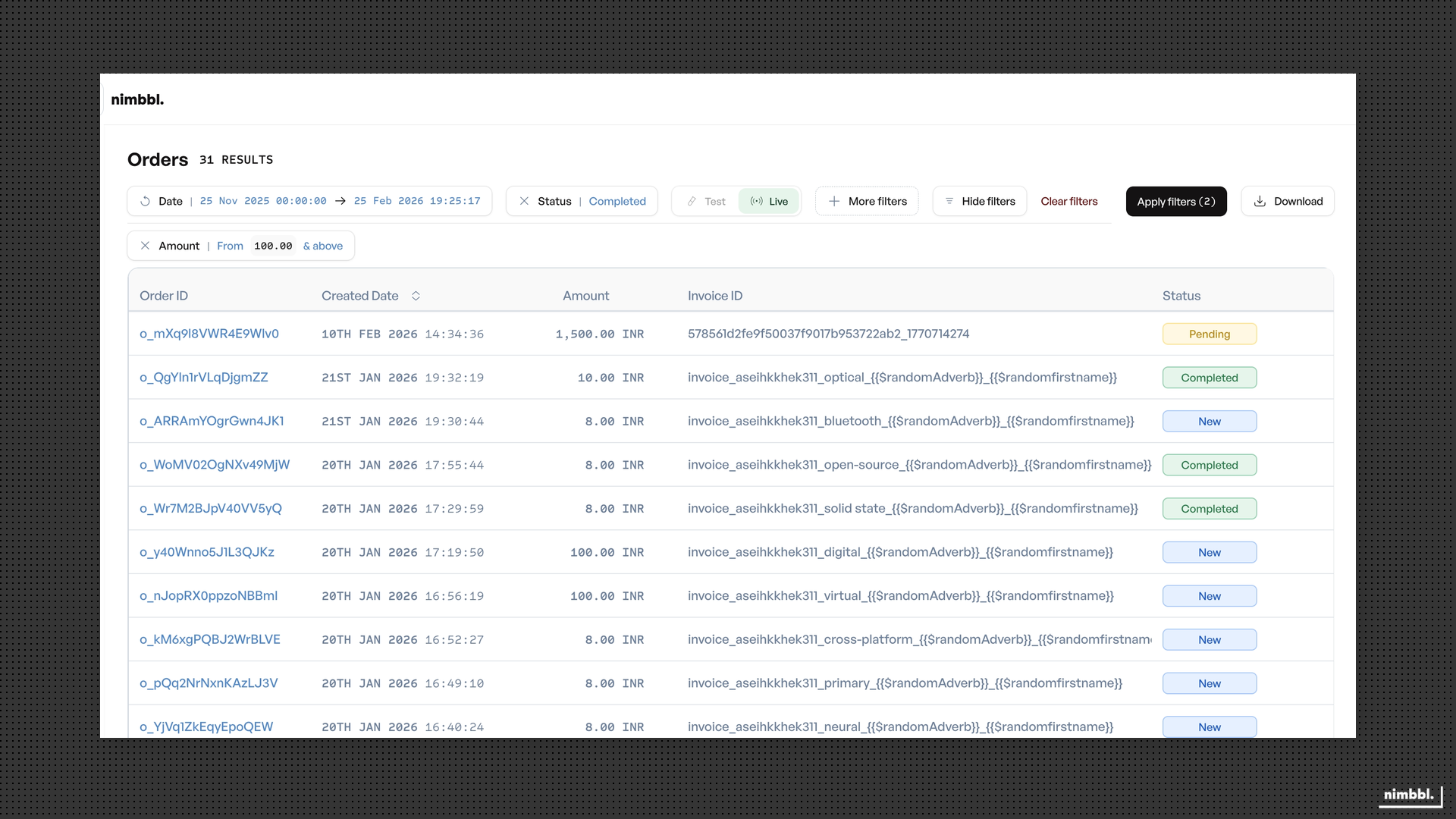 Filter chips showing applied Orders-specific filters
Order Details
Click any order row to open its detail view. The order detail view shows:
- Order information -- Order ID, customer name, email, mobile number, amount, currency, status, and creation date.
- Associated payments -- A list of payments linked to this order. Each Payment ID is a clickable link that navigates to the corresponding Payment Details.
- Associated refunds -- A list of refunds linked to this order. Each Refund ID is a clickable link that navigates to the corresponding Refund Details.
Use the clickable IDs to move between related entities. For example, you can go from an order to one of its payments, then from that payment to a refund -- all without leaving the Search section.
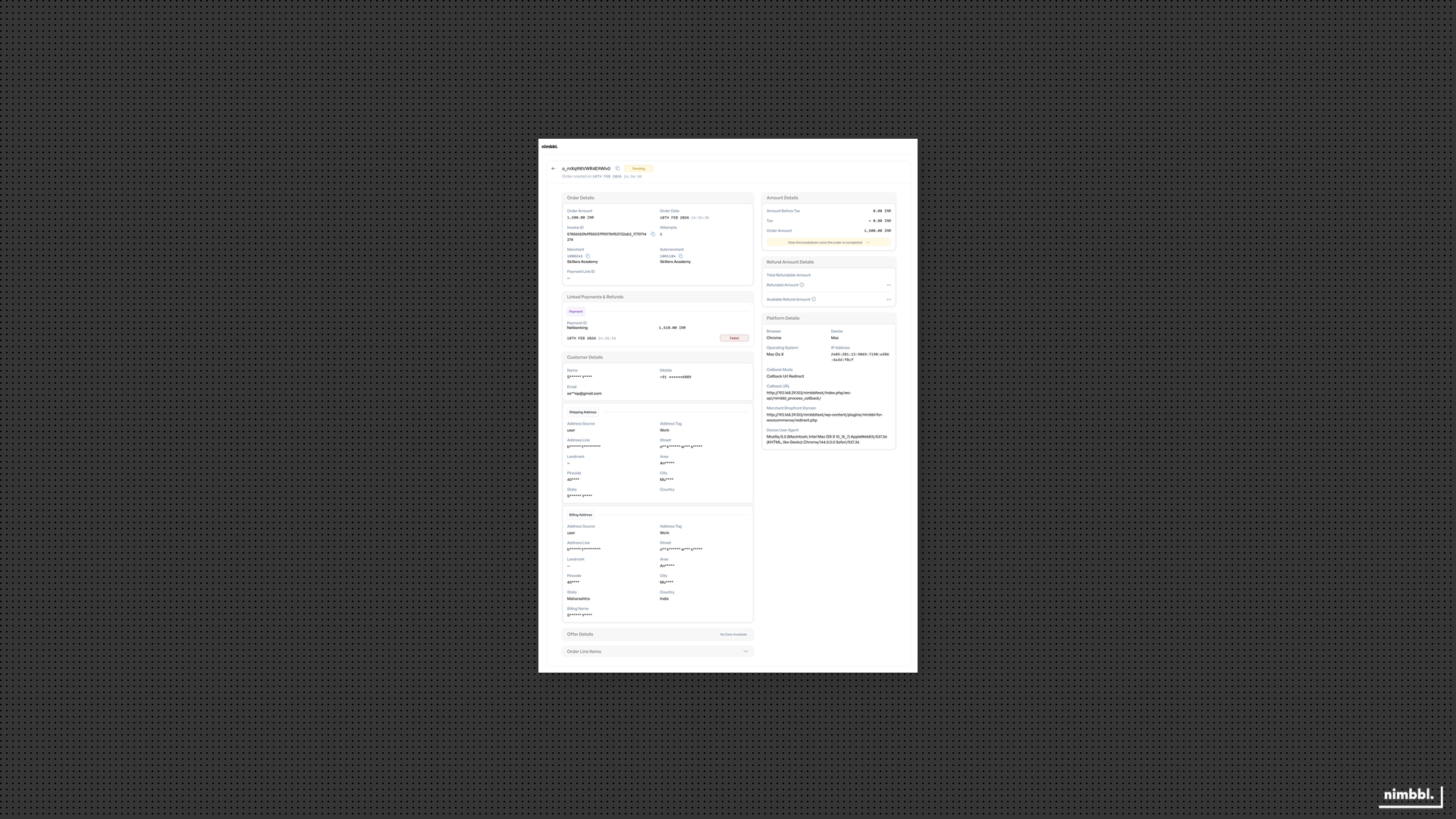 Order details -- view order information and navigate to associated payments and refunds
An order whose payment is pre-authorized (held but not yet captured) shows the status Lapsed with the Lapsed Reason Payment Authorized — this means the order is awaiting a capture or void decision, not that it has failed. Capturing the payment moves the order to Completed; voiding it or letting the hold expire leaves it Lapsed. See Pre-authorization.
Downloading Order Data
Use the Download button on the Orders list to export order data. The export respects all currently applied filters. Downloads are processed asynchronously and appear under Files > Downloads when ready. For the complete download workflow, including file formats, row limits, and accessing files, see Downloading Data on the Search overview.