Captures
The Captures page lets you browse all captures. A capture collects the funds previously held by a pre-authorized payment and moves it toward settlement. Each capture is created from an authorized payment and is linked back to it.
For filters shared across all Search pages (Date, Status, Environment, Currency, Amount, and more), see Common filters across all entities.
Each capture is linked to a payment and an order. You can navigate to these from the Capture Details view.
Browsing Captures
The Captures list displays your captures in a table with the following columns:
- Capture ID -- Unique identifier for the capture
- Payment ID -- The authorized payment this capture was created from
- Capture Date -- When the capture was made
- Capture Mode -- Manual or Automatic
- Capture Amount -- Amount captured, with currency
- Invoice ID -- Your invoice reference
- Status -- Current capture status
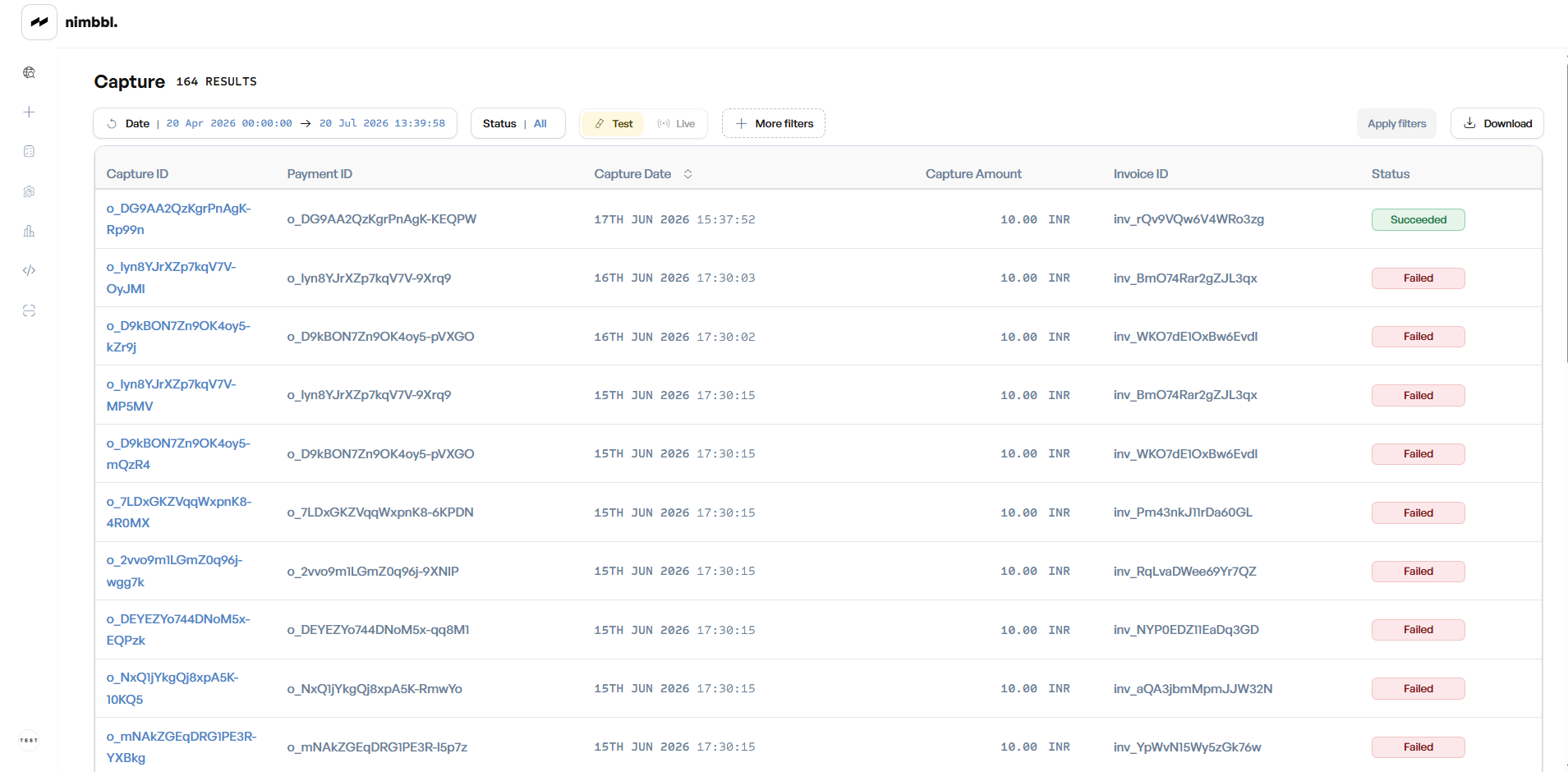 Captures list -- click any row to open its detail view
Filtering Captures
In addition to the common filters, the Captures page has these unique filters:
Capture statuses: Pending, Succeeded, Failed
- Capture ID -- Search by one or more exact capture IDs.
- Payment ID -- Filter captures for a specific payment.
- Invoice ID / Order ID -- Filter captures for a specific invoice or order.
- PSP Capture Reference ID -- Filter by the reference generated by the payment partner.
- Payment Mode -- Filter by payment mode: Cards, UPI, Netbanking, Wallets, EMI, Pay Later.
- Payment Partner -- Filter by the payment partner.
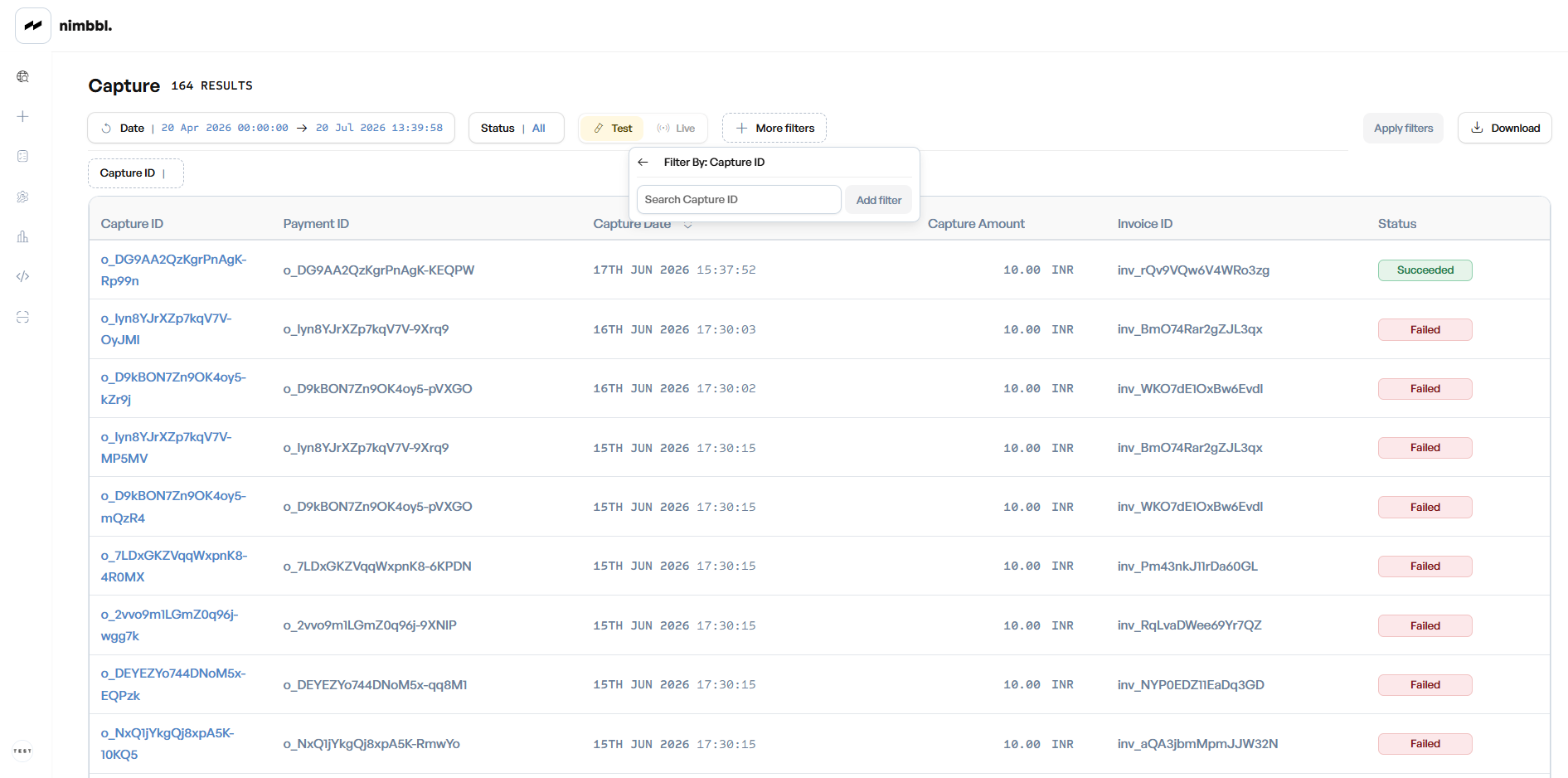 Filter captures by Capture ID -- enter one or more IDs and click Add filter
Capture Details
Click any capture row to open its detail view. The detail page shows:
- Capture information: Capture Amount, Capture Date, Invoice ID, Merchant, Submerchant, Auth Mechanism, Capture Mode, Payment Mode, Payment Partner, Credential Label, and the PSP Capture Reference ID (when available)
- Linked Payments: The authorized payment this capture was created from. Payment ID is a clickable link to Payment Details.
- Amount details: Order amount, discount, shipping fee, cash-on-delivery fee, convenience fee, and the final payment amount
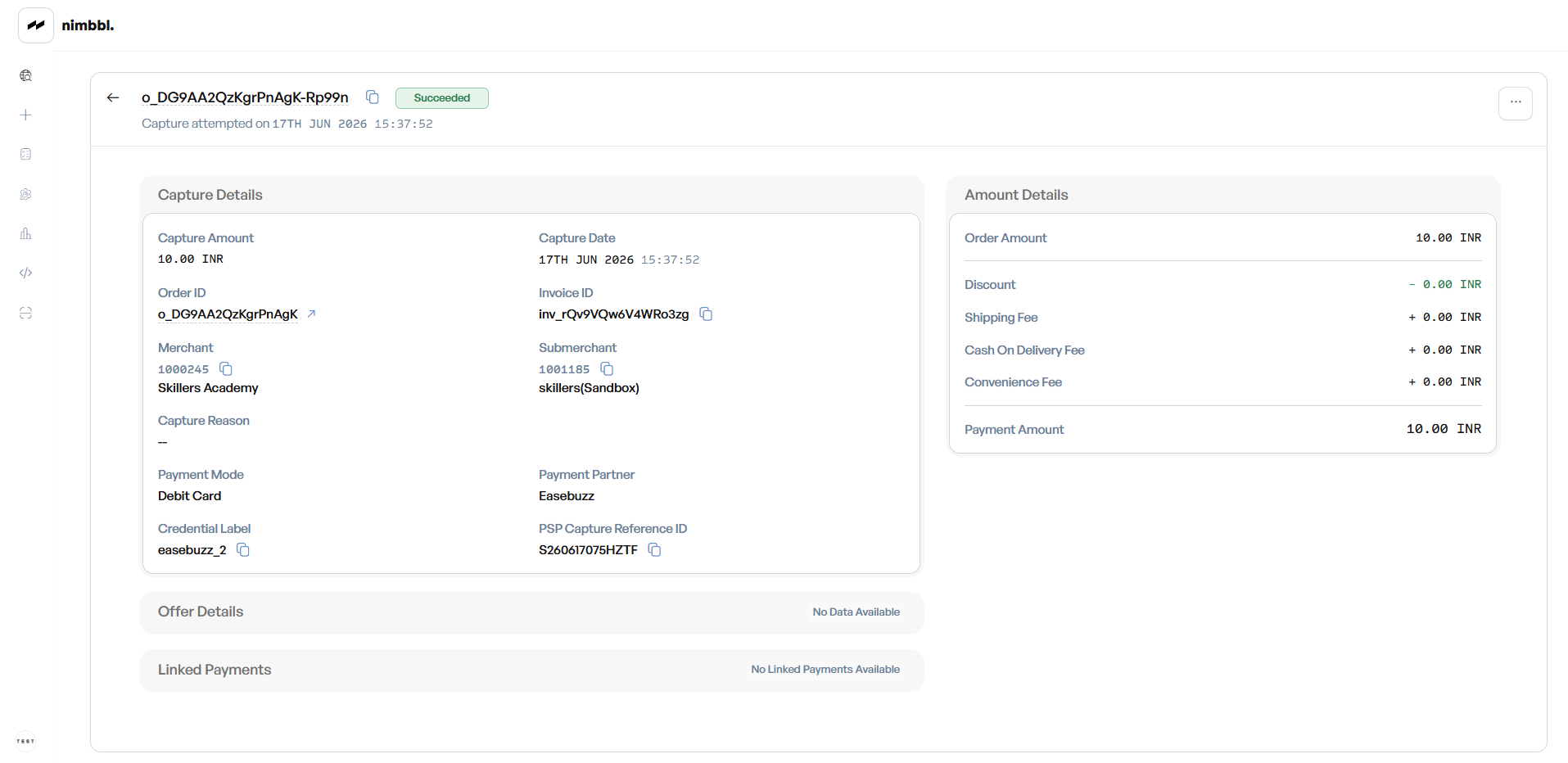 Capture details -- with the linked authorized payment
Creating a Capture
Captures are created from the Payment Details page, not from the Captures list. The Capture action appears only when the payment status is Authorized. Selecting it opens a confirmation showing the authorized amount; capture is always for the full amount (partial capture is not supported). On success the payment moves to Succeeded and the order to Completed.
For the server/API flow and how to detect the authorized state, see Pre-auth and Capture.
Downloading Capture Data
To download your filtered capture data, see Downloads in Files.