Payments
Payments represent customer payment attempts in Command Center. Each payment records the amount, currency, payment mode, payment partner, status, and associated order. Use Search > Payments to browse payment history, apply filters to find specific records, view detailed payment information, and initiate refunds for eligible payments.
For common filters shared across all Search pages (date, status, environment, partners, merchants, currency, amount, email, mobile, invoice ID, custom attributes, and currency conversion), see Common Filters on the Search overview.
Browsing Payments
Open Search > Payments from the Command Center sidebar to see the payments list. The default view shows your most recent payments, sorted by creation date. The list displays columns for Payment ID, date, amount, status, payment mode, and payment partner. You can sort by clicking column headers and use the pagination controls to navigate between pages.
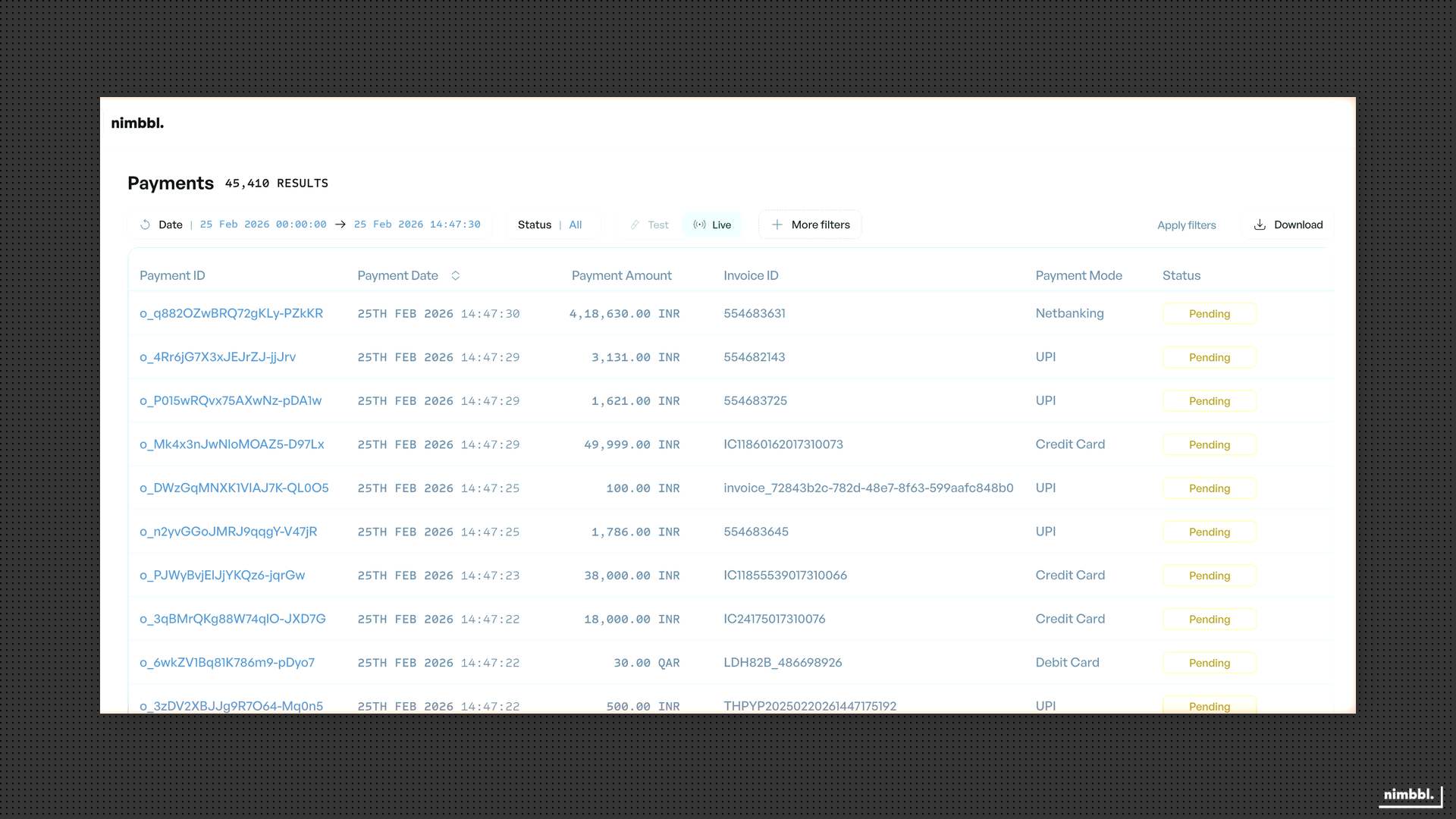 Payments list with filters applied
Filtering Payments
In addition to the common filters, the Payments page supports these unique filters in the Advanced Filters section:
- Payment ID -- Search by exact Payment ID. You can enter multiple Payment IDs.
- Order ID -- Filter payments associated with a specific order.
- Payment Mode -- Filter by payment mode: Cards, UPI, Netbanking, Wallets, EMI, or Pay Later. This is a multi-select dropdown.
- Payment Partner -- Filter by payment partner. Multi-select dropdown showing all configured payment partners.
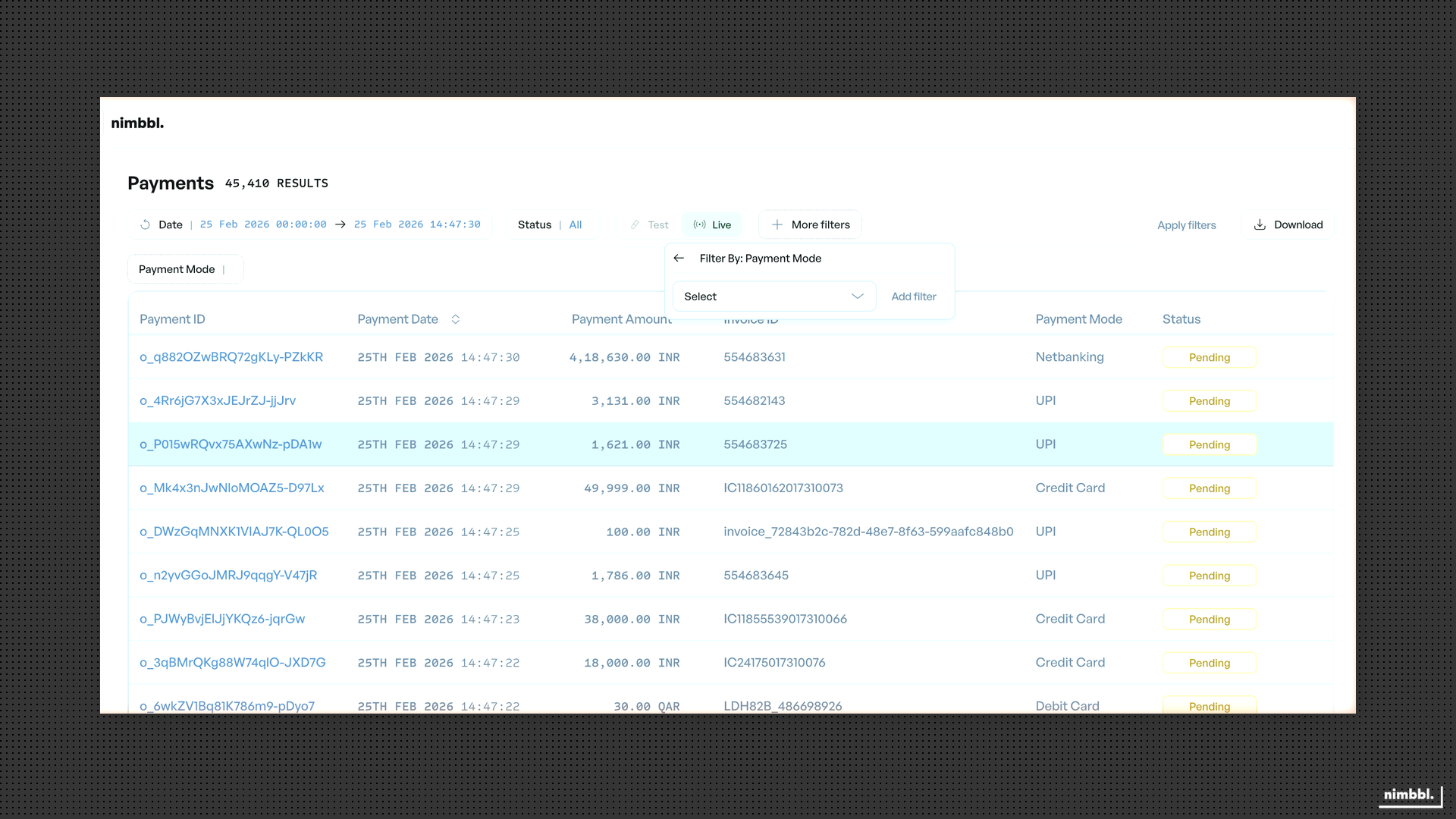 Payment Mode filter -- select one or more payment modes
Card-Specific Filters
When filtering card payments, additional filters become available:
- Bank Name -- Filter by bank (for netbanking payments).
- Wallet Name -- Filter by wallet provider.
- Pay Later Name -- Filter by pay later provider.
- Card Network -- Visa, Mastercard, RuPay, and other networks.
- Card Geography -- Domestic or International.
- Card Issuer -- Filter by the bank that issued the card.
- Card Number -- Search by the last 4 digits of the card.
- Card Type -- Credit, Debit, or Prepaid.
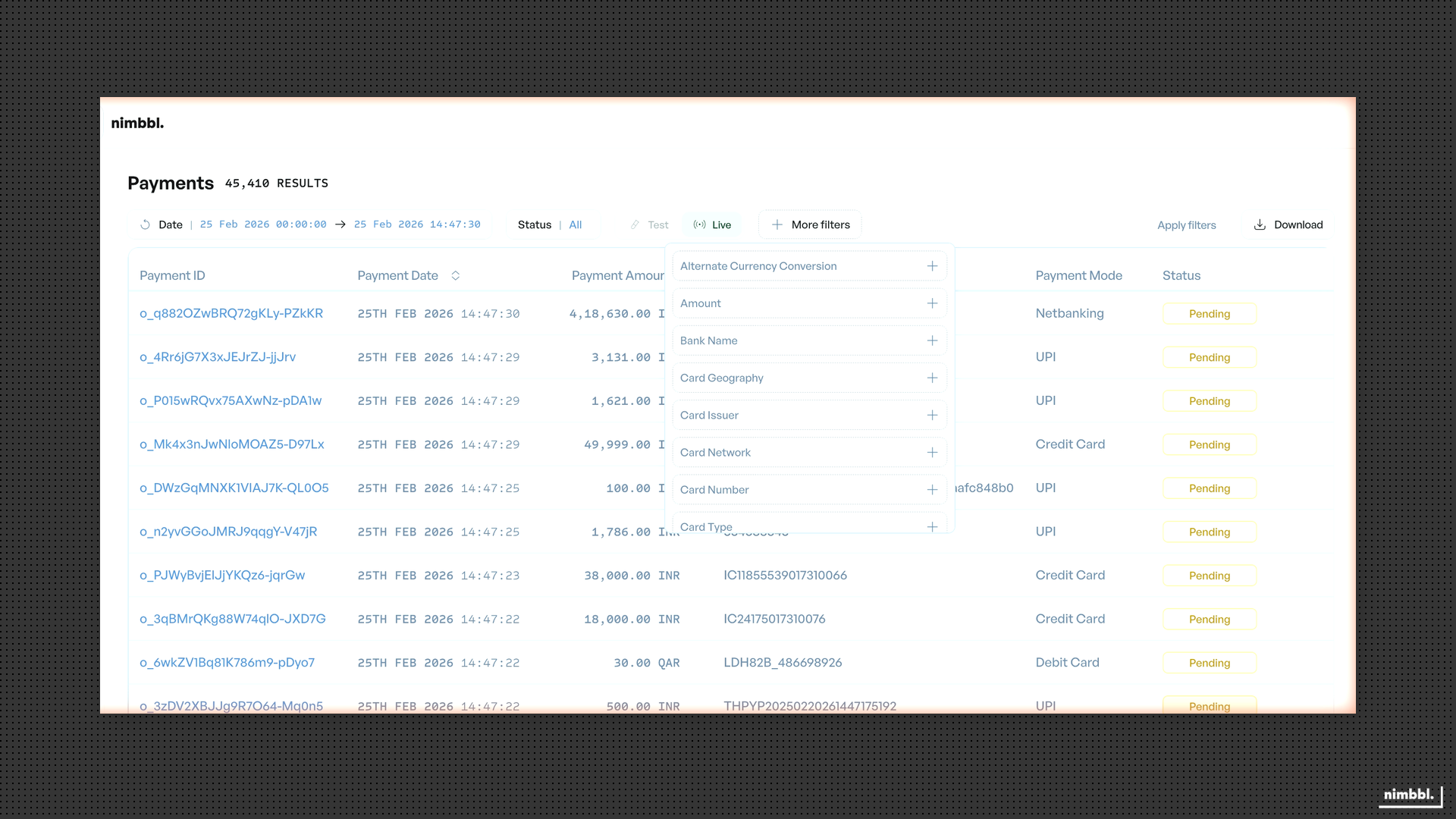 Card-specific filters -- available when filtering card payments
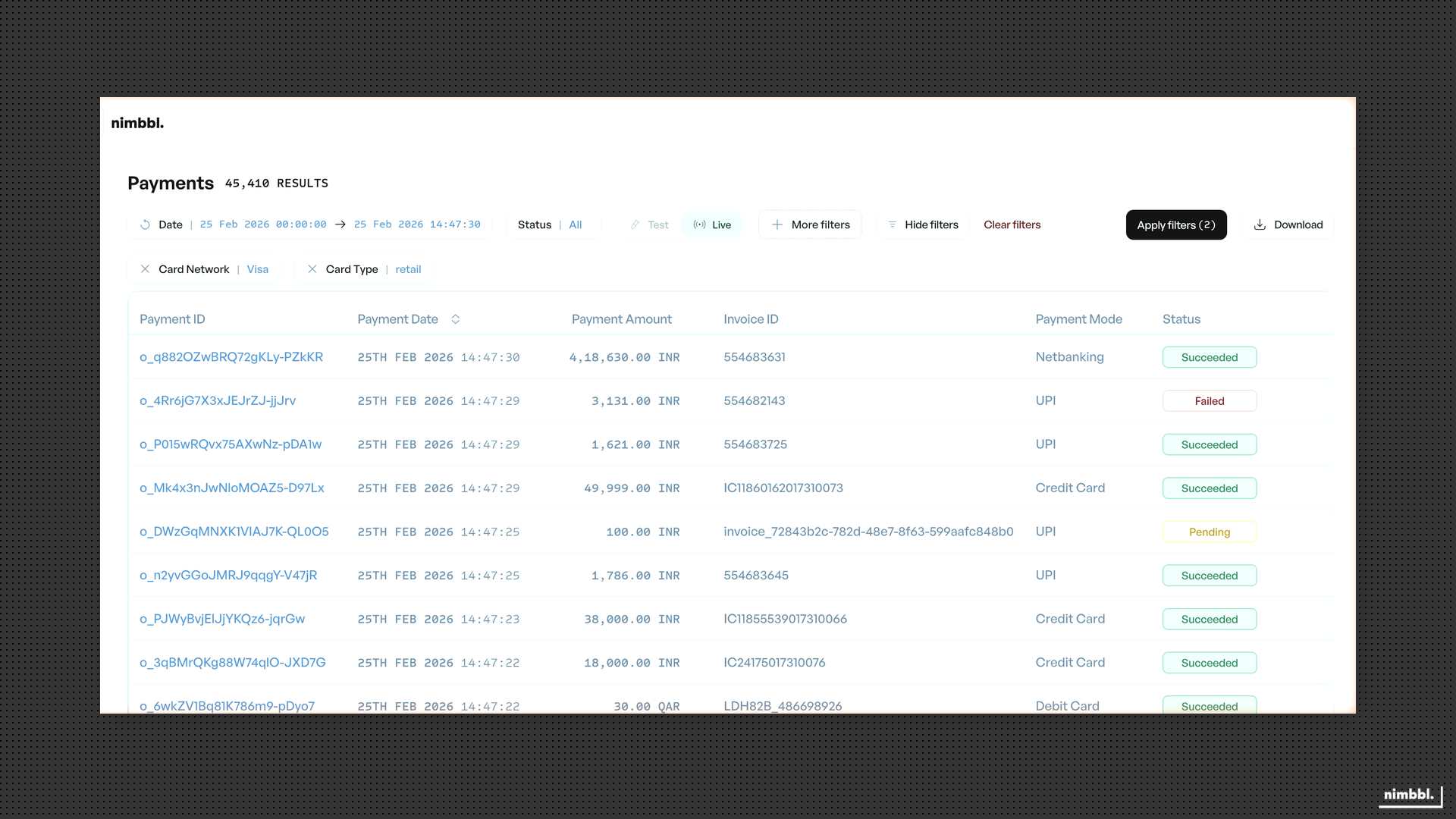 Filter chips for card-specific filters
UPI-Specific Filters
For UPI payments, you can filter by:
- UPI Flow -- Filter by UPI flow type (for example, Collect or Intent).
- UPI ID -- Search by the customer's UPI ID.
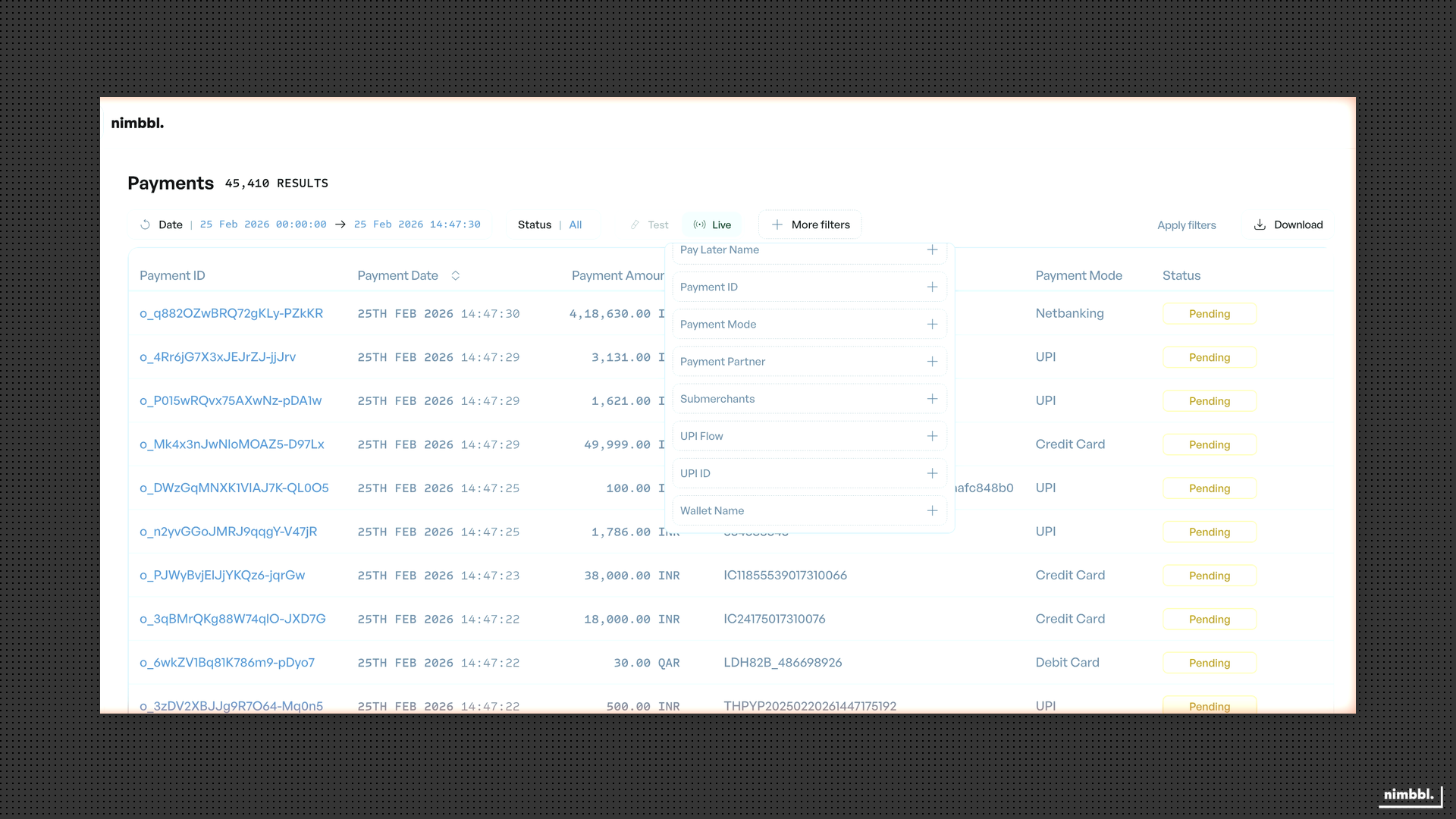 UPI-specific filters -- available when filtering UPI payments
Add these filters alongside any common filters, then select Apply Filters to update results. All filters work together.
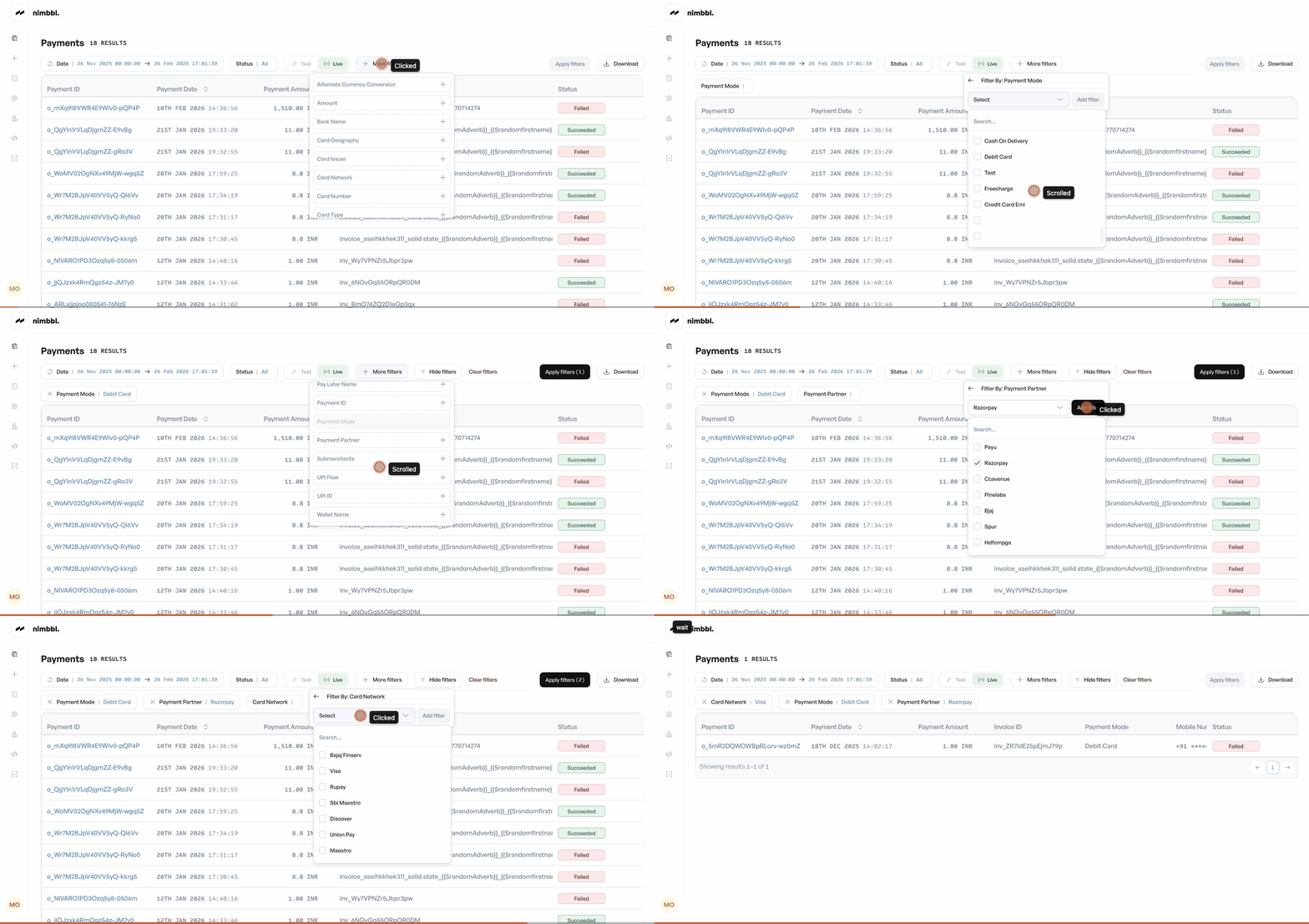 Payment filters in action -- apply payment mode, partner, and other filters to narrow down results
Payment Details
Click any payment row to open its detail view. Payment details include:
- Payment information -- Payment ID, transaction ID, Order ID (clickable to Order Details), customer information, amount, currency, status, payment mode, payment partner, and dates.
- Associated refunds -- A list of refunds for this payment. Refund IDs are clickable links to Refund Details.
- Additional sections -- Offer details, failure details (for failed payments), conversion details (for currency-converted payments), amount breakdown, payment mode details, and custom attributes where applicable.
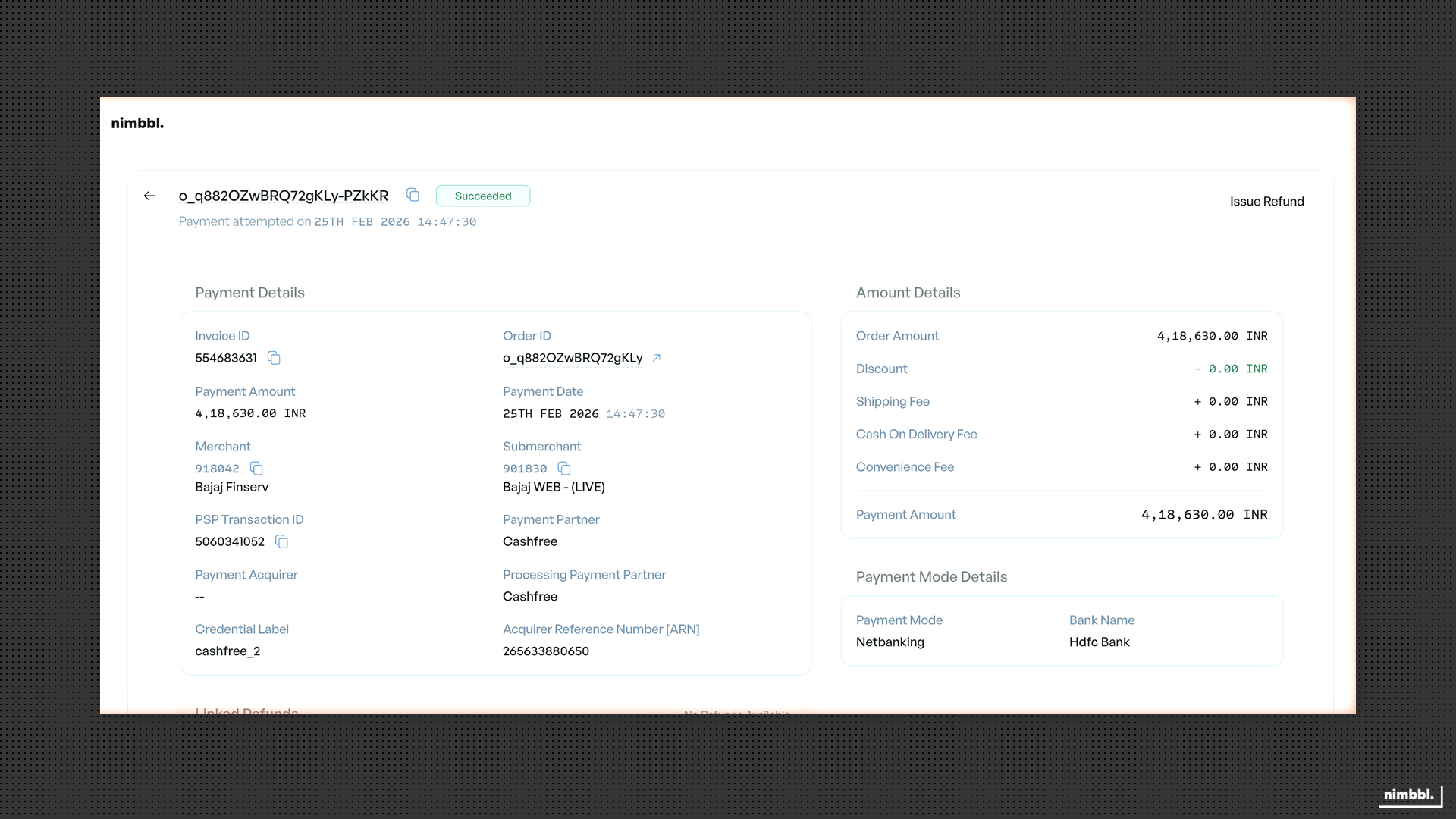 Payment details -- view payment information, associated refunds, and additional sections
Issuing Refunds From Payment Details
For eligible payments (status SUCCEEDED with a refundable amount greater than zero), an Issue Refund button is available in the payment detail view. Selecting this button opens the refund workflow. For the complete single-refund process -- including full and partial refund options, shipping fee and cashback handling, and amount calculation -- see Issuing Single Refunds on the Refunds page.
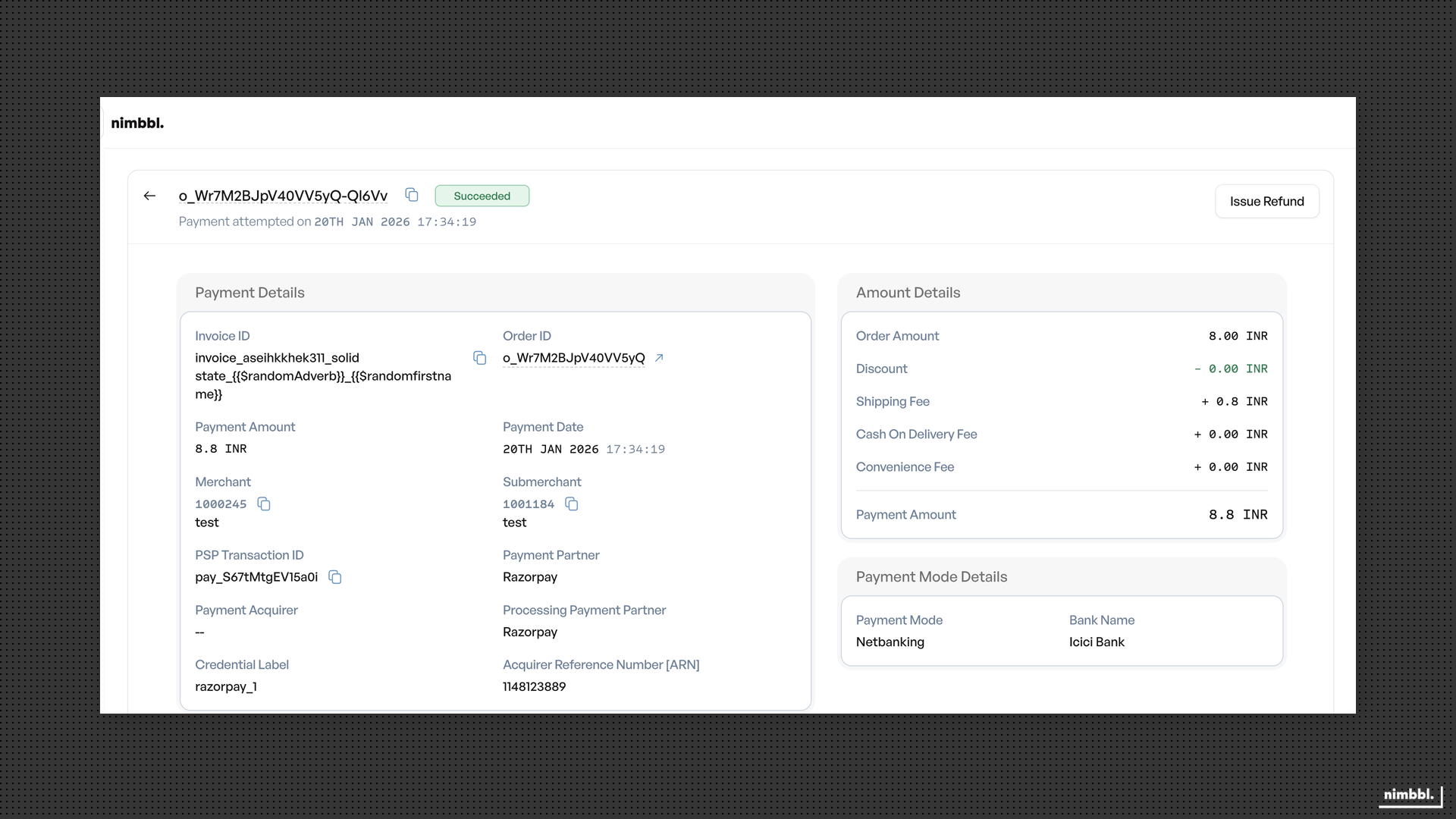 Issue Refund is available for eligible payments
Pre-authorized Payments
When a payment is pre-authorized, funds are held on the customer's instrument but not yet collected. These payments carry the Authorized status — select Authorized in the Status filter to find payments awaiting a capture or void decision.
Open an authorized payment to see its pre-authorization fields, including the Capture Mode and the Capture Deadline (the time by which you must capture or void). From the detail view you can:
- Capture — collect the held funds and trigger settlement. A confirmation shows the authorized amount; capture is always for the full amount (partial capture is not supported). The payment moves to Succeeded and the order to Completed.
- Void — cancel the authorization and release the held funds back to the source. The payment moves to Reversed and the order to Lapsed.
Both actions appear only while the payment is Authorized. If you neither capture nor void before the Capture Deadline, the hold is released automatically and the order lapses. Each capture and void is also listed on the Captures and Voids pages.
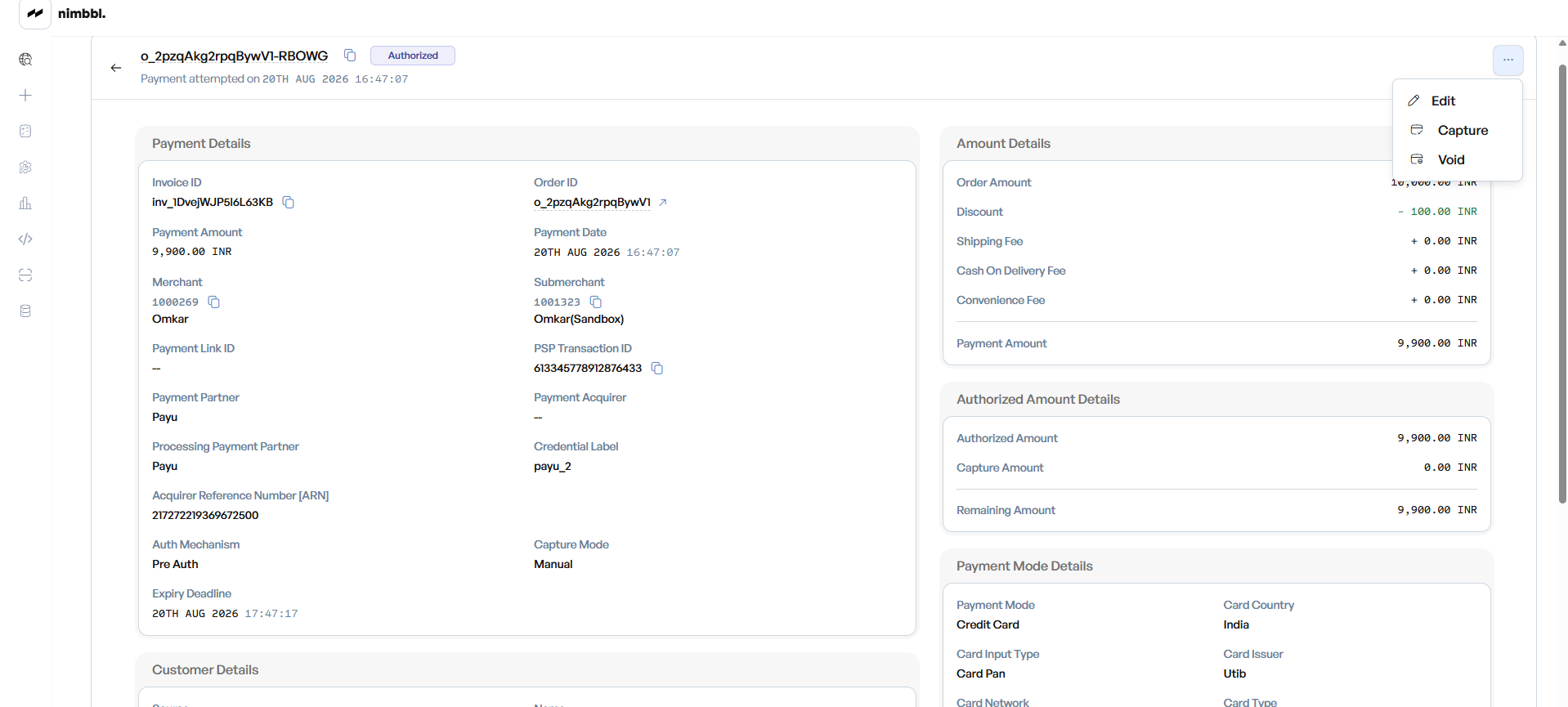 Capture or void an authorized payment from its detail view
For the concept and the server/API flow, see Pre-authorization and Pre-auth and Capture.
Downloading Payment Data
Use the Download button on the Payments list to export payment data. The export respects all currently applied filters. Downloads are processed asynchronously and appear under Files > Downloads when ready. For the complete download workflow, see Downloading Data on the Search overview.