Session Expired
Session Expired is the notification you see when Command Center logs you out because of inactivity. For security, if you do not interact with Command Center for a period of time, your session ends and you are redirected to this notification. You must log in again to continue working.
Why Sessions Expire
Command Center ends your session after a period of inactivity to protect your account and data. This is a security measure that prevents unauthorized access if you step away from your device or leave your browser open unattended. Session expiry is expected behavior and applies to all users.
What Happens
When the inactivity timeout is reached:
- You may see a countdown or a message indicating that your session is about to expire.
- If you do not interact with the page during the countdown, your session ends and you are logged out.
- You are redirected to the Session Expired notification. From there, you can return to the Login page to log in again.
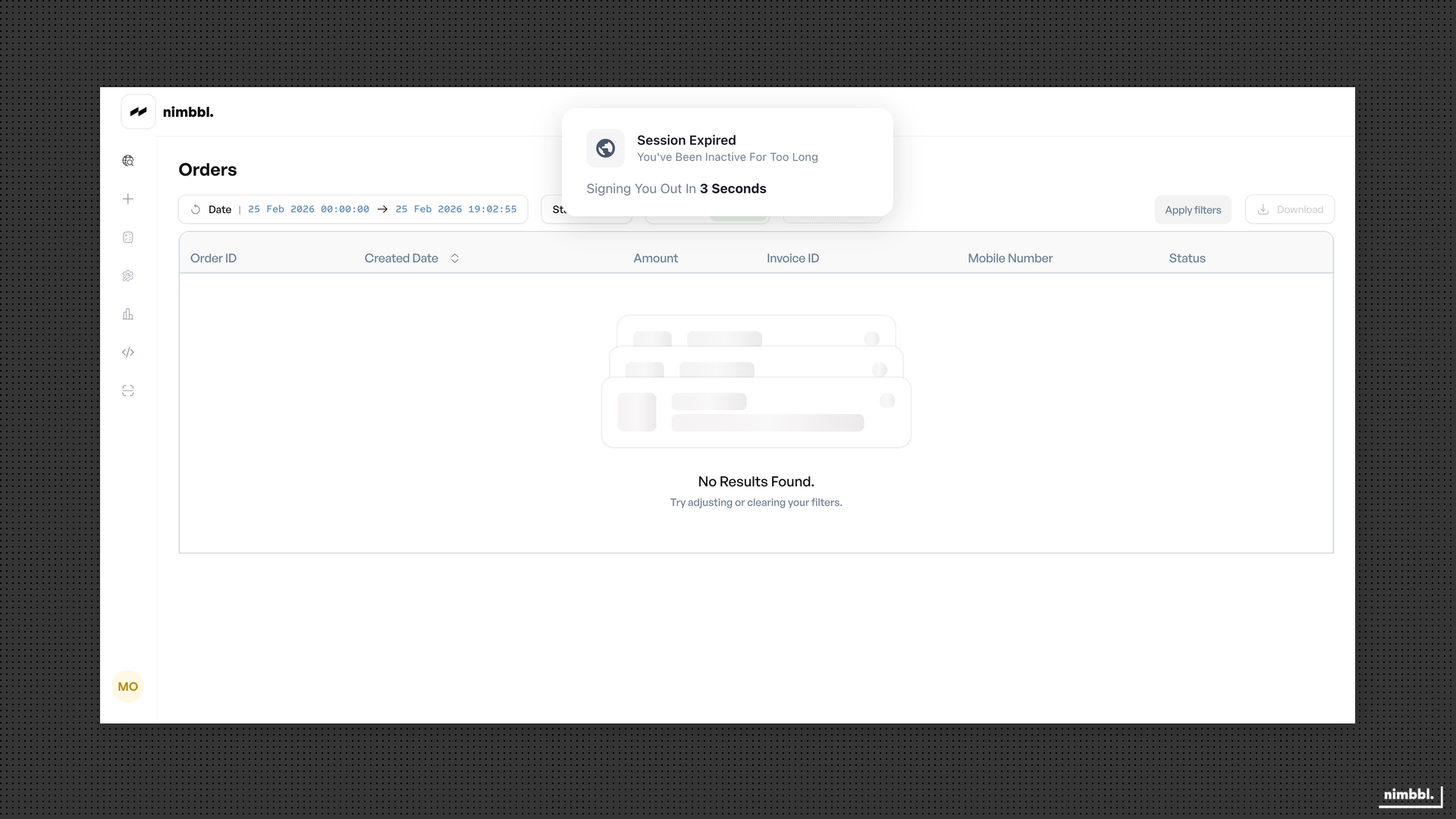 Session Expired -- your session ended due to inactivity
Any unsaved work in the current session is lost when the session expires. Save your work frequently to avoid losing progress.
How to Log in Again
Select the option on the Session Expired notification to go to Login (for example, "Go back to login" or a link to the Login page). Then enter your email and password on the Login page as usual. After logging in, you can continue working from where you left off.
Prevention Tips
- Save frequently -- Save any in-progress work regularly so you do not lose changes if the session ends.
- Stay active -- Interacting with Command Center (clicking, scrolling, entering data) resets the inactivity timer.
- Log out when done -- If you need to step away, log out yourself from Command Center to end the session in a controlled way. This is especially important on shared or public devices.
- Keep credentials private -- Do not share your login details or leave your browser logged in on a device others can access.