Managing Subventions
After you create a subvention, the day-to-day work shifts to managing it -- viewing its configuration, editing fields as your promotion evolves, duplicating it for similar campaigns, and controlling its status to start or stop applying it at checkout. All of these workflows live in the Command Center under Create --> Subventions.
The subventions list view is your starting point. From there you can filter and search to find any subvention, click into its detail view to inspect the full configuration, and take actions such as editing, duplicating, activating, or deactivating. Which actions are available -- and which fields you can change -- depends on the subvention's current status. A subvention in Created status is fully editable, while an Active or Disabled subvention locks certain core fields to protect live and historical data.
This page covers each management workflow in detail so you can confidently operate subventions throughout their lifecycle. For the initial creation workflow, see Creating Subventions. For the validation rules that affect activation, see Eligibility and Validation.
Viewing Subventions
Navigate to Create --> Subventions in the Command Center sidebar to open the subventions list. The list displays all subventions for your account, regardless of status, and provides filters and search to help you locate specific entries.
List view
The subventions list page shows each subvention as a row with key details at a glance: subvention name, subvention type (no-cost or low-cost), offer type (discount or cashback), current status, validity dates, and usage counts. You can sort by any column to reorder the list.
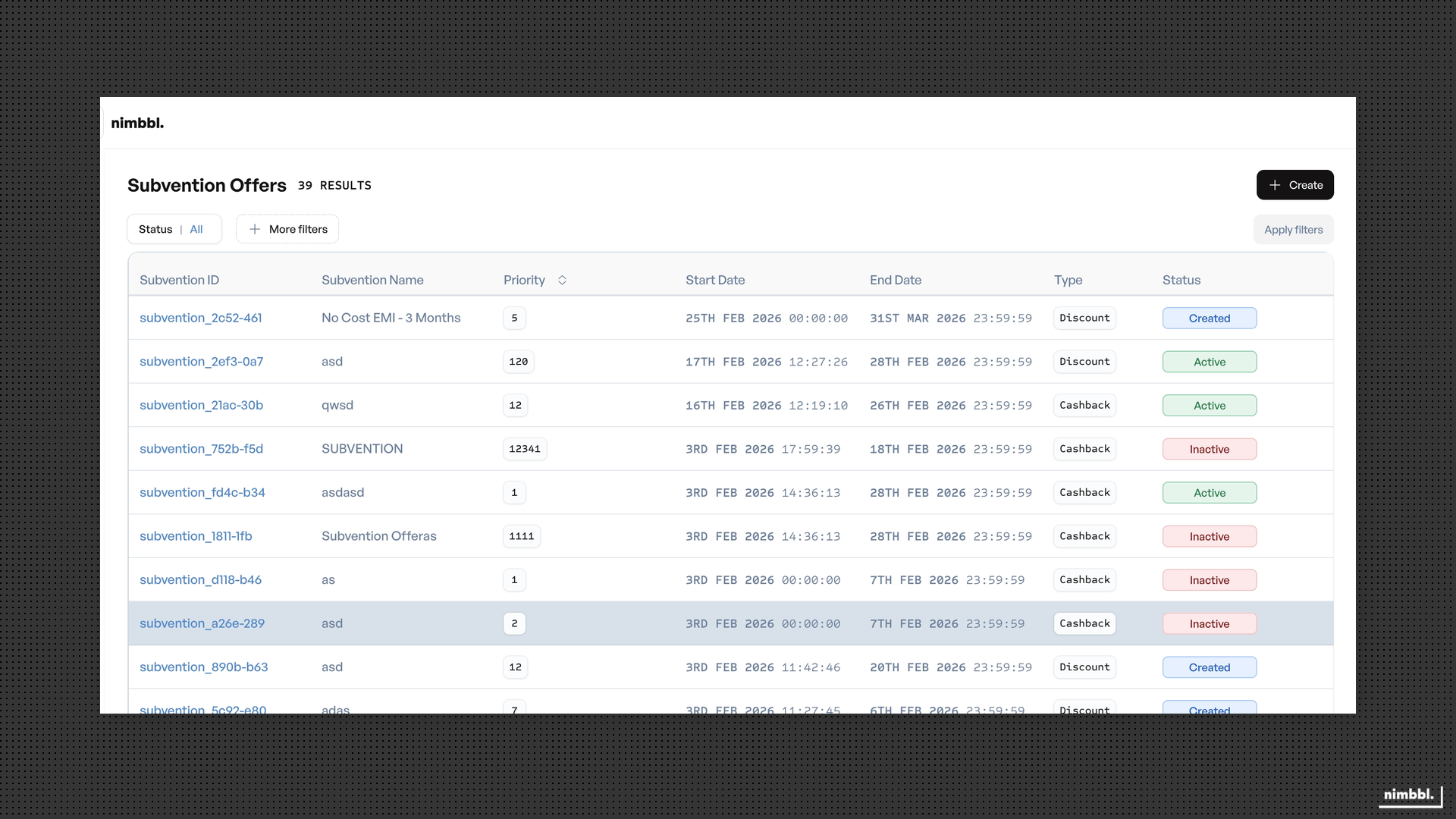
Use the filter panel on the left to narrow the list:
- Status -- filter by Created, Active, or Disabled to see only subventions in a specific lifecycle stage.
- Date range -- filter by creation date or validity period to find subventions active during a particular window.
- Sub-merchant -- show subventions for a specific sub-merchant if you manage multiple merchants.
- Subvention type -- filter by no-cost EMI or low-cost EMI.
- EMI type -- filter by Card EMI or Cardless EMI.
Apply one or more filters to update the list, or clear all filters to reset. You can also use the search bar to find subventions by name.
Adopt a consistent naming convention for your subventions (for example, "NoCost-6M-HDFC-Diwali"). A clear convention makes filtering and searching much faster as your subvention catalog grows.
Detail view
Click any subvention in the list to open its detail view. The detail view shows the complete configuration organized across the same three tabs used during creation: Setup, Details, and Payment Modes.
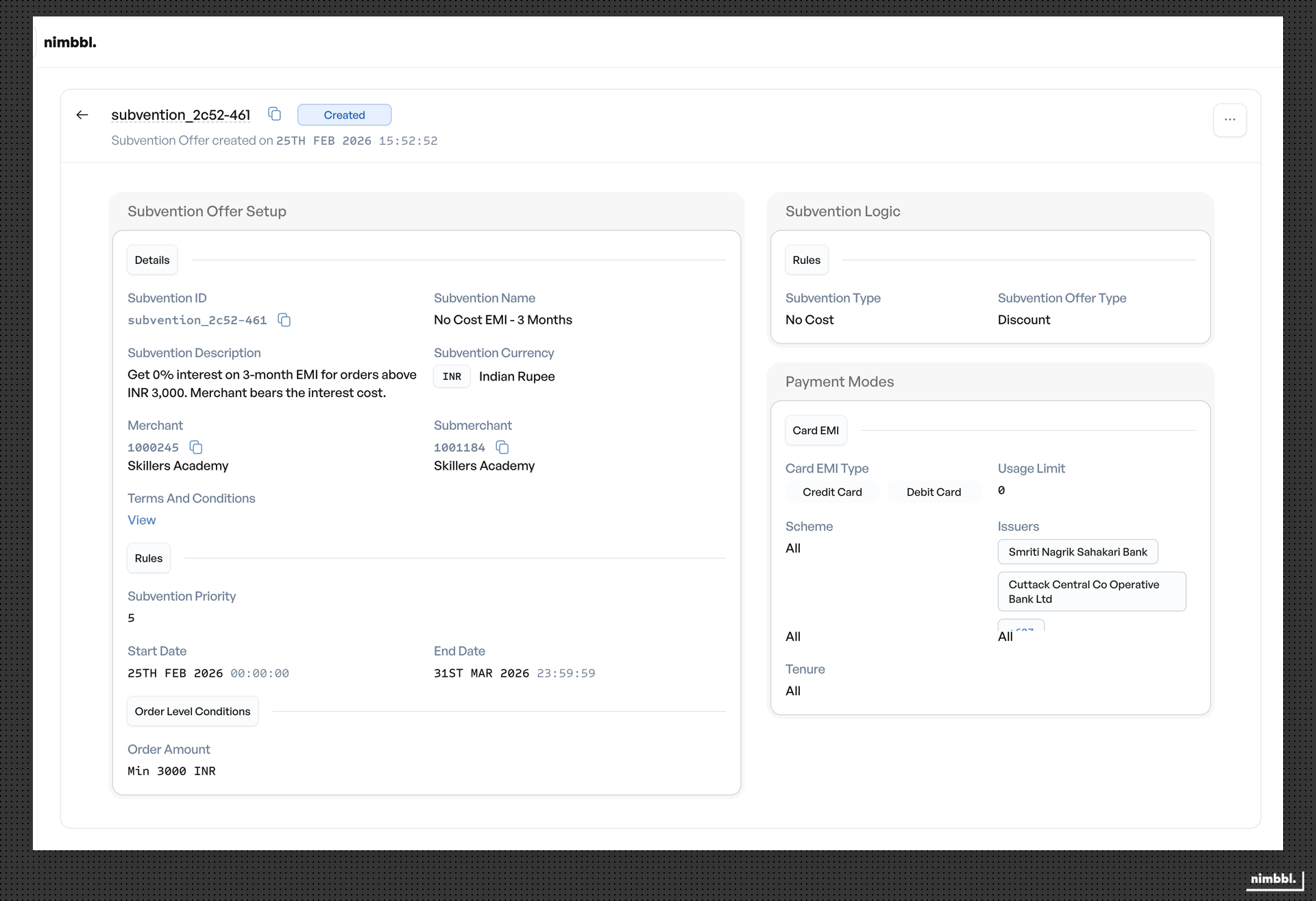
From the detail view you can see every configured field -- sub-merchant, subvention type, offer type, construct type, order constraints, usage limits, validity dates, priority, EMI targeting rules, and tenure selections. The detail view also displays the subvention's current status and provides action buttons to edit, duplicate, activate, or deactivate.
Editing Subventions
Open a subvention's detail view and click Edit to enter the edit form. The edit form uses the same three-tab structure as the creation form -- Setup, Details, and Payment Modes. Which fields you can modify depends on the subvention's current status.
Editing subventions in Created status
When a subvention is in Created status, all fields are fully editable. You can change the sub-merchant, subvention name, subvention type, offer type, construct type, display text, validity dates, priority, order constraints, usage limits, and all EMI configuration settings. There are no restrictions because the subvention has never been active -- no transactions have been processed against it, and no customer-facing data depends on its current configuration.
Use this window to review and refine the subvention before activating it. Once activated, several core fields become locked.
Editing subventions in Active status
When a subvention is in Active status, core definition fields are locked to protect live transaction processing. Active subventions may already be applied to orders in progress or completed -- changing foundational fields could create inconsistencies between what the customer was promised and what was actually applied.
Fields you cannot edit in Active status:
- Subvention name -- locked because the name is used as an identifier in transaction records and reporting.
- Sub-merchant -- locked because reassigning a subvention to a different sub-merchant would break the association with existing transactions.
- Subvention type -- locked because switching between no-cost and low-cost EMI would change the interest calculation for all future transactions in ways that conflict with the original promotion intent.
- Offer type -- locked because switching between discount and cashback fundamentally changes how the benefit is delivered to the customer.
- Construct type -- locked because changing the discount calculation method would alter the subvention value for all subsequent transactions.
Fields you can edit in Active status:
- Display text -- update the customer-facing text without affecting how the subvention is calculated or applied.
- Validity dates -- extend or shorten the promotion window, provided the end date is still in the future. You cannot set the end date to a past date while the subvention is active -- use deactivation instead.
- Usage limits -- increase or modify limits, with restrictions. You can increase max usage, max usage per user, and max usage per card. You can also set limits to unlimited (0). Decreasing a limit below the current redemption count is not permitted.
- EMI configuration -- modify which issuers, tenures, or schemes are eligible. This allows you to expand or narrow EMI targeting without deactivating the subvention.
- Priority -- change the evaluation order relative to other active subventions. The new priority must still be unique among active subventions for the same sub-merchant.
Changing EMI configuration or validity dates on an active subvention takes effect immediately. Customers who are currently browsing EMI options at checkout may see the available subventions change in real time.
Editing subventions in Disabled status
When a subvention is in Disabled status, the same core fields are locked as in Active status -- subvention name, sub-merchant, subvention type, offer type, and construct type remain read-only. The editable fields are the same as for Active subventions: display text, validity dates, usage limits, EMI configuration, and priority.
Editing a disabled subvention is useful when you want to adjust its configuration before reactivating it. For example, you might extend the validity period, increase usage limits, or update the EMI targeting before turning the subvention back on.
Edit workflow
To edit a subvention:
- Navigate to Create --> Subventions and find the subvention in the list.
- Click the subvention to open its detail view.
- Click Edit to enter the edit form.
- Navigate between the Setup, Details, and Payment Modes tabs to make your changes.
- Click Save to apply your modifications.
The edit form validates all changes before saving. If a validation rule fails (for example, a non-unique priority or an invalid date range), the form displays an error message and prevents saving until the issue is resolved.
Edit Restrictions by Status
The table below summarizes which fields can be edited in each status.
| Field | Created | Active | Disabled |
|---|---|---|---|
| Subvention name | Editable | Locked | Locked |
| Sub-merchant | Editable | Locked | Locked |
| Subvention type | Editable | Locked | Locked |
| Offer type | Editable | Locked | Locked |
| Construct type | Editable | Locked | Locked |
| Display text | Editable | Editable | Editable |
| Validity dates | Editable | Editable (if end date is in the future) | Editable |
| Usage limits | Editable | Editable (cannot decrease below current usage) | Editable |
| EMI configuration | Editable | Editable | Editable |
| Priority | Editable | Editable | Editable |
If you need to change a locked field, create a new subvention with the desired configuration and deactivate the old one. You can use the duplicate workflow to pre-fill most fields from the existing subvention.
Duplicating Subventions
Duplicate lets you create a new subvention based on an existing one's configuration. This saves time when you need to create similar subventions with minor variations.
Duplicate workflow
To duplicate a subvention:
- Open the subvention's detail view from the list.
- Click Duplicate.
- Command Center opens the creation form pre-filled with all values from the source subvention.
- The Subvention name field is cleared -- you must provide a new, unique name for the duplicate.
- The Subvention ID is auto-generated -- the duplicate receives its own unique identifier.
- Review and modify any fields as needed (all fields are editable because the duplicate starts in Created status).
- Click Save to create the new subvention.
The duplicate is an independent subvention. Changes to the original do not affect the duplicate, and vice versa.
When to use duplicate
Duplicate is particularly useful in these scenarios:
- Seasonal promotions -- duplicate a previous season's subvention and update the validity dates for the new season instead of recreating from scratch.
- Issuer-specific variants -- create a base subvention for one card issuer, then duplicate it for each additional issuer with different EMI configurations.
- Regional or sub-merchant variants -- duplicate a subvention and reassign it to a different sub-merchant with the same EMI targeting and discount structure.
- Testing before going live -- duplicate a production subvention into a test configuration to validate changes before applying them to the original.
When duplicating for seasonal campaigns, update the subvention name to include the season or date range (for example, "NoCost-6M-HDFC-Summer2025"). This makes it easy to distinguish between the original and the duplicate in the list view.
Subvention Status Management
Every subvention moves through a defined set of statuses that control whether it applies to transactions at checkout. Understanding the status lifecycle is essential for managing promotions effectively.
Status lifecycle
Subventions follow a three-state lifecycle: Created, Active, and Disabled. The transitions between these states are explicit actions you take in the Command Center.
- Created -- the subvention is saved but not live. It does not appear at checkout and does not apply to any transactions. All fields are editable.
- Active -- the subvention is live and eligible to apply to transactions that match its configuration. Core fields are locked. The subvention is evaluated during checkout based on its priority and eligibility rules.
- Disabled -- the subvention is turned off. It no longer applies to new transactions but remains in the system for reference and can be reactivated.
Activating a subvention
To activate a subvention, open its detail view and click Activate. The system runs a series of validation checks before completing activation:
- Required fields -- all mandatory fields across Setup, Details, and Payment Modes must be filled.
- Priority uniqueness -- the subvention's priority must be unique among all active subventions for the same sub-merchant. If another active subvention shares the same priority, activation is blocked.
- Discount validation -- the discount or cashback value must be valid for the selected construct type (for example, a percentage value must be between 0 and 100).
- Validity dates -- the end date must not be in the past at the time of activation. Start dates in the past are permitted -- the subvention begins applying immediately.
- EMI configuration -- at least one EMI scheme or tenure must be configured if the "Allow All Payment Modes" toggle is disabled.
If any validation check fails, activation is blocked and the system displays an error message describing the issue. Fix the reported errors and retry activation.
After successful activation, the subvention starts applying to eligible orders immediately. Customers who are in the checkout flow and selecting EMI options will see the subvention if their transaction matches the configuration.
Deactivating a subvention
To deactivate an active subvention, open its detail view and click Deactivate (or Disable). Deactivation stops the subvention from applying to any new transactions immediately.
Key behaviors on deactivation:
- Immediate effect -- the subvention is removed from checkout eligibility as soon as you confirm the deactivation. No new orders will have this subvention applied.
- Existing orders unaffected -- orders that already have this subvention applied before deactivation are not retroactively changed. The discount or cashback that was already calculated and applied to those orders remains intact.
- Reversible -- deactivation does not delete the subvention. It remains in the system in Disabled status and can be reactivated at any time.
Use deactivation when you need to pause a promotion -- for example, when a campaign ends early, when you discover a configuration issue, or when you hit your budget ceiling.
Deactivating a subvention takes effect immediately. Customers who are currently in the checkout flow may see the subvention removed before they complete payment. If a customer has already selected an EMI option with the subvention applied and the subvention is deactivated before payment is completed, the subvention will not be applied to that transaction.
Reactivating a subvention
To reactivate a disabled subvention, open its detail view and click Activate. The system re-runs the same validation checks that apply during initial activation -- required fields, priority uniqueness, discount validation, validity dates, and EMI configuration must all pass.
If the subvention's validity period has expired since it was disabled, update the end date before attempting reactivation. If another subvention now occupies the same priority value, either change this subvention's priority or adjust the conflicting subvention.
After successful reactivation, the subvention returns to Active status and begins applying to eligible transactions immediately.
Reactivation does not reset usage counters. If the subvention had 500 redemptions before it was disabled, those 500 redemptions still count toward the max usage limit after reactivation. To restart with fresh usage counters, duplicate the subvention instead of reactivating it.