Managing Offers
Use Create --> Offers in Command Center to view, filter, edit, duplicate, and manage offer status. This page covers the day-to-day workflows for working with existing offers.
Viewing Offers
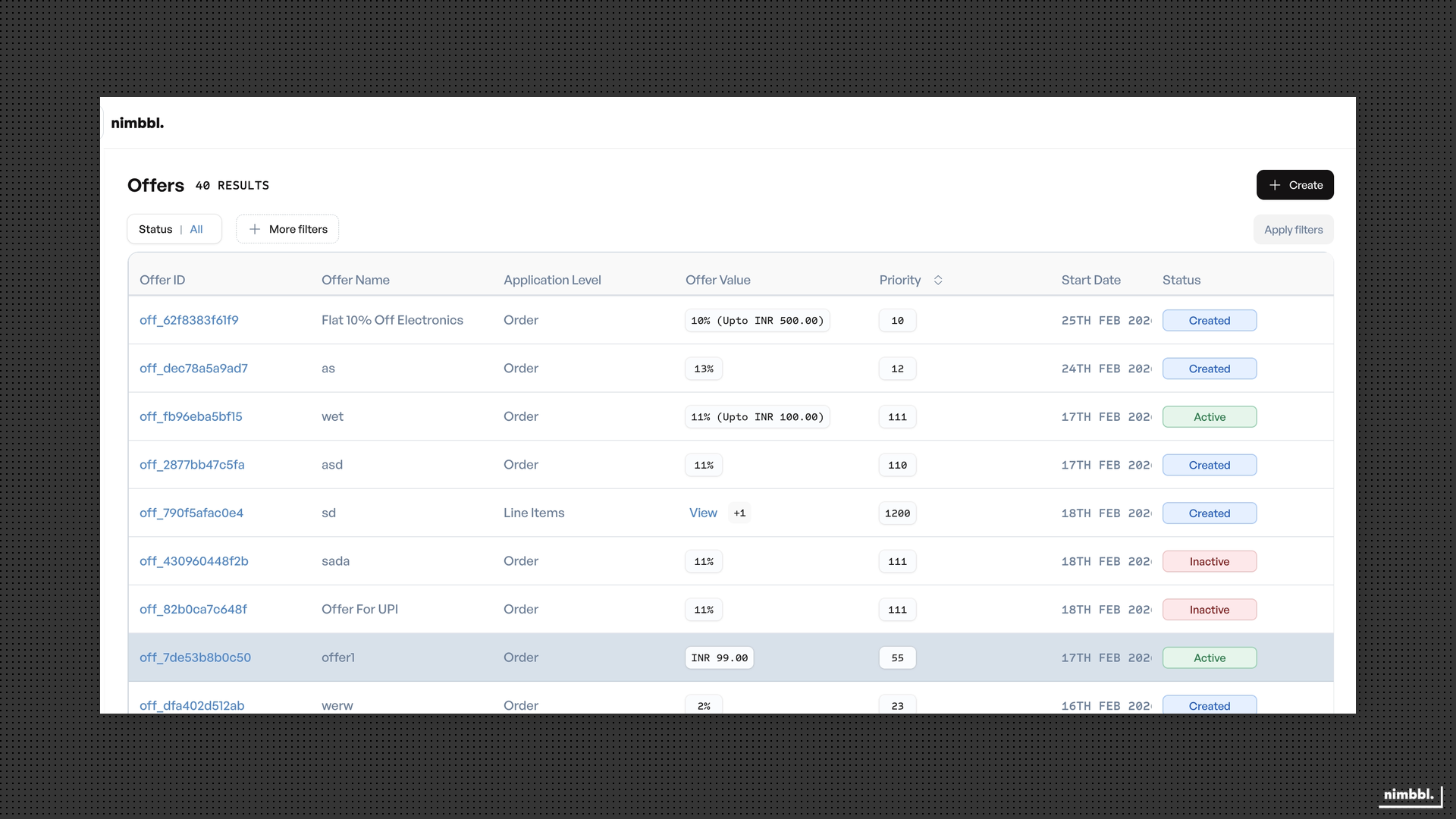
Open Create --> Offers to see the offers list. The list shows all offers for your account, with key details such as offer name, type, status, priority, validity dates, and sub-merchant.
Filtering Offers
Use the filter panel to narrow the list:
- Status -- filter by Created, Active, or Disabled.
- Sub-merchant -- show offers for a specific sub-merchant.
- Environment -- filter by Test or Live.
- Date range -- filter by creation or validity dates.
Apply filters to update the list, or clear them to reset. Filters persist in the URL so you can share filtered views.
Offer Details
Click any offer in the list to open its detail view. The detail view shows all configured fields organized by the same tabs used during creation: Details, Payment Modes, and Setup.
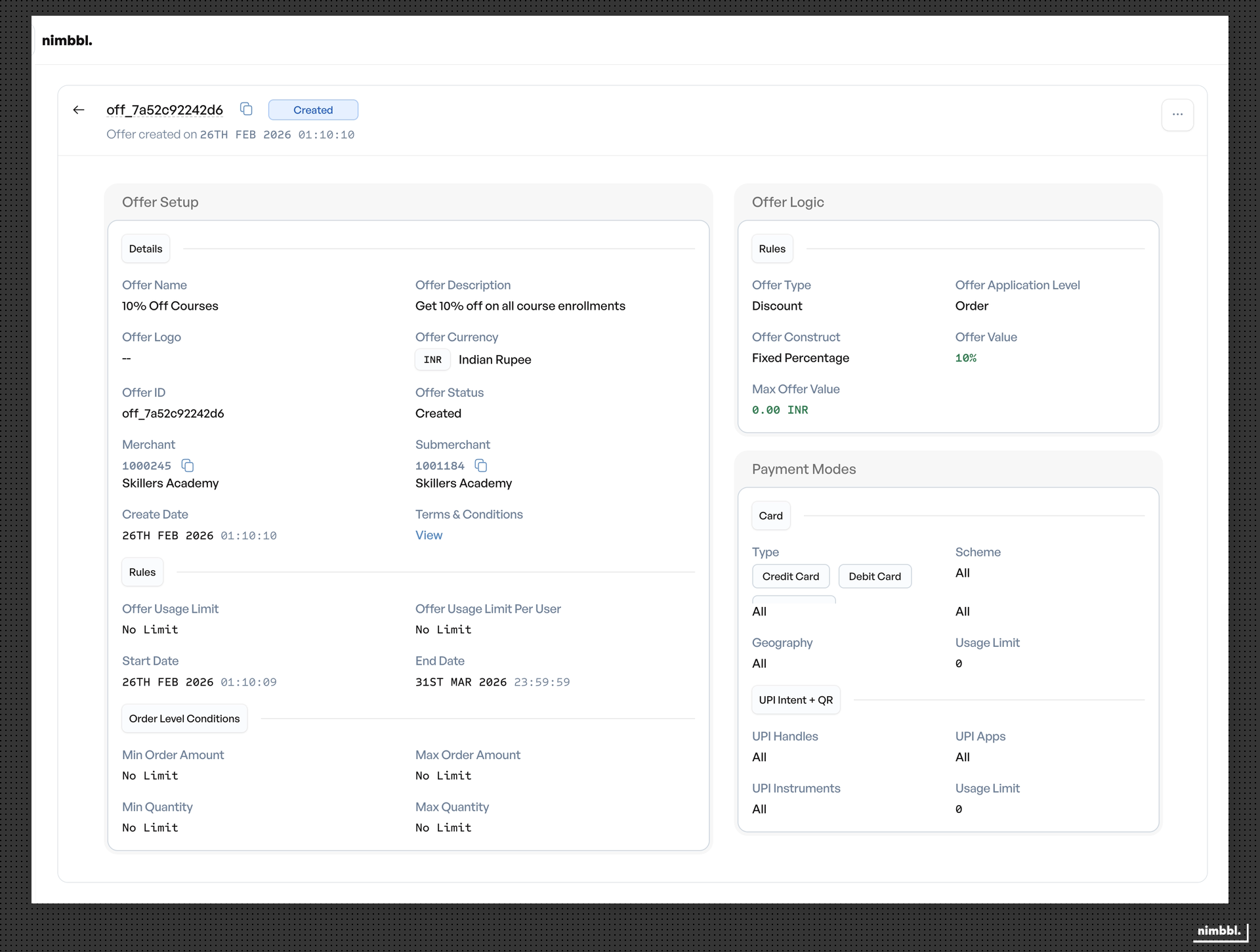
From the detail view you can:
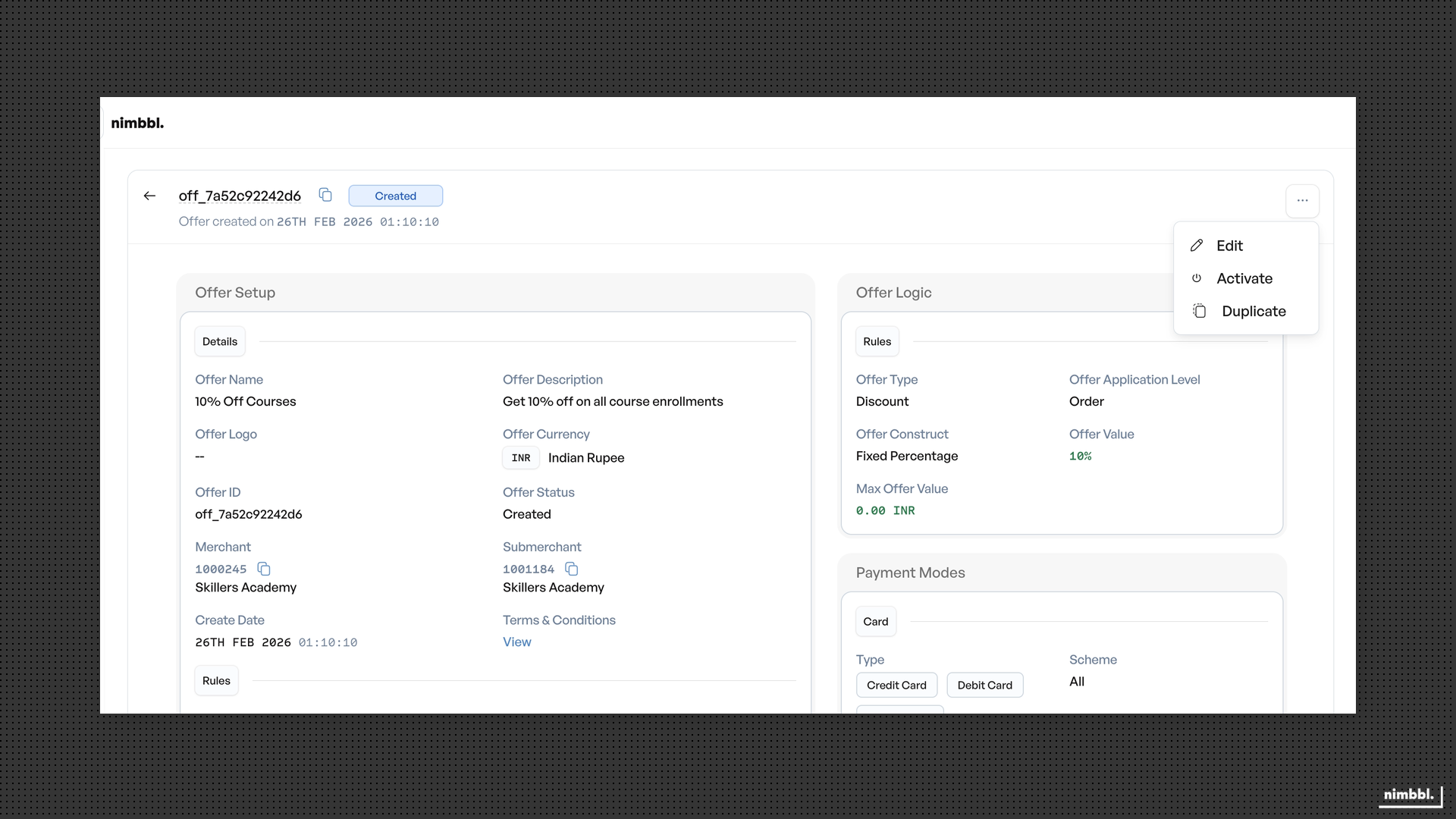
- Edit the offer (subject to status restrictions).
- Duplicate the offer to create a new one with the same configuration.
- Activate or Disable the offer.
Editing Offers
Open an offer and select Edit. The edit form uses the same three-tab structure as creation. Which fields you can change depends on the offer's current status.
Edit Restrictions By Status
| Field Area | Created | Active | Disabled |
|---|---|---|---|
| Core definition (sub-merchant, offer type, construct, application level, currency) | Editable | Read-only | Read-only |
| Display fields (offer name, display text, terms and conditions) | Editable | Limited | Limited |
| Validity dates | Editable | End date only | End date only |
| Priority | Editable | Editable | Editable |
| Payment mode targeting | Editable | Read-only | Read-only |
| Product configuration | Editable | Read-only | Read-only |
| Usage limits | Editable | Can increase or set to unlimited | Can decrease, but not below current usage |
Duplicating Offers
Select Duplicate from the offer detail view. Command Center opens the creation form pre-filled with the existing offer's configuration. You must provide a new offer name before saving. Duplicate is useful when you want to create a similar offer with minor changes (for example, a new validity period or different targeting).
Offer Status Lifecycle
Offers move through three statuses:
- Created -- the initial status after saving a new offer. The offer is not live and does not apply at checkout. All fields are editable.
- Active -- the offer is live and eligible to apply at checkout (subject to eligibility checks). Core fields become read-only to protect the live promotion.
- Disabled -- the offer is turned off and does not apply to new transactions. You can re-activate a disabled offer if needed.
To activate an offer, the priority must be greater than 0 and unique among active offers for the same sub-merchant. The end date must not be in the past.
For creating new offers, see Creating Offers.