Creating Offers
Use Create --> Offers --> Create Offer in Command Center to create a new offer. The creation workflow has three tabs: Details, Payment Modes, and Setup. Complete each tab and save to create the offer.
You can also Edit an existing offer or Duplicate one to pre-fill the creation form from an existing configuration. When duplicating, you must provide a new offer name before saving.
Offers must be enabled for your sub-merchant. If you cannot select a sub-merchant, contact Nimbbl support to enable offers.
Accessing Offer Creation
Go to Create --> Offers and select Create Offer.
- Create starts a blank offer.
- Edit opens an existing offer. Some fields may be read-only depending on the offer status.
- Duplicate opens a new offer pre-filled from an existing one.
Offer Details
The Details tab defines the offer's identity, construct, and constraints.
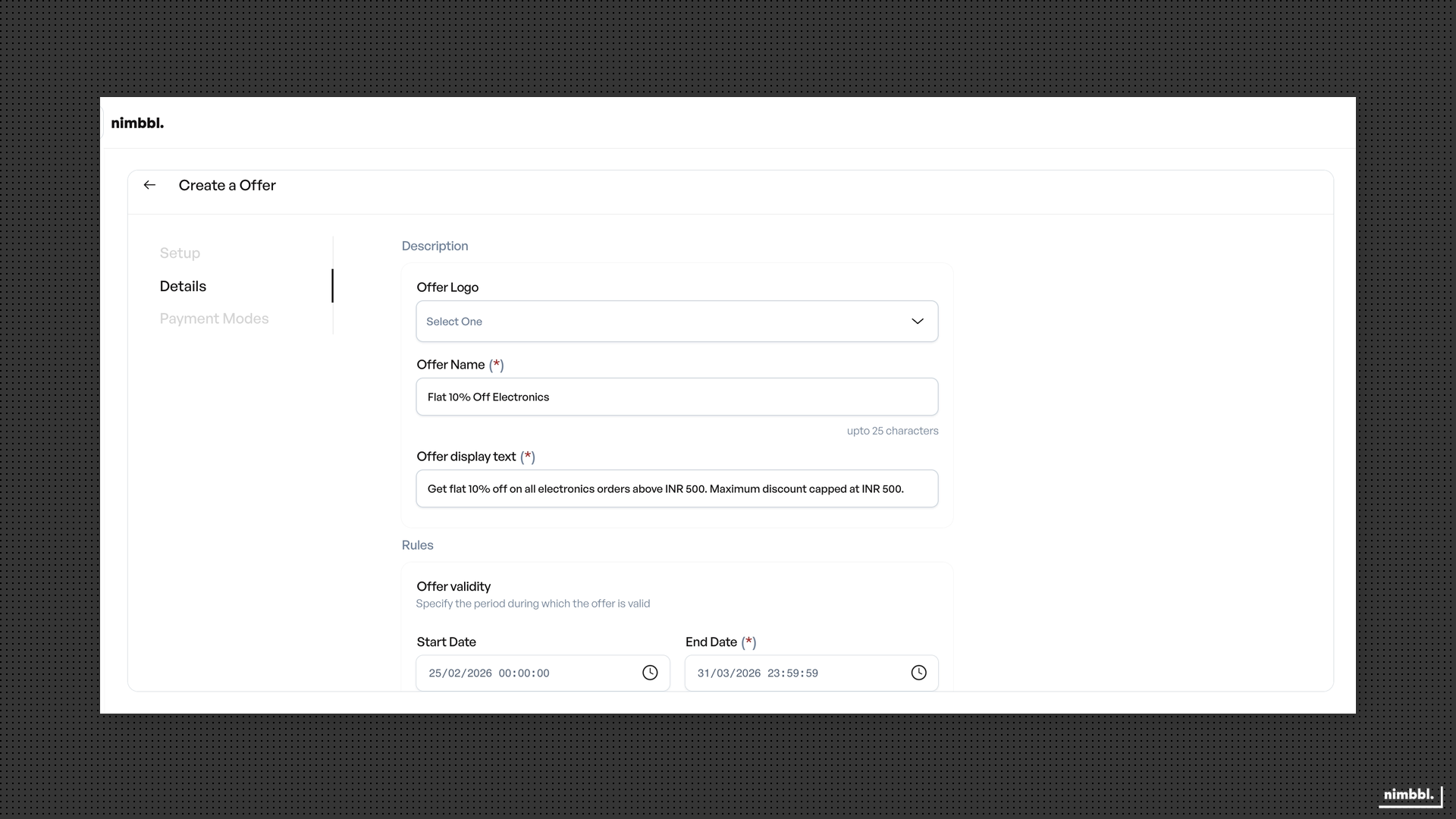
Required Fields
- Sub-merchant -- select the sub-merchant (filtered by your access).
- Offer name -- required, up to 25 characters, unique per sub-merchant.
- Offer display text -- required; shown to customers at checkout.
- Currency -- required; only active currencies are available.
- Offer type -- discount or cashback.
- Construct -- fixed percentage, flat amount, or random.
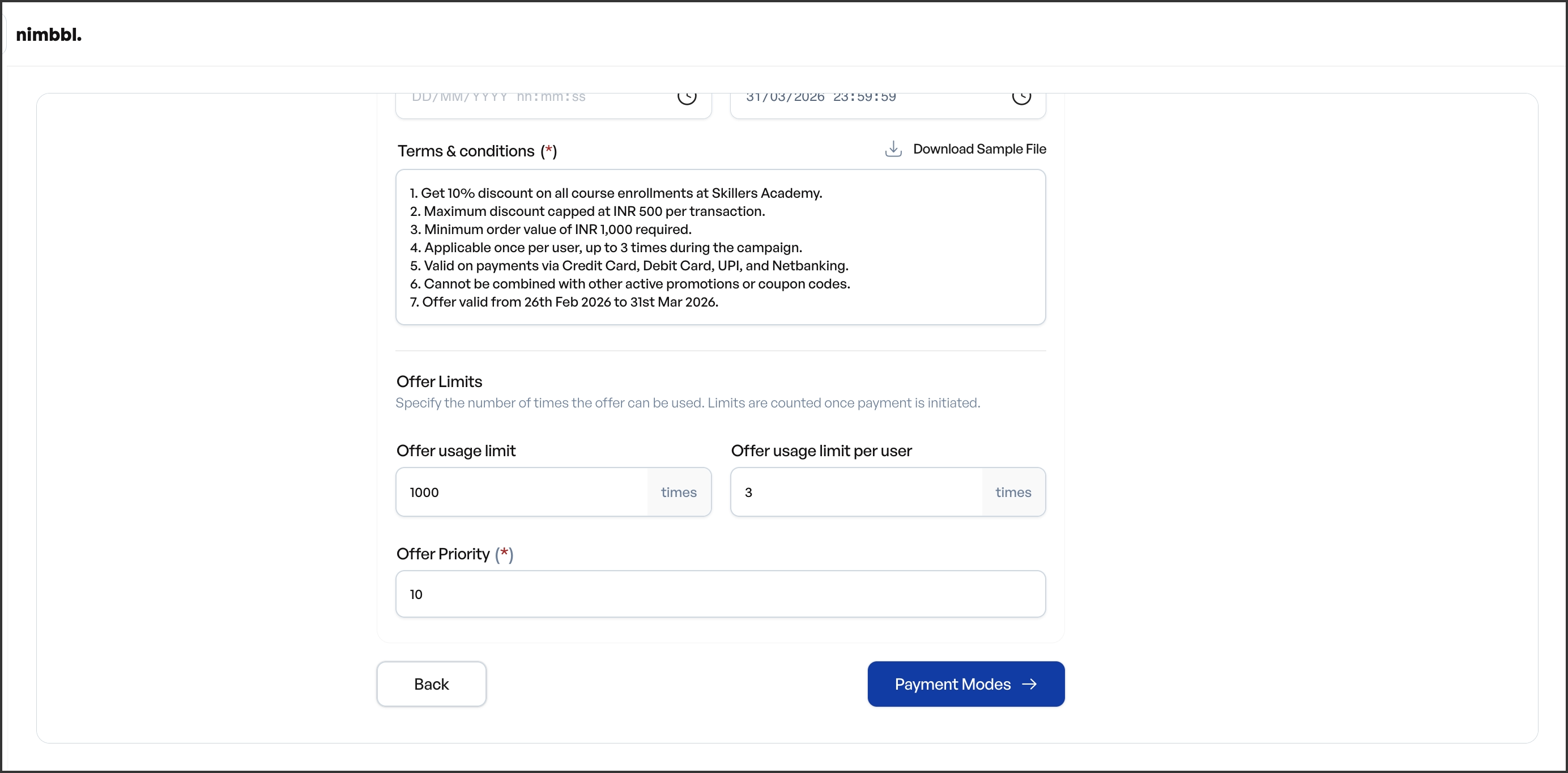
- Priority -- required, must be greater than 0, unique among active offers for the same sub-merchant.
- Validity period -- start date and end date (end date must be on or after the start date).
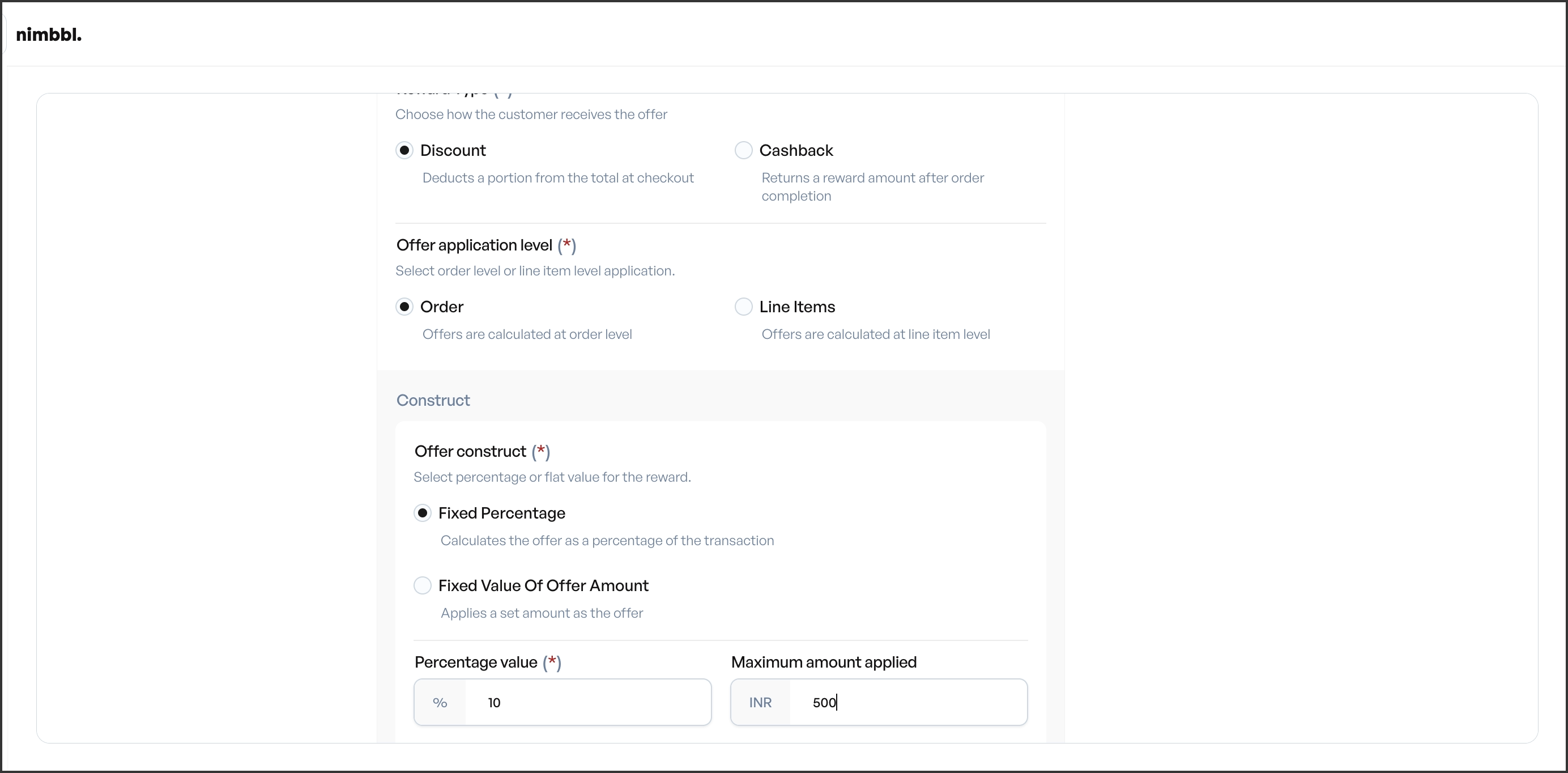
Offer Type and Construct
Select the application level (order or line items), then choose the offer type (discount or cashback) and construct (how the value is calculated):
- Fixed percentage -- enter a percentage value. You can set a minimum and maximum offer amount to cap the discount or cashback.
- Flat amount -- enter a fixed amount.
- Random -- enter a minimum and maximum range (available for cashback offers).
Order Constraints
Optionally set minimum and maximum order amount and quantity. If you set a maximum, it must be greater than or equal to the minimum.
Additional Fields
- Logo -- optional, select from the logo library.
- Terms and conditions -- optional text shown to customers.
- Coupon code -- optional; if provided, must be unique.
Payment Mode Configuration
The Payment Modes tab controls which payment modes the offer applies to.
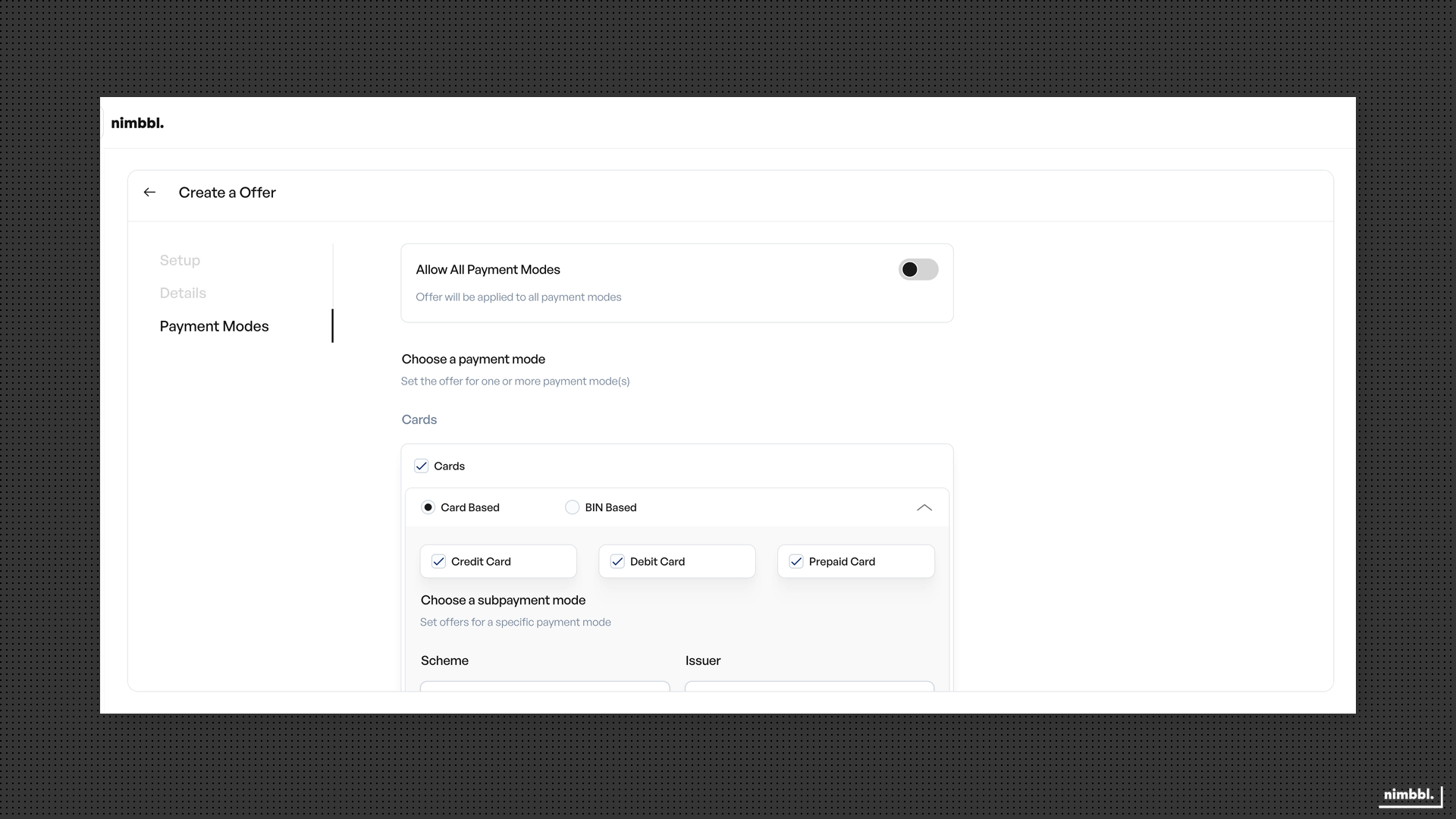
- All payment modes -- toggle on to allow all methods.
- Specific payment modes -- toggle off the "all" option, then enable and configure individual modes (Cards, UPI, Netbanking, Wallets, Pay Later, Card EMI).
For detailed targeting rules (card networks, BIN lists, UPI flows, bank selection), see Payment Mode Targeting.
Setup Details
The Setup tab configures usage limits and product scope.
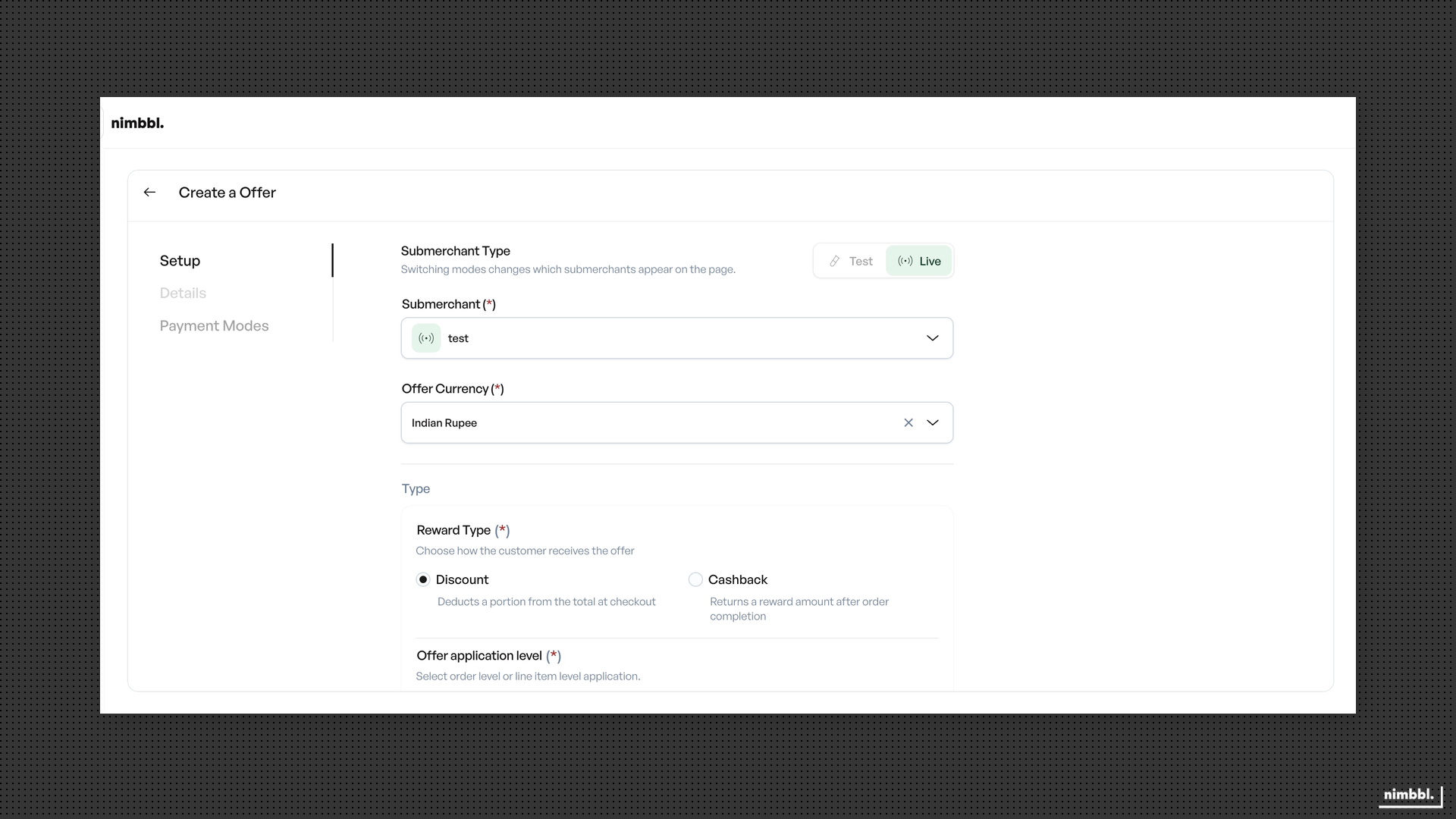
Usage Limits
- Max usage -- total redemptions allowed (0 = unlimited).
- Max usage per user -- limit per customer (0 = unlimited).
- Max usage per card -- limit per card (0 = unlimited).
- Max usage per UPI ID -- limit per UPI ID (0 = unlimited).
Product Scope
- All products -- offer applies regardless of cart contents.
- Specific products -- add SKUs and optionally set per-product constraints (min/max amount, min/max quantity).
For detailed product rules and line-item configuration, see Product Configuration.
After completing all three tabs, save the offer. It will be created with a Created status. To make it live, activate it from Managing Offers.